> ## Documentation Index
> Fetch the complete documentation index at: https://bytebeam.io/docs/llms.txt
> Use this file to discover all available pages before exploring further.
# Receiving Actions
Subscribe to `/tenants/{tenant_id}/devices/{device_id}/actions` to receive actions and publish the reponse to
`/tenants/{tenant_id}/devices/{device_id}/action/status` in JSON array format.
# Introduction
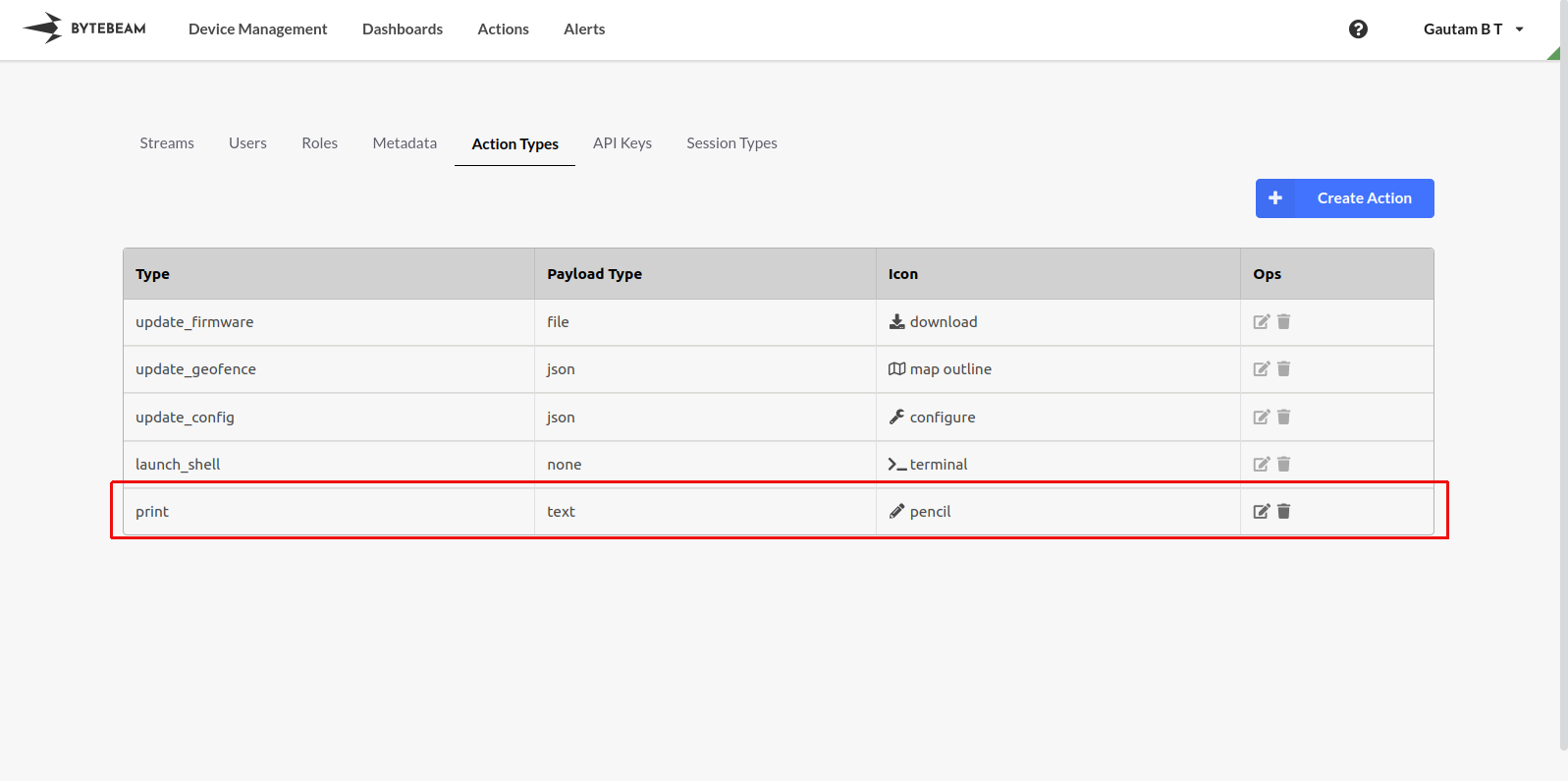
To trigger an action from the cloud follow the guides on [Creating new Action Types](/platform-guide/actions/action-settings/creating-an-action-type) and [Triggering an Action](/platform-guide/device-management/triggering-ota-update). Let us assume an action called `print` has been created that prints the payload:
### Receiving Action
[Actions](/platform-guide/actions/action-details/introduction) or commands can be received from Bytebeam by **subscribing** to the actions MQTT topic:
```
/tenants/{tenant_id}/devices/{device_id}/actions
```
Replace `{tenant_id}` with your project name and `{device_id}` with the device id.
*A device should only subscribe to the topic with tenant it is connected*.
**\_Device will be disconnected** if device connected to tenant `demo`, tries to subscribe to topic with other tenant, say `mytenant`,
e.g. `/tenants/mytenant/devices/1/actions`
Once the action is triggered you will receive a message on MQTT:
```json theme={null}
{
"id": "3620695",
"name": "print",
"payload": "Hello World!",
}
```
here:
* `id`: An unique identifier generated for this event which will be used to ack back.
* `name`: Name of the action that is triggered
* `payload`: Optional payload that is provided while triggering the action
### Responding to Action with Action Status
We need to send a response back to the cloud to indicate progress of executing the command. This response must be published to:
```
/tenants/{tenant_id}/devices/{device_id}/action/status
```
And the payload should look like this:
```json theme={null}
[
{
"action_id": "3620695",
"timestamp": 1710774583249,
"sequence": 123,
"state": "Completed",
"errors": [],
"progress": 100
}
]
```
In the above action response:
* `id`: Must be a string and the same `id` which was received with action
* `timestamp`: Timestamp in milliseconds
* `state`: can be any text to indicuate current status.
e.g. A long running commands, like OTA, might have multiple states "Downloading", "Updating ECU 1", "Updating ECU 2" so on so forth as statuses.
`"Failed"` and `"Completed"` are special terminal states that indicate that the action is complete
* `errors`: is an array of strings and is looked at *only if the `state` is sent as `"Failed"`*. The UI displays these errors. e.g. `["File not found"]`
* `progress`: Percentage in range 0 to 100 indicating progress within a given state. e.g. if `state` is "Downloading" and `progress` is 50 it means 50% of Downlaod is complete.
`progress` is ***ignored*** if `state` is `"Completed"` or `"Failed"`
For long running actions, periodically send the action status.
Sending action status as `"Received"` to notify the server that the action is received is optional but a good practice.
Send `"Completed"` or `"Failed"` status at the end of the action.
# Receiving actions using MQTTX
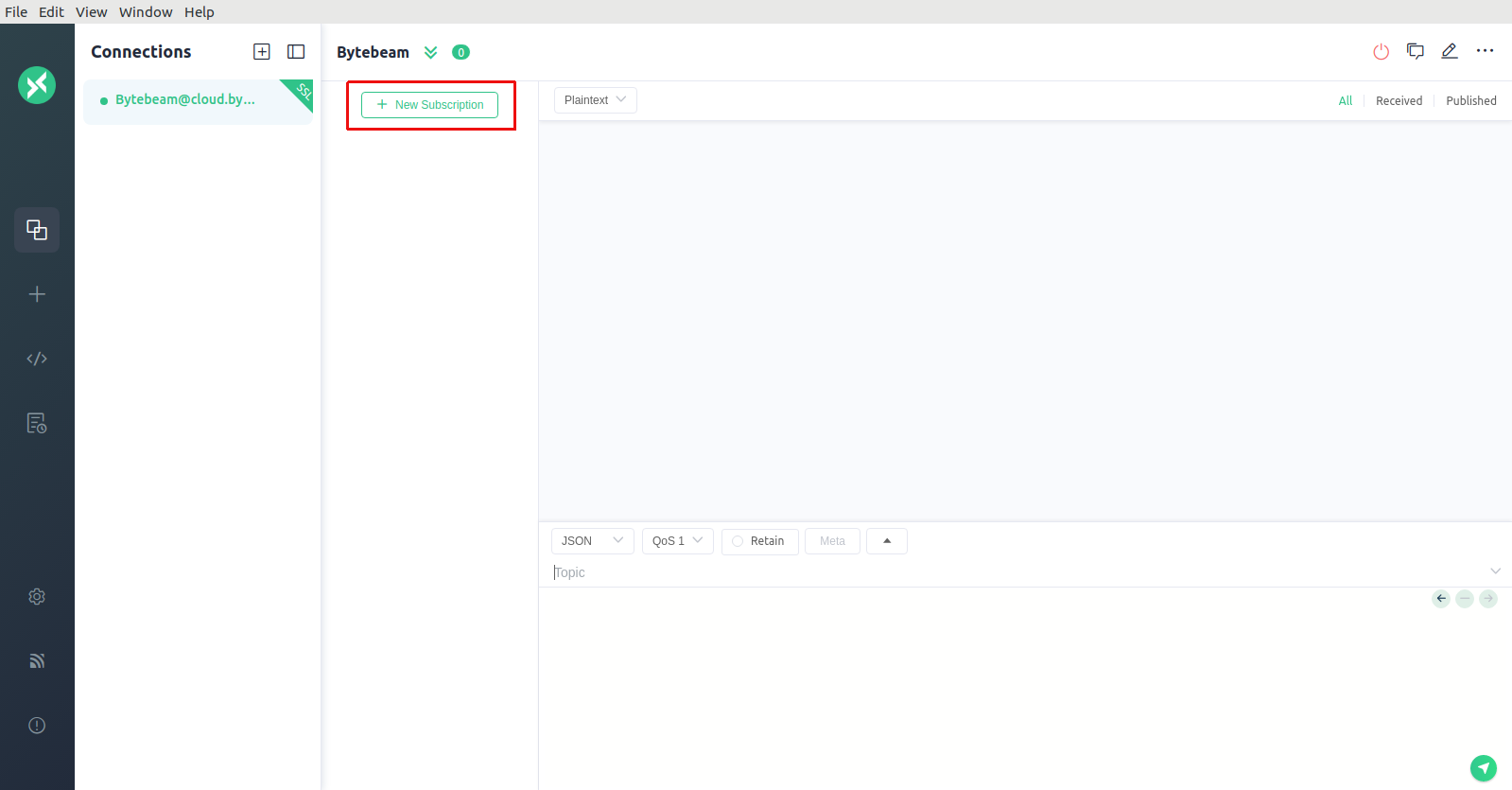
Open MQTTX and click on the `+ New Subscription` button:
Enter the topic (Replace tenant and device\_id) and set QoS to 1:
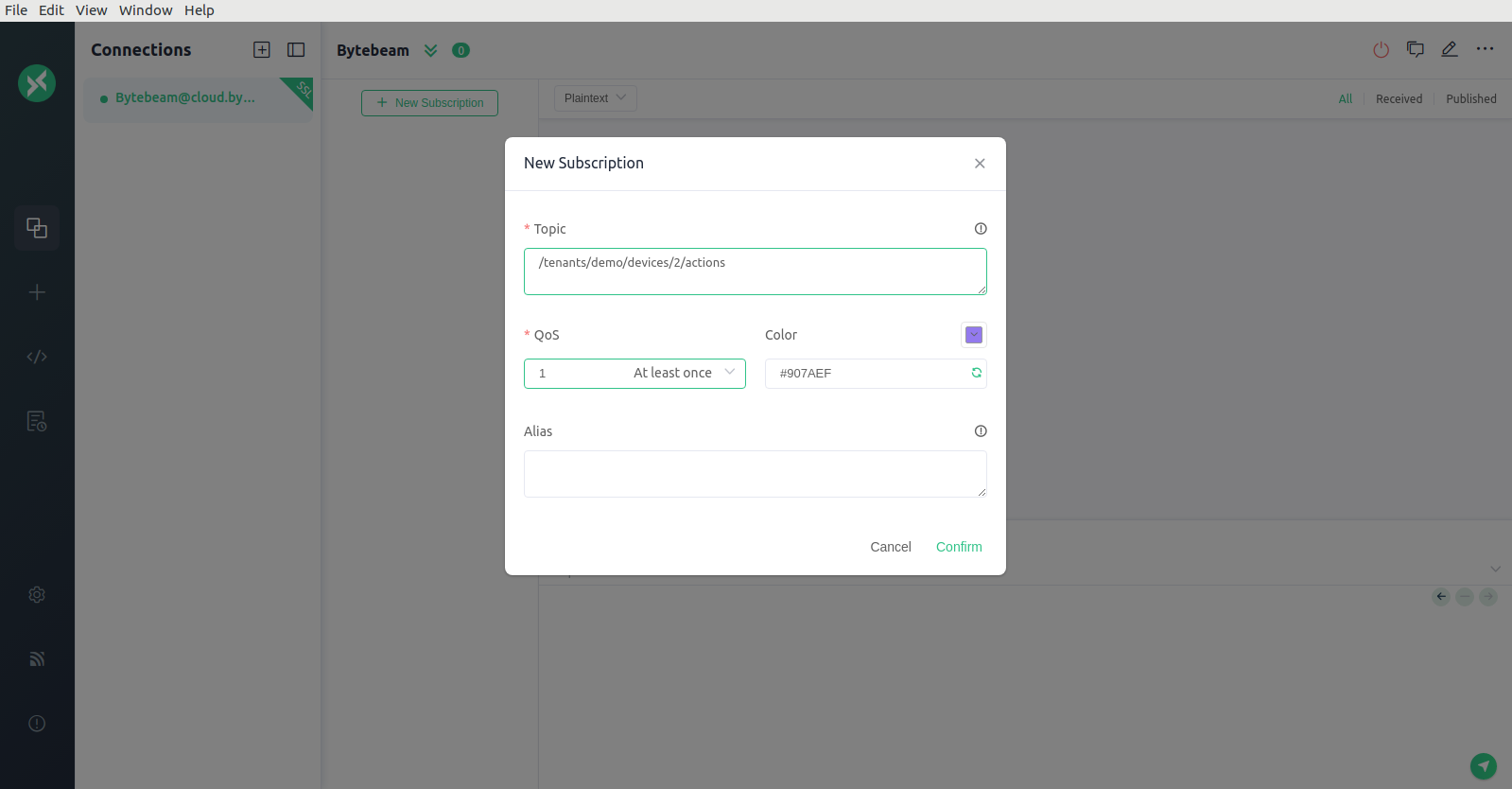
Hit confirm. You should see the subscription now:

From the device management screen on your project trigger the print command:
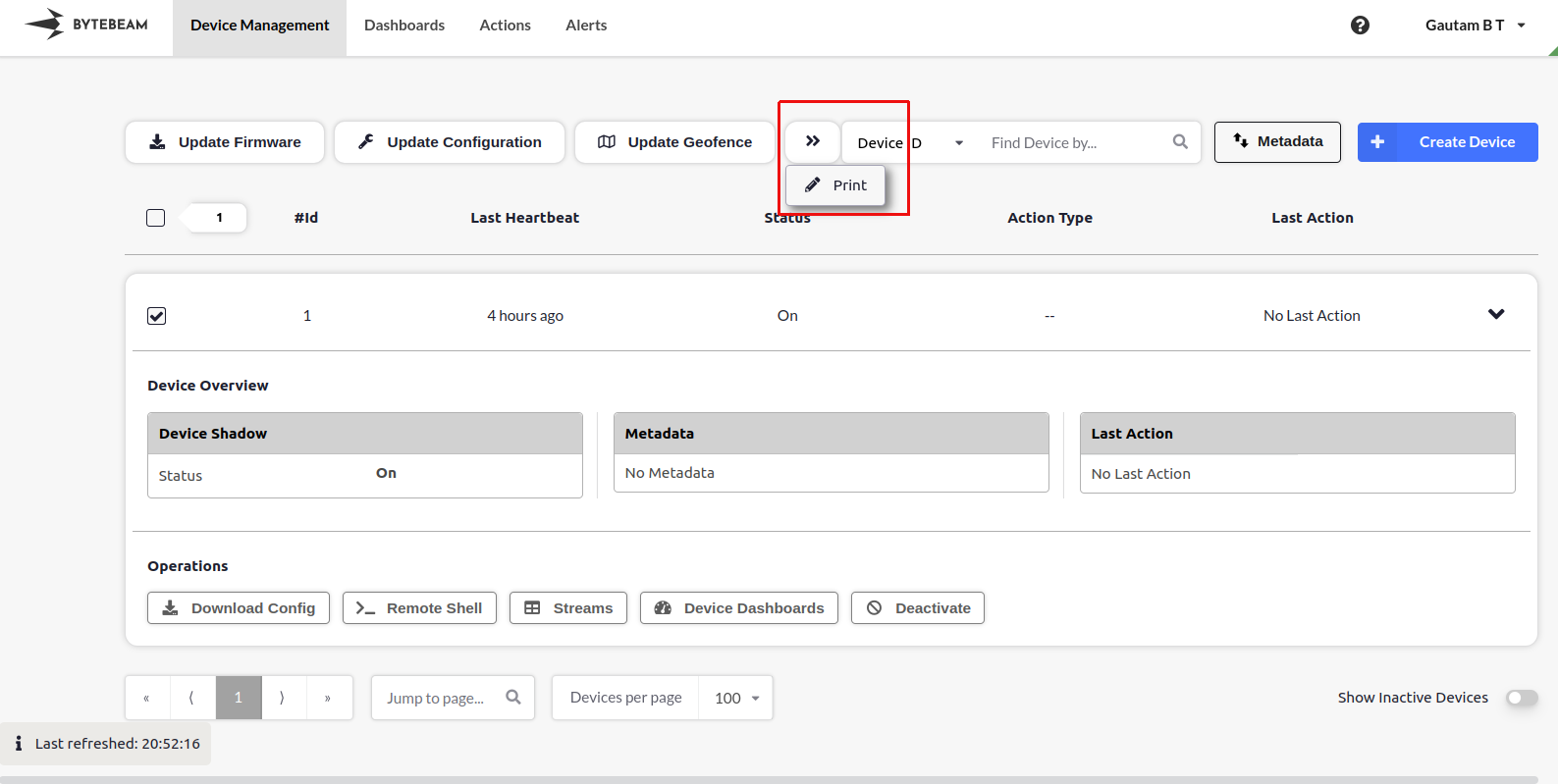
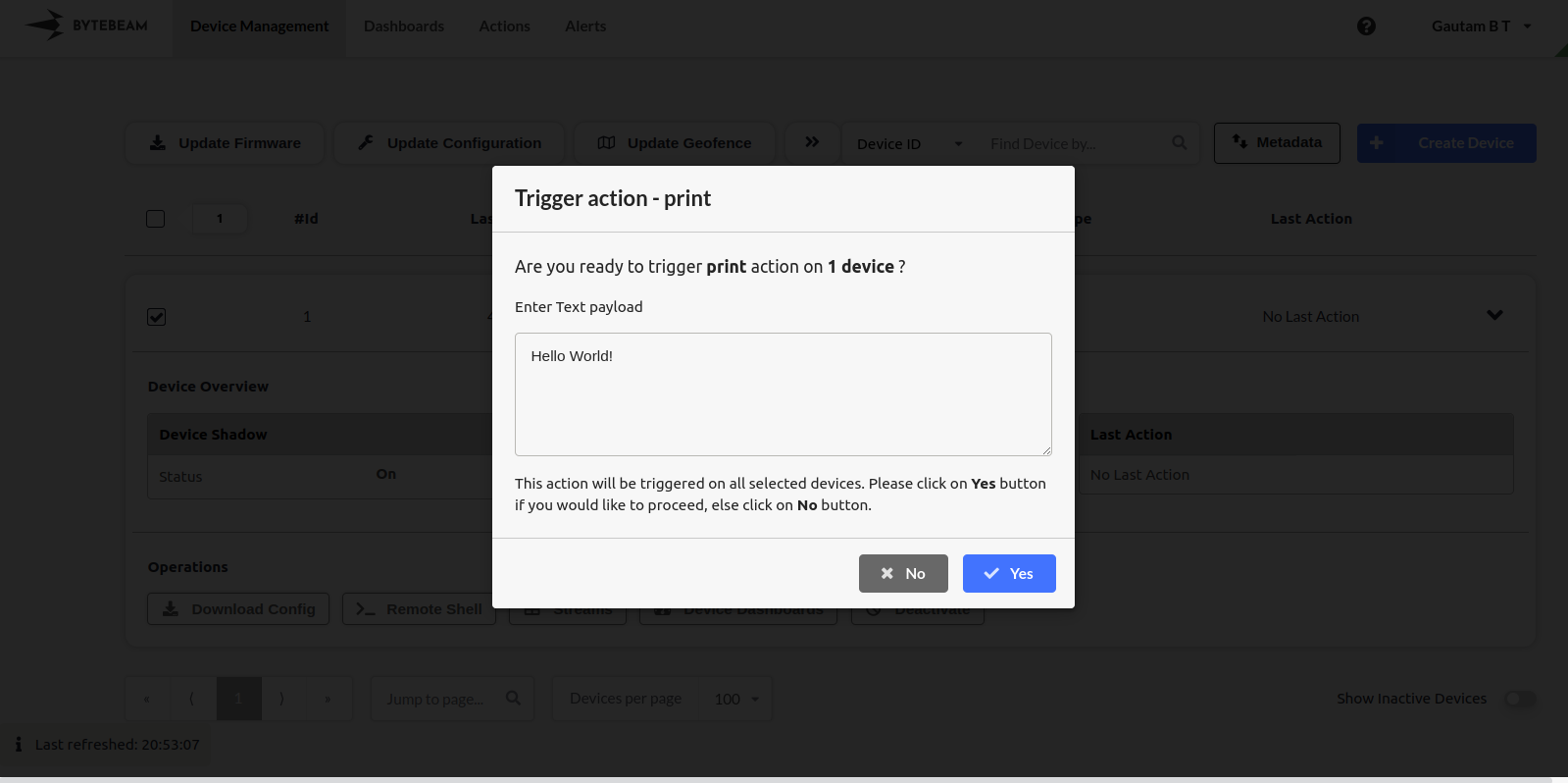
This will open up a dialog as shown below. Enter payload and click on "Yes":
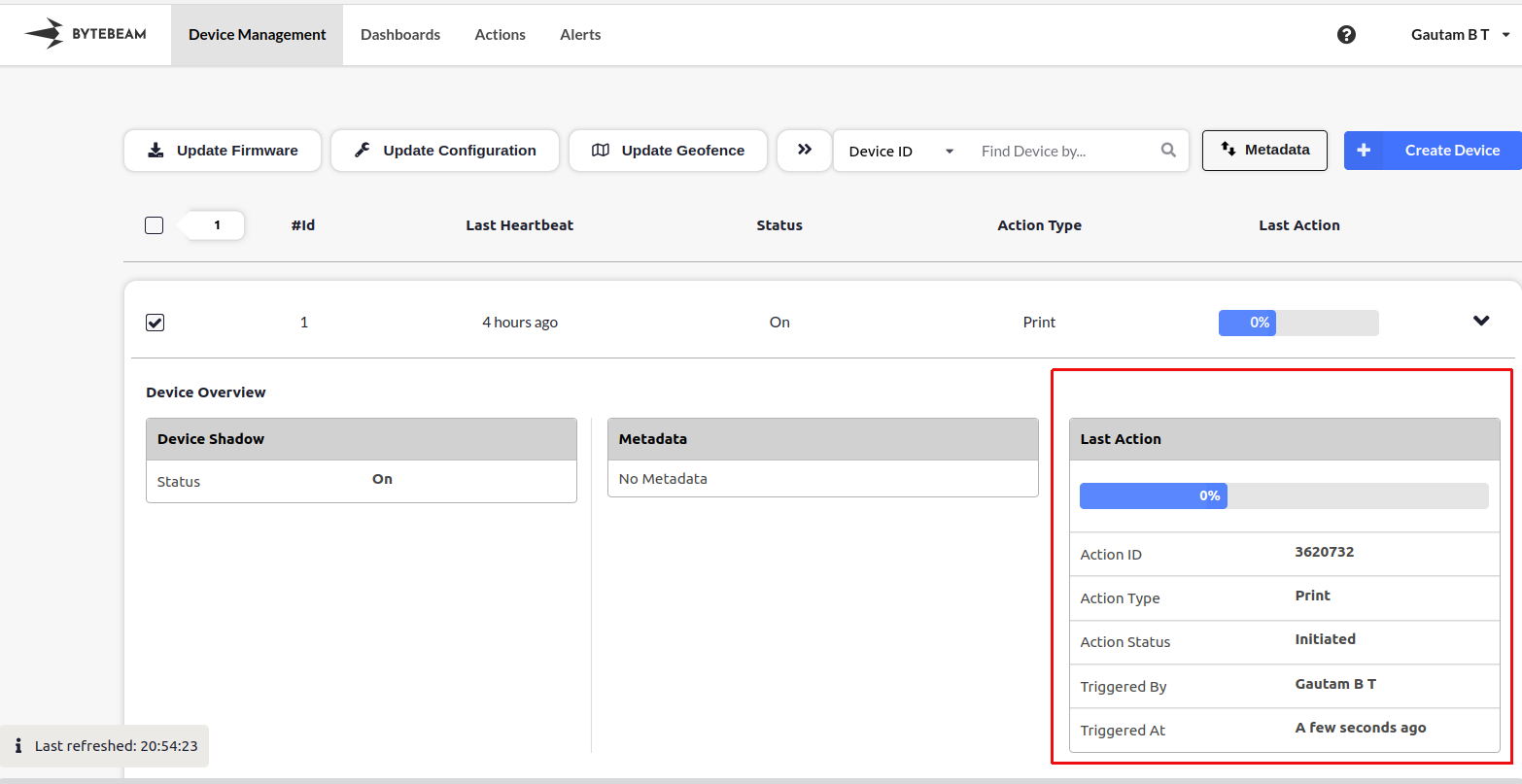
You will see the action get created with status as "Initiated"
On MQTTX you should now receive a message like below:

Notice the id in the payload matches the id on the you see on the UI. Ignore the additional field `kind`. That field has been deprecated.
You can send progress back as shown below:
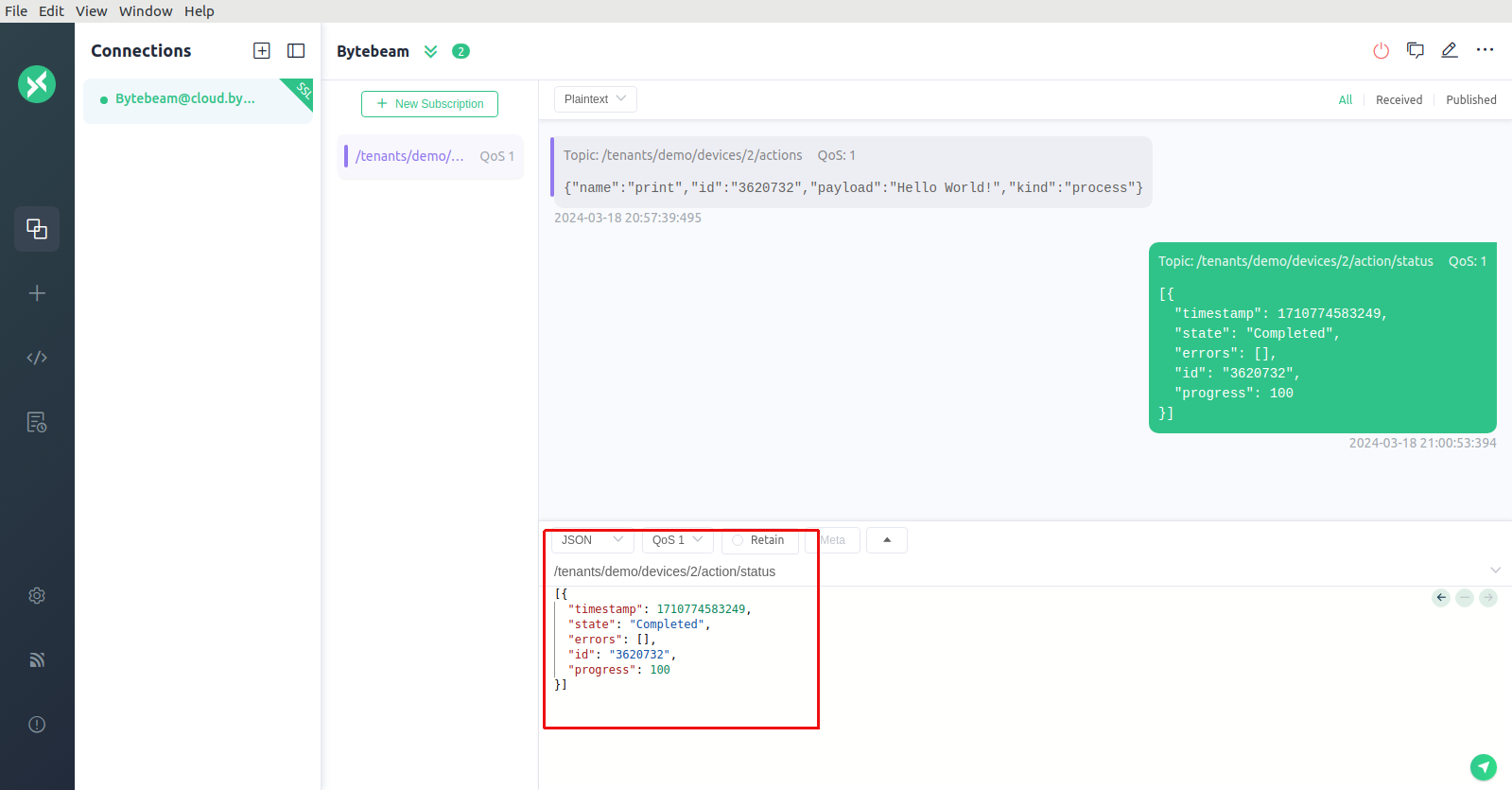
Do not forget to set the id to what was received in the message by you and also change `demo` and device id `2` to your tenant and device id
You should now be able to see the action as completed on the UI
