> ## Documentation Index
> Fetch the complete documentation index at: https://bytebeam.io/docs/llms.txt
> Use this file to discover all available pages before exploring further.
# Raspberry Pi
> Learn how to set up a Raspberry Pi with this step-by-step document. Find out which components you need and how to install the rpi-imager software to select the operating system for your Pi. Get instructions on flashing the image to the SD card, setting up partition schema.
# Selecting the OS
This section explains how to do an initial setup, for an off-the-shelf Raspberry Pi. To get started, the following things are needed.
1. Raspberry Pi Board (In this example we use Raspberry Pi Model 3B+).
2. An SD Card (of size 64GB)
3. An adapter for power supply (with at least 15W of power)
4. ByteBeam RPI image
ByteBeam RPI image can be downloaded from [this](https://drive.google.com/file/d/1fdH88IS-wuUvqT6SPsIt7Vmy3tzezECW/view?usp=sharing) link.
Install the RPI-imager software by following the instructions in [this](https://www.raspberrypi.com/software/) link.
Once the installation is done, connect the SD card to the Linux machine and launch the RPI-imager software. To do so, simply type in rpi-imager on the terminal.
```shell theme={null}
sudo rpi-imager
```
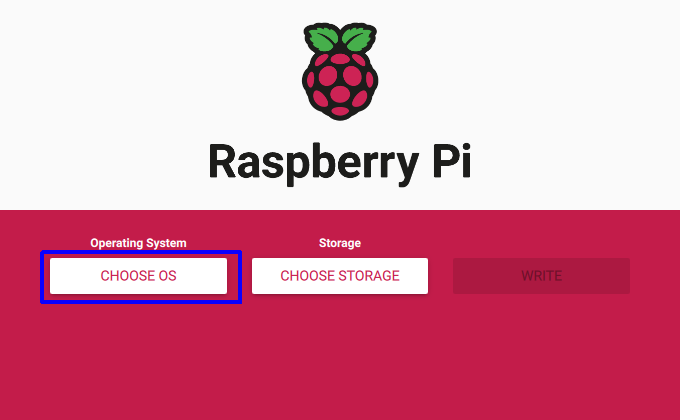
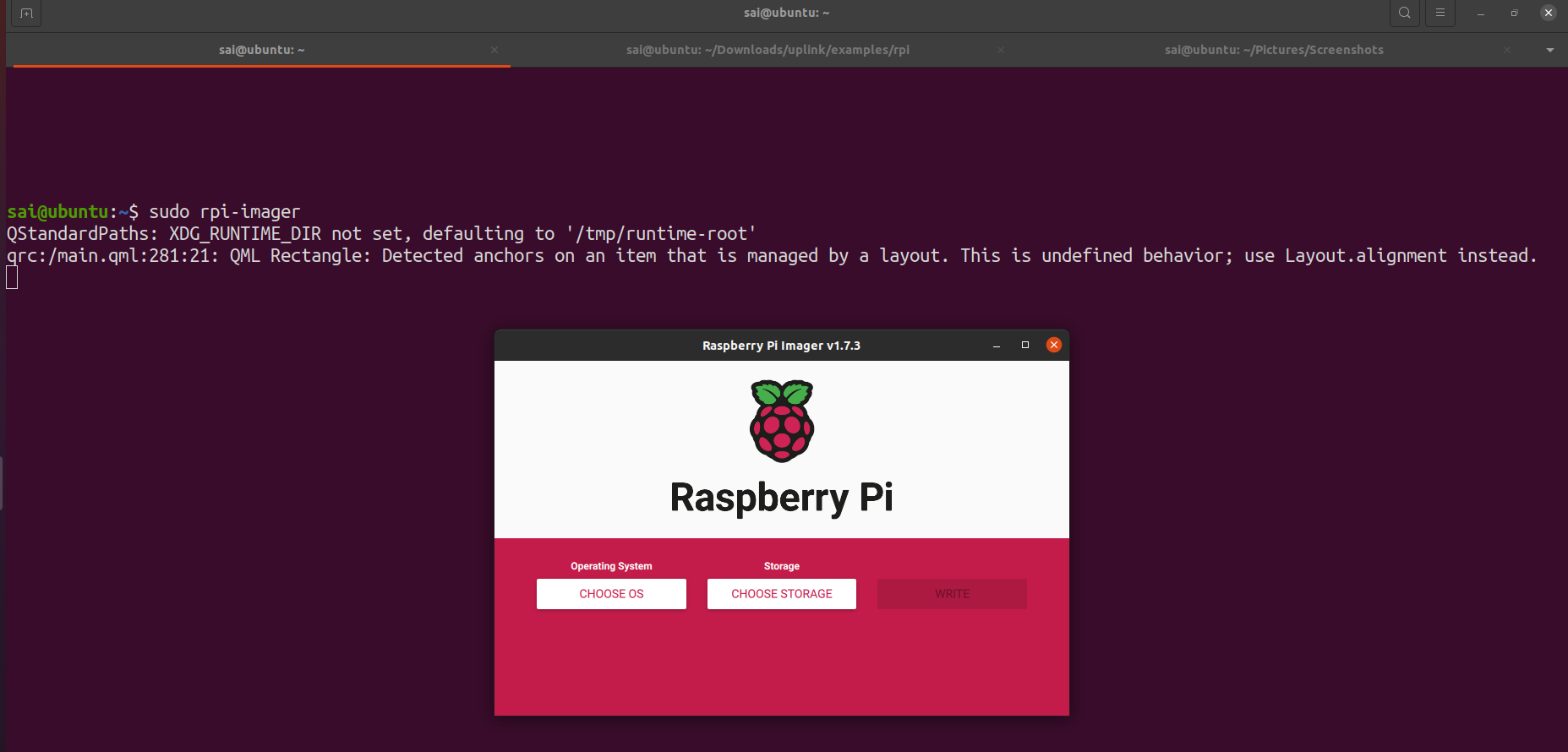 Then click on Choose OS. A new window will open up, that has the list of all available Operating Systems for the Raspberry Pi.
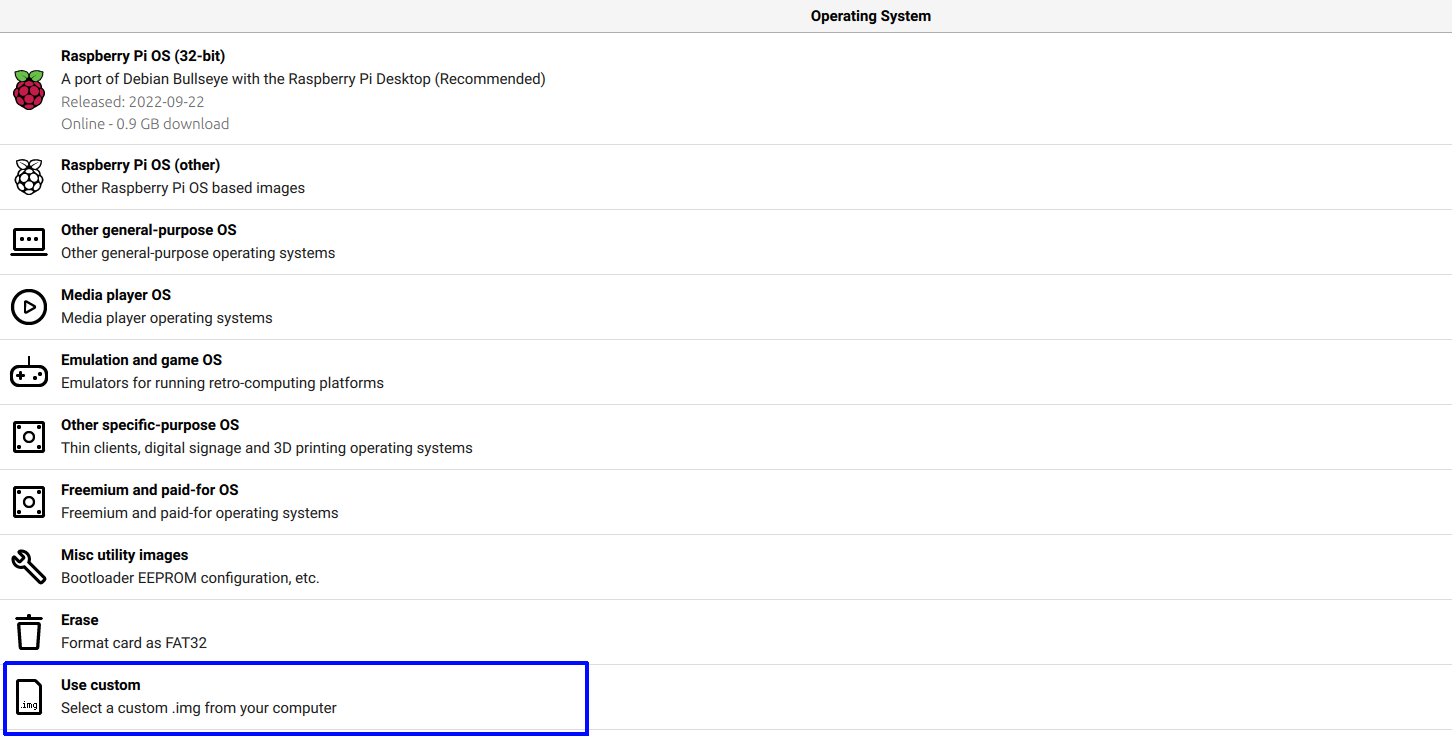
 Select the Custom Image option.
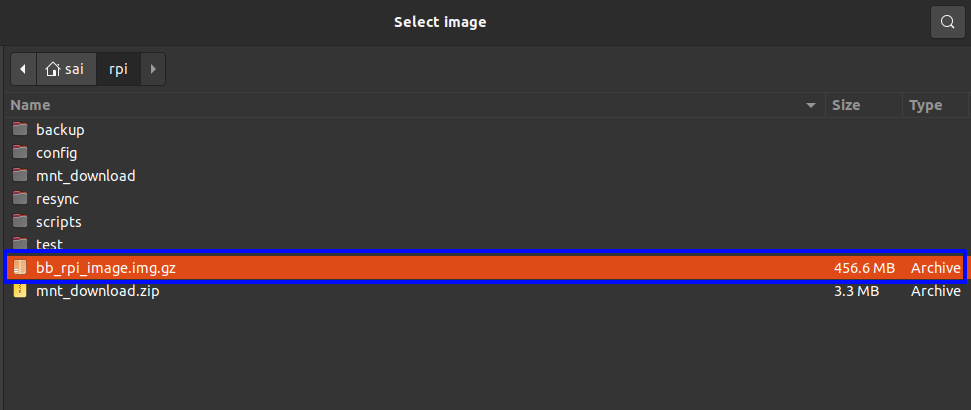
 Select the downloaded ByteBeam RPI image.
 # Flashing the image to the SD Card
Using RPI-imager, it’s possible to enable SSH, set a username and password for the Pi, and also input the WiFi credentials. Click on the settings icon on the rpi-imager GUI.
# Flashing the image to the SD Card
Using RPI-imager, it’s possible to enable SSH, set a username and password for the Pi, and also input the WiFi credentials. Click on the settings icon on the rpi-imager GUI.
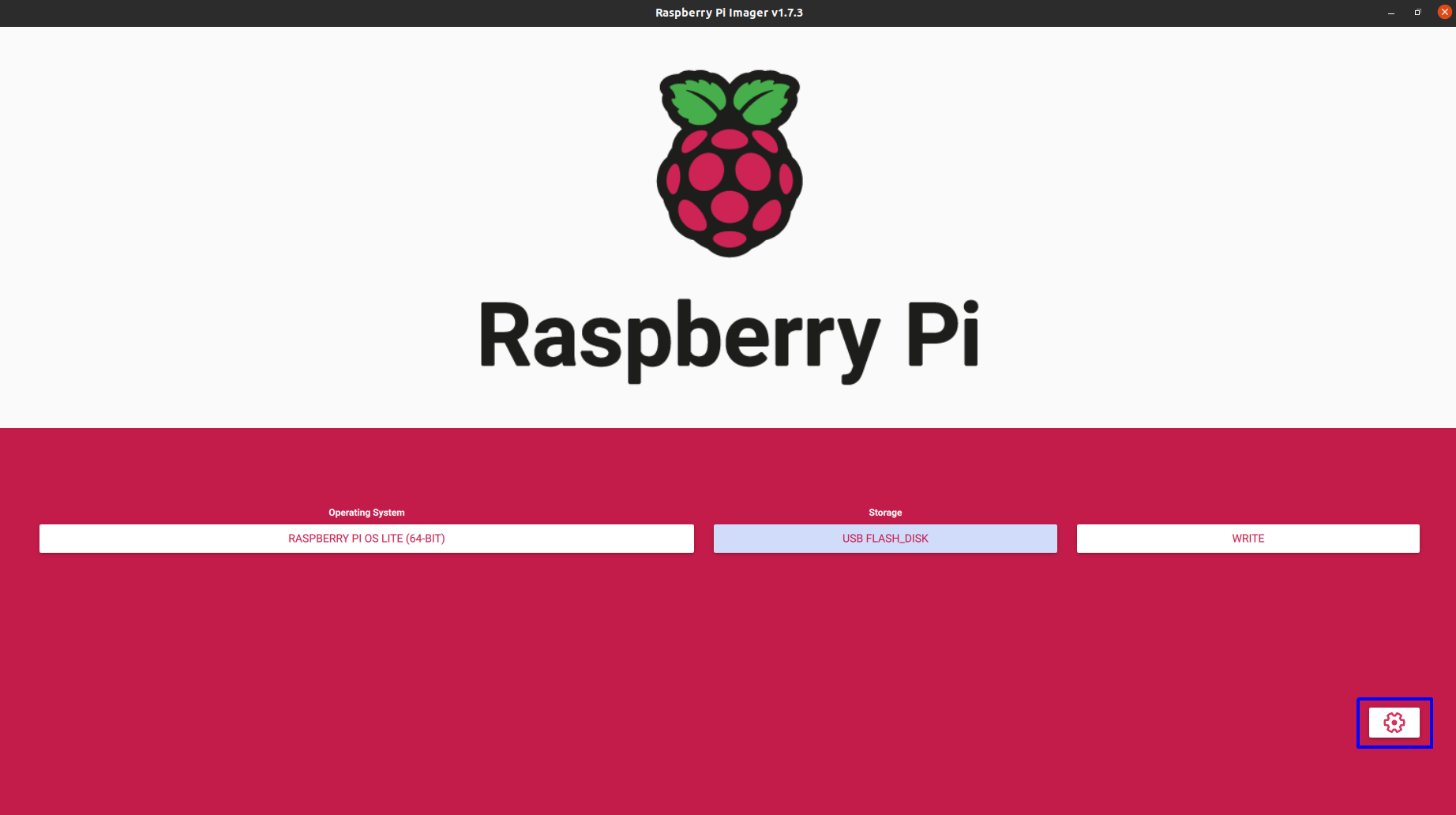 Setup the necessary configurations.
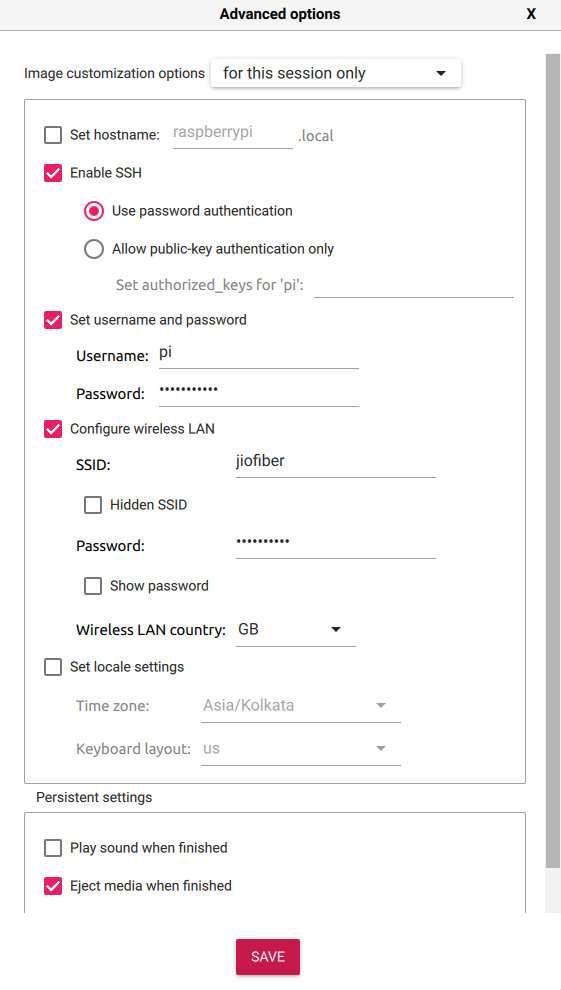 Save the configuration and click on Write, for the image to be flashed on the SD Card.
# Partition Schema
The SD Card is now setup to contain 4 partitions.
1. Partition 1 - Boot partition (/dev/mmcblk0p1)
2. Partition 2 - Root partition 1 (/dev/mmcblk0p2)
3. Partition 3 - Root partition 2 (/dev/mmcblk0p3)
4. Partition 4 - Download partition (/dev/mmcblk0p4)
Save the configuration and click on Write, for the image to be flashed on the SD Card.
# Partition Schema
The SD Card is now setup to contain 4 partitions.
1. Partition 1 - Boot partition (/dev/mmcblk0p1)
2. Partition 2 - Root partition 1 (/dev/mmcblk0p2)
3. Partition 3 - Root partition 2 (/dev/mmcblk0p3)
4. Partition 4 - Download partition (/dev/mmcblk0p4)
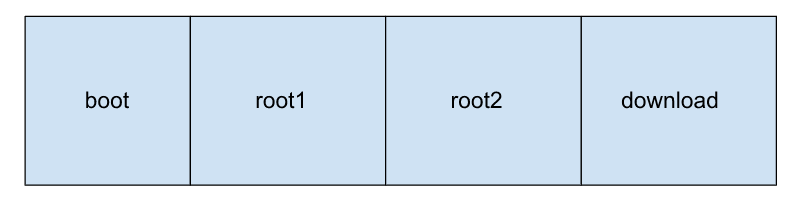 At any given point in time either "Partition 2" or "Partition 3" will be the active rootfs partition, and the other partition is referred to as the inactive partition. The download partition is where application data is stored. During kernel & rootfs updates, the contents of inactive partitions are replaced with the new rootfs.
Once the flashing is complete, insert the SD card into the Pi and power on the Pi. If everything is alright, the Pi can be accessed either through SSH or via UART. Refer to [this](https://emteria.com/kb/connect-uart-rpi) link on how to connect the Pi to the system via UART.
# SDK Setup
Once the Pi is up run the below one-time setup script. This script installs Bytebeam's Linux agent [uplink](https://github.com/bytebeamio/uplink) as well as scripts required for over-the-air updates
***
```shell theme={null}
sudo curl --proto '=https' --tlsv1.2 -sSf https://raw.githubusercontent.com/bytebeamio/uplink/main/scripts/one_time_setup.sh | sudo bash
```
At any given point in time either "Partition 2" or "Partition 3" will be the active rootfs partition, and the other partition is referred to as the inactive partition. The download partition is where application data is stored. During kernel & rootfs updates, the contents of inactive partitions are replaced with the new rootfs.
Once the flashing is complete, insert the SD card into the Pi and power on the Pi. If everything is alright, the Pi can be accessed either through SSH or via UART. Refer to [this](https://emteria.com/kb/connect-uart-rpi) link on how to connect the Pi to the system via UART.
# SDK Setup
Once the Pi is up run the below one-time setup script. This script installs Bytebeam's Linux agent [uplink](https://github.com/bytebeamio/uplink) as well as scripts required for over-the-air updates
***
```shell theme={null}
sudo curl --proto '=https' --tlsv1.2 -sSf https://raw.githubusercontent.com/bytebeamio/uplink/main/scripts/one_time_setup.sh | sudo bash
```