> ## Documentation Index
> Fetch the complete documentation index at: https://bytebeam.io/docs/llms.txt
> Use this file to discover all available pages before exploring further.
# Editing an Action Type
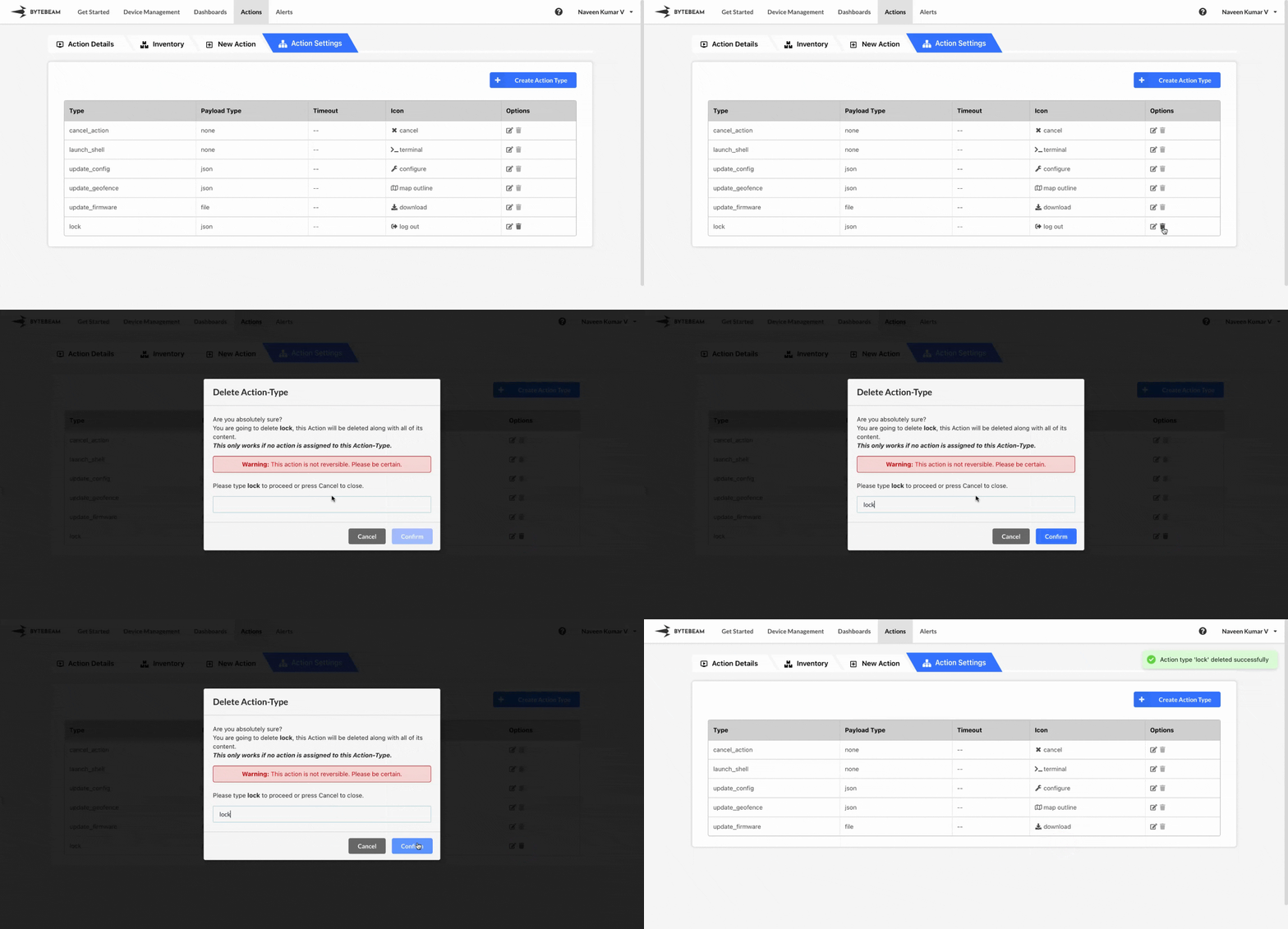
To edit the existing action type in Bytebeam console,
Navigate to the **Settings Tab** by clicking on your username at the top right
Navigate to the **Action Types** tab and click on the **edit** icon against the target action type
Select the [payload](#payload-in-action-types), icon and the timeout duration and click on **Submit** button to edit the action type.
Only timeout duration can be changed for default action types like update\_firmware, update\_config etc.
## Payload in Action Types
There are 3 payload options in 4 variations available.
You can choose this for action types like Shutdown which don't need any payload to be sent to the device while triggering the action.
You can choose this for action types which need the JSON payload to be sent to the device while triggering the action.
You can choose this for action types like Update CAN Config which enables the JSON data to be sent via form to the device while triggering the action.
To choose this option, choose **JSON** option from the dropdown, enable the **Allow user to input data via form** toggle and enter the **JSON Schema** along with **JSON UI Schema** while creating or editing the action type
You can choose this for action types which need the payload in text format to be sent to the device while triggering the action.