> ## Documentation Index
> Fetch the complete documentation index at: https://bytebeam.io/docs/llms.txt
> Use this file to discover all available pages before exploring further.
# Device Overview & Historical Action Management
You can view and manage all the historical actions from this section.
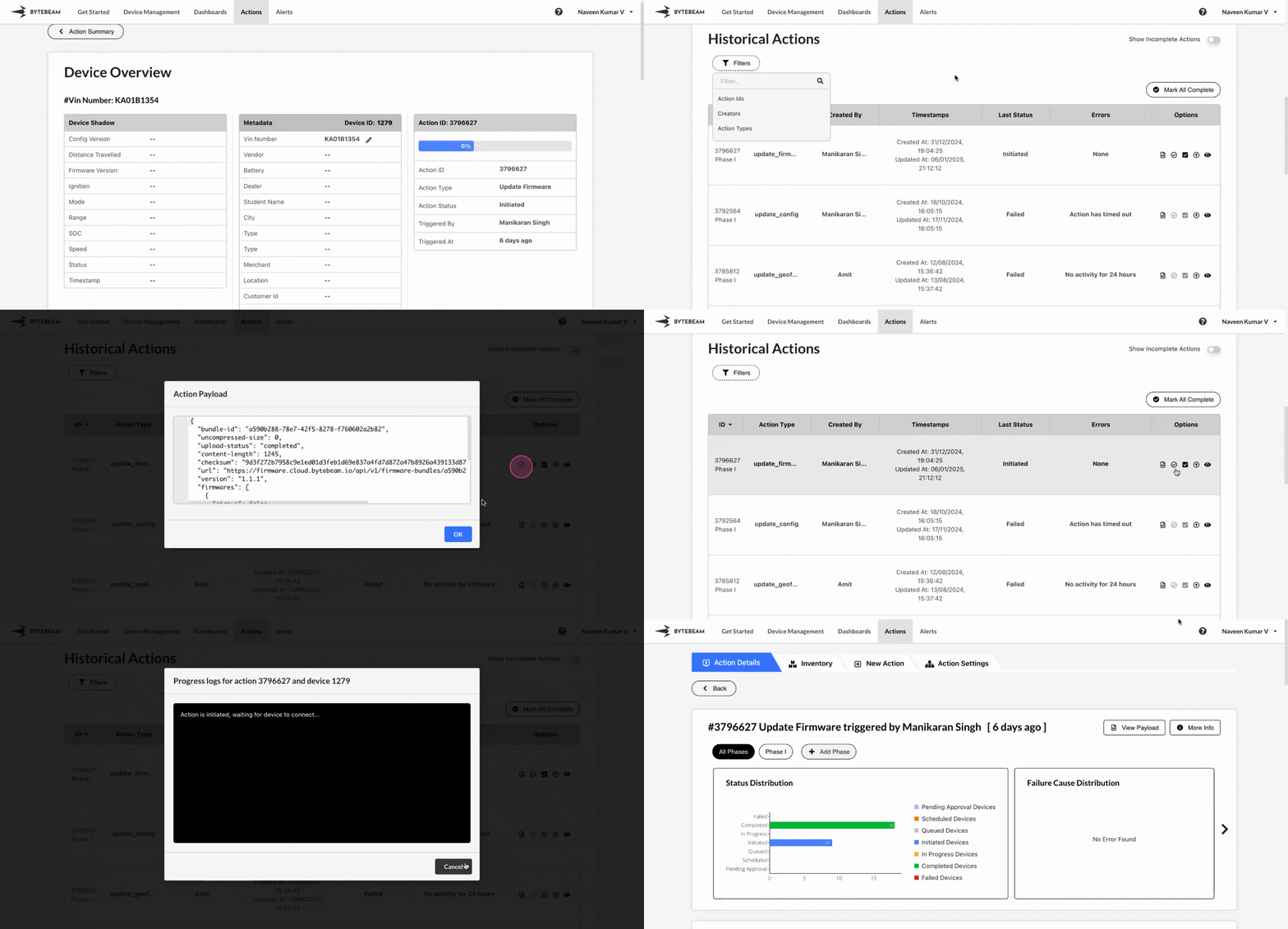
## Filters for Historical Actions
Locating a specific historical action can be tricky when there are numerous actions. The Bytebeam console provides a Filters option to streamline this process.
To apply filters to find a specific historical action, follow these steps:
Click on the **Actions** tab at the top.
Select an action from the **Actions List** and click on the **View Details** button at the top.
Click on the **Eye** icon next to any device in the Devices List.
Choose from Action Ids, Creators, or Action Types and select the appropriate option from the dropdown.
Click the dropdown to apply the filter.
Once applied, the selected filters will appear at the top with the corresponding keys and values.
You can use a combination of filters to narrow down your search to specific historical actions.
## Show Incomplete Actions
To view only incomplete historical actions, toggle the **Show Incomplete Actions** option.
## Mark All as Complete
You can mark all historical actions as completed for a specific device. Simply click on the **Mark All Complete** button and confirm the completion.
## Manage Historical Actions
For any historical action on a device, you can perform the following operations:
You can view the payload sent while triggering the selected action.
This option is disabled if the action has no payload type associated with it.
You can mark the selected historical action as completed on a specific device. Simply click the **Mark Action on Device as Completed** icon and confirm the action.
This option will be unavailable if the action has already been completed or failed.
You can mark the entire historical action as completed. Just click the **Mark Action as Completed** icon and confirm the action.
This option will be unavailable if the action is already completed or failed.
You can view the progress logs of the selected action by clicking the **Action Progress Logs** icon.
To see a detailed page of the historical action, which includes the list of devices on which the action was triggered, click the **More Details** icon.