> ## Documentation Index
> Fetch the complete documentation index at: https://bytebeam.io/docs/llms.txt
> Use this file to discover all available pages before exploring further.
# Creating a new Firmware File Version for Component
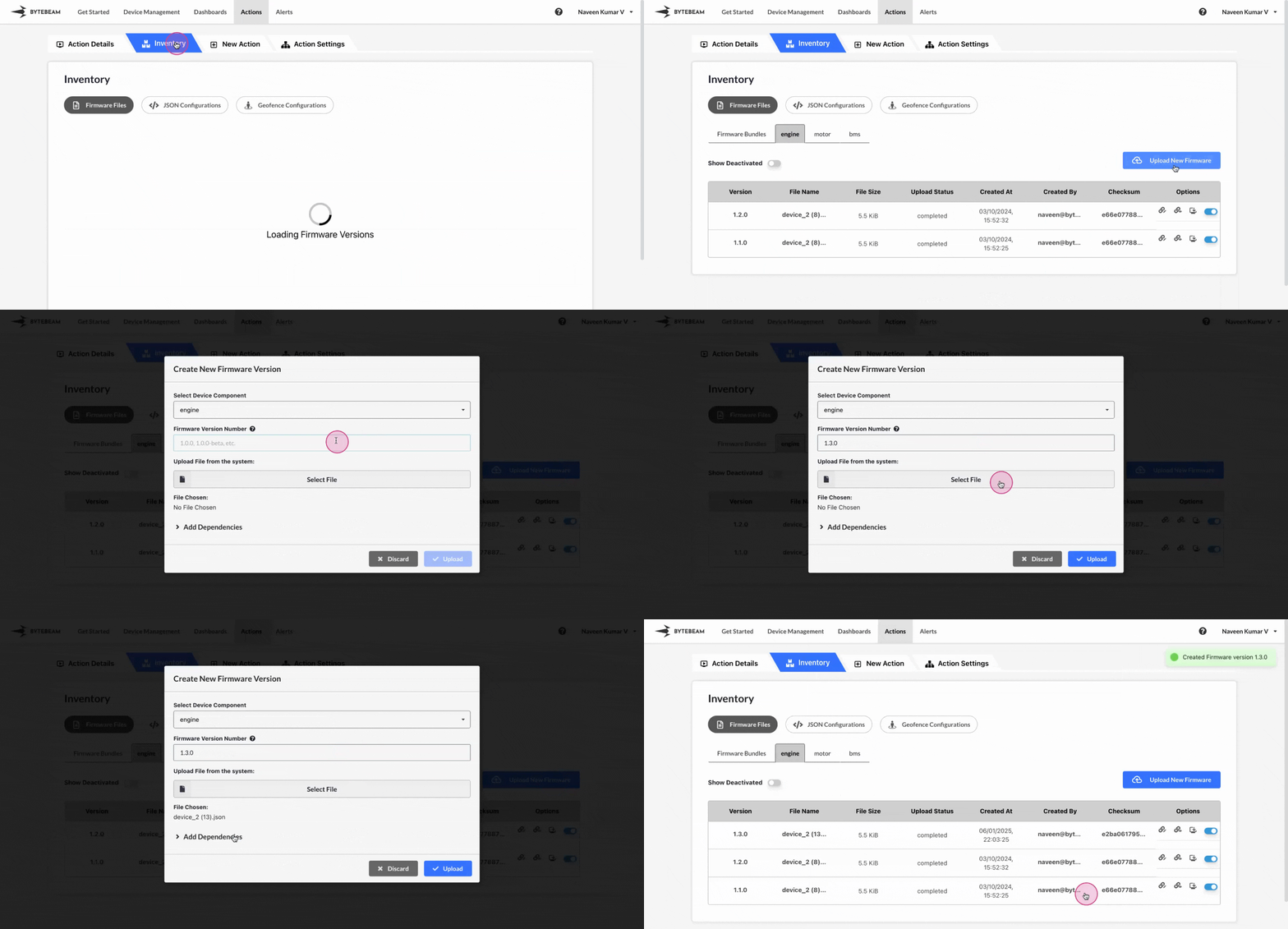
To create a new Firmware file version for a component in Bytebeam console,
Click on the **Actions** tab
Navigate to the **Firmware Files** tab by clicking on Inventory section
Click on **Firmware Files** tab, click on the desired **Device Component** tab and click on **Upload New Firmware** button
Enter details like version, upload the firmware file, enter uncompressed file size(Optional), add [dependencies](/platform-guide/actions/inventory-management/firmware-files/with-device-components/dependencies)(Optional) and click on **Create** button.
This new firmware version can be used to create a firmware bundle and can be applied to a device using the **update\_firmware** action type.