> ## Documentation Index
> Fetch the complete documentation index at: https://bytebeam.io/docs/llms.txt
> Use this file to discover all available pages before exploring further.
# Editing a Geofence Configuration version
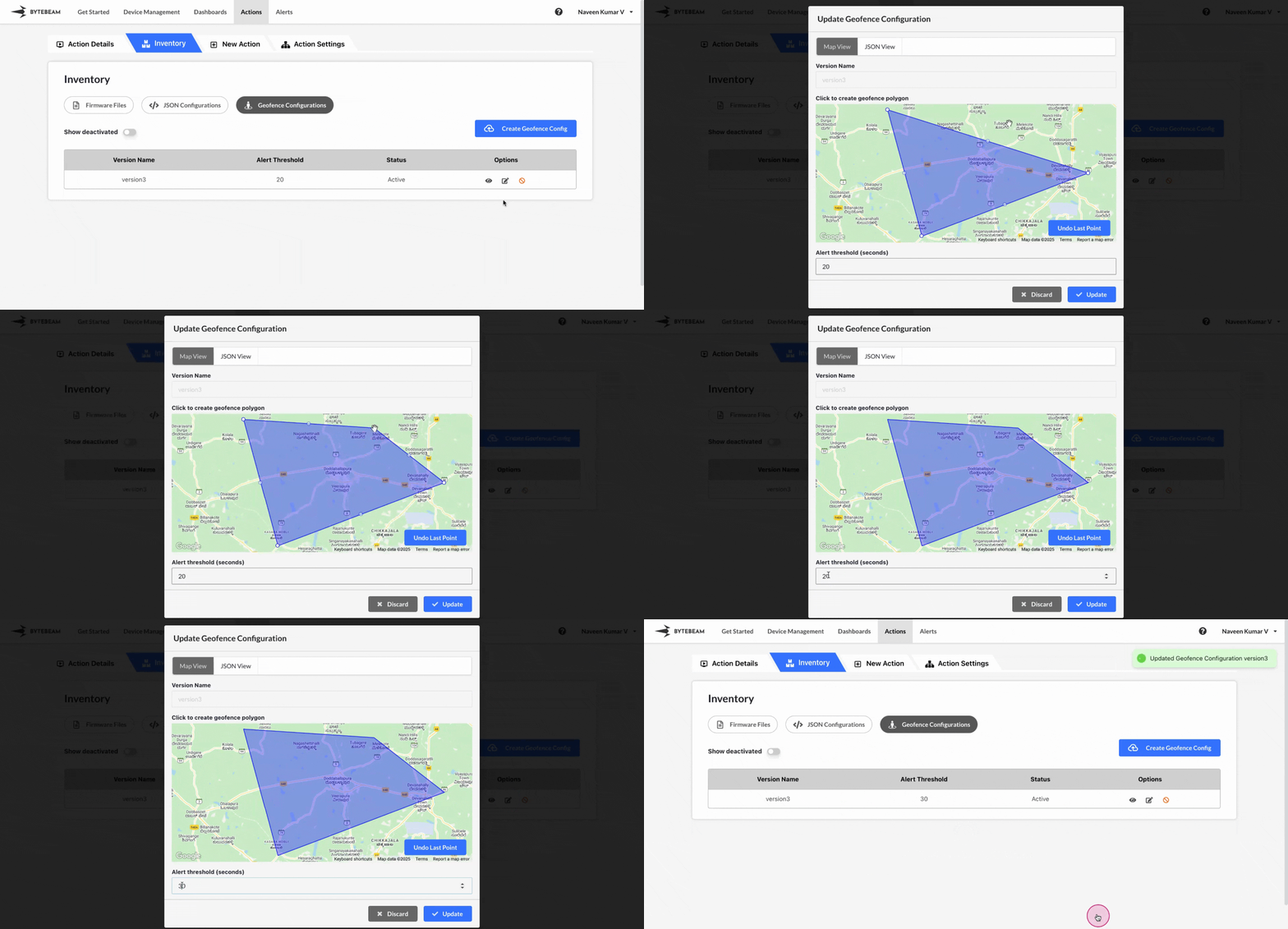
To edit a Geofence Configuration version in Bytebeam console,
Click on the **Actions** tab
Navigate to the **Geofence Configurations** tab by clicking on Inventory section
Click on **Geofence Configurations** tab and locate the desired **Geofence Configuration version**
Click on the **Edit** icon next to the desired version and use one of the following methods:
1. **Map-Based Edit**:\
Click on Map View tab, modify the polygon by clicking on the points and ensuring the polygon is completed by clicking inside the enclosed shape. Update the value for the Alert Threshold field (in seconds) and click **Update**.
2. **JSON Edit**:\
Click on JSON View tab, modify the JSON payload directly, ensuring that the polygon and location details are accurate. Enable the checkbox to ensure the polygon is complete. Update the value for the Alert Threshold field (in seconds) and click **Update**.
The JSON edit method allows for precise modifications to geofence configurations by updating location details such as latitude and longitude.
## Important Info
You can remove the last selected point by clicking on **Undo Last Point** on the map.
Version name cannot be edited once defined.