> ## Documentation Index
> Fetch the complete documentation index at: https://bytebeam.io/docs/llms.txt
> Use this file to discover all available pages before exploring further.
# Viewing a JSON Configuration version
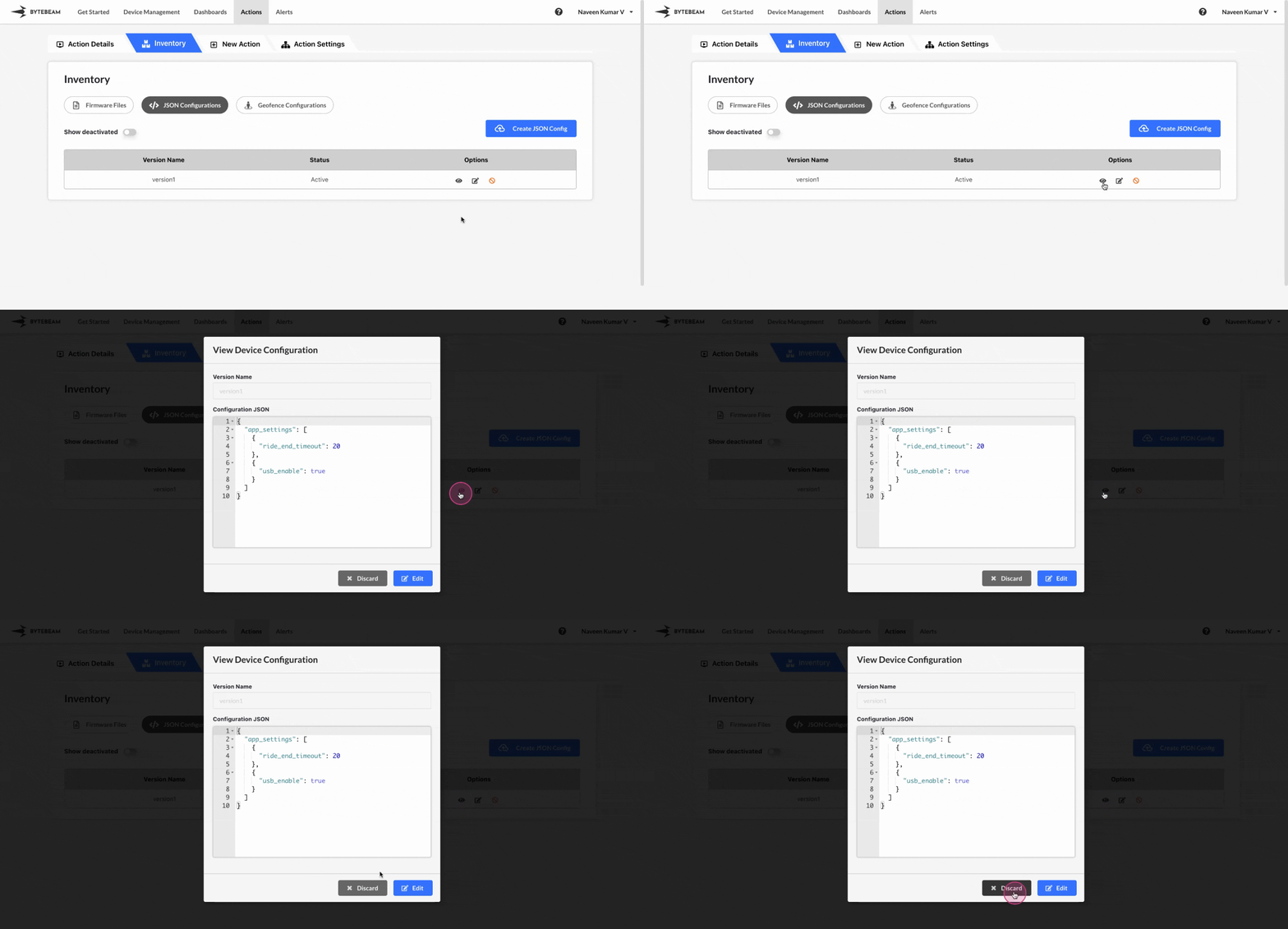
To view a JSON Configuration version in Bytebeam console,
Click on the **Actions** tab
Navigate to the **JSON Configurations** tab by clicking on Inventory section
Click on **JSON Configurations** tab and locate the desired **JSON Configuration version**
Click on **Eye** icon against the located version to view it.
You can edit the JSON Configuration version by clicking on Edit button and [follow the instructions](/platform-guide/actions/inventory-management/json-configurations/editing-a-json-configuration)
You can view even the deactivated JSON Configuration versions.
To view a deactivated JSON Configuration version,
Click on the **Actions** tab
Navigate to the **JSON Configurations** tab by clicking on Inventory section
Click on **JSON Configurations** tab and click on **Show Deactivated** toggle.
Scroll to the desired **JSON Configuration version**
Click on **Eye** icon against the located deactivated version to view it.