> ## Documentation Index
> Fetch the complete documentation index at: https://bytebeam.io/docs/llms.txt
> Use this file to discover all available pages before exploring further.
# No Signal Alerts
## What Are No-Signal Alerts?
No-signal alerts are alerts which get triggered when expected data stops arriving from a particular source or stream.
Unlike traditional signal-based alerts, which are based on specific conditions like thresholds or values, no-signal alerts monitor the continuity of data. They are designed to notify you when a data stream that is expected to be active is not receiving any updates, indicating a potential issue with the data flow or source.
## Uses of No-Signal Alerts
The key purpose of no-signal alerts is to monitor the availability and health of data streams in real-time.
These alerts are critical in IoT systems, where continuous data flow is essential for monitoring device performance, user activity, or sensor readings.
When a stream stops unexpectedly, it could signal a malfunction, network issue, or system failure, and immediate action may be required.
## Creating No Signal Alerts
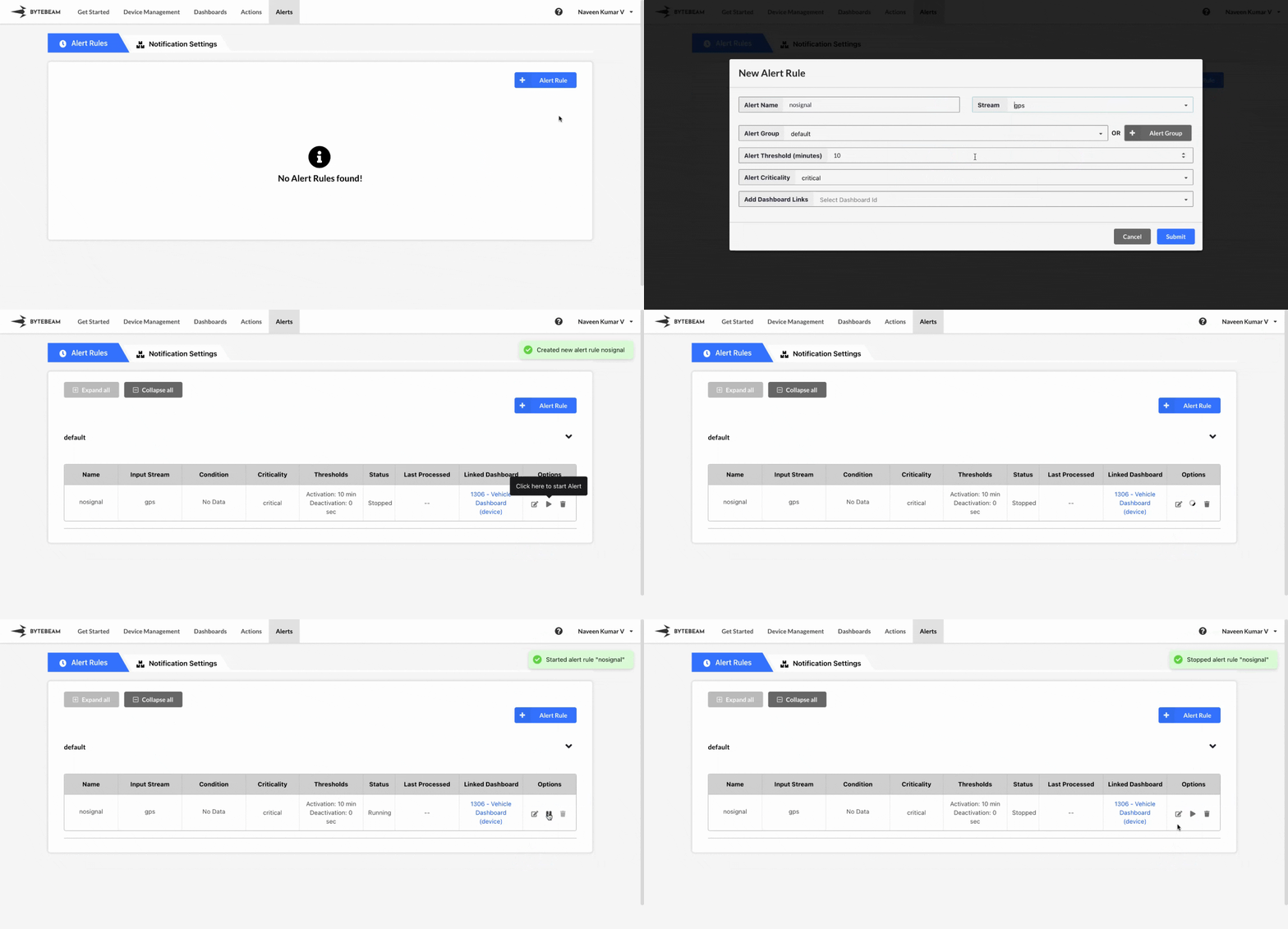
To create a No Signal Alert in the Bytebeam console:
Navigate to the **Alerts** tab and click on **Alert Rules**.
Click on the **+ Alert Rule** button and select the **No Signal Alert** option.
Choose the specific stream and set the duration after which an alert will trigger if no data is received. Then, specify additional parameters such as alert name, criticality, alert group, [activation threshold](/platform-guide/alert-system/alert-rules/activation-and-deactivation-thresholds-in-alerts), select the dashboard to link from the dropdown list and click **Submit**.
Your new Alert Rule will appear in the table under the selected **Alert Group** on the **Alert Rules** tab.
To activate the alert, click the Start icon next to it.
You can stop any active alert by clicking the Stop icon next to it.
Hover over the alert rule name to view its ID and name in the tooltip. Click on the name to copy both to the clipboard.
## Editing No Signal Alerts
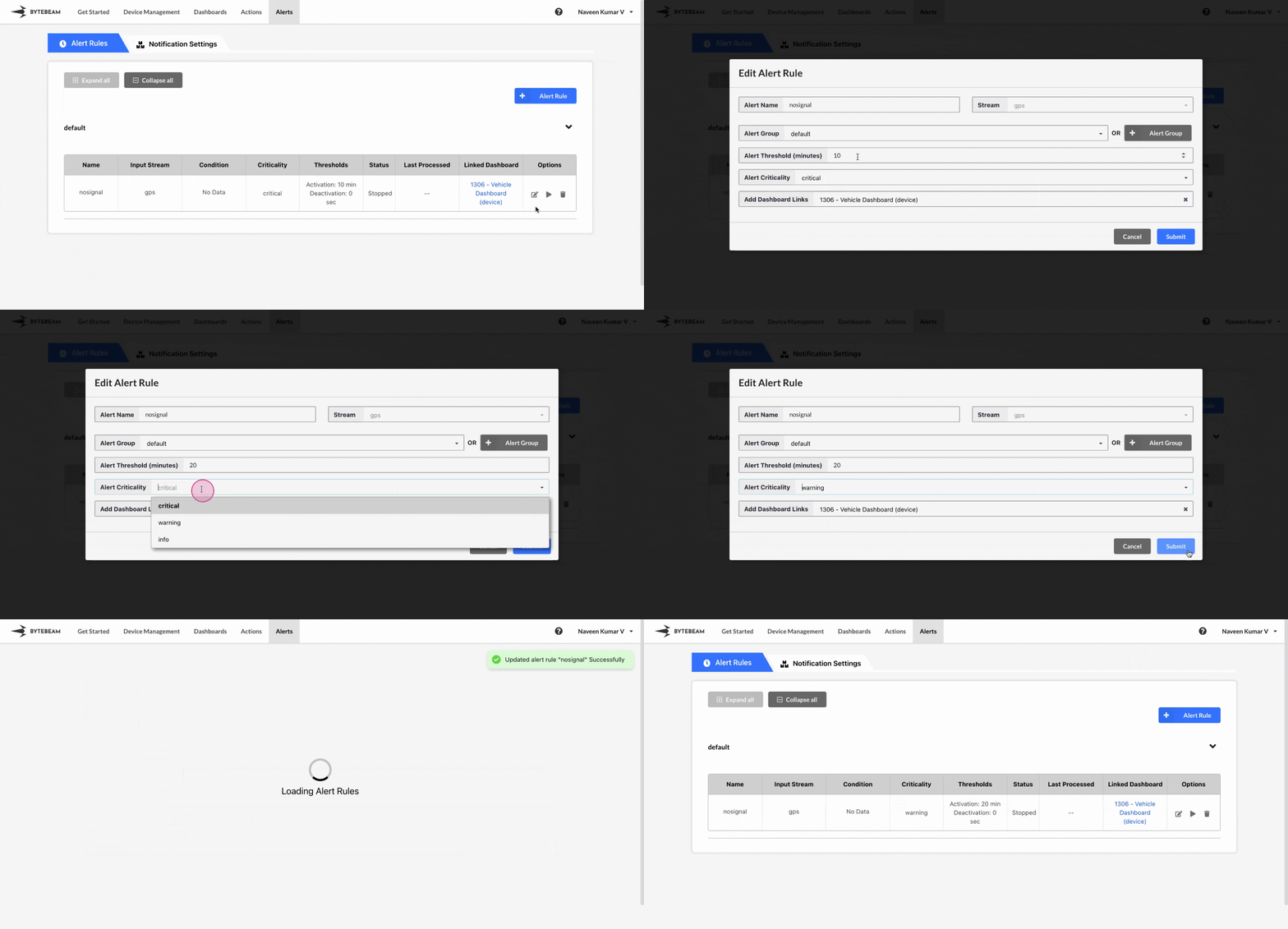
To edit an existing No Signal Alert in the Bytebeam console:
Navigate to the **Alerts** tab and click on **Alert Rules**.
Find the alert within any **Alert Groups** and click the **Edit** icon next to it.
Update details such as alert name, alert group, [activation threshold](/platform-guide/alert-system/alert-rules/activation-and-deactivation-thresholds-in-alerts), criticality, change the linked dashboard using dropdown list or clear the linked dashboard and click **Submit**.
If you change the alert group, check the corresponding alert group as the alert will be moved there.
## Deleting No Signal Alerts
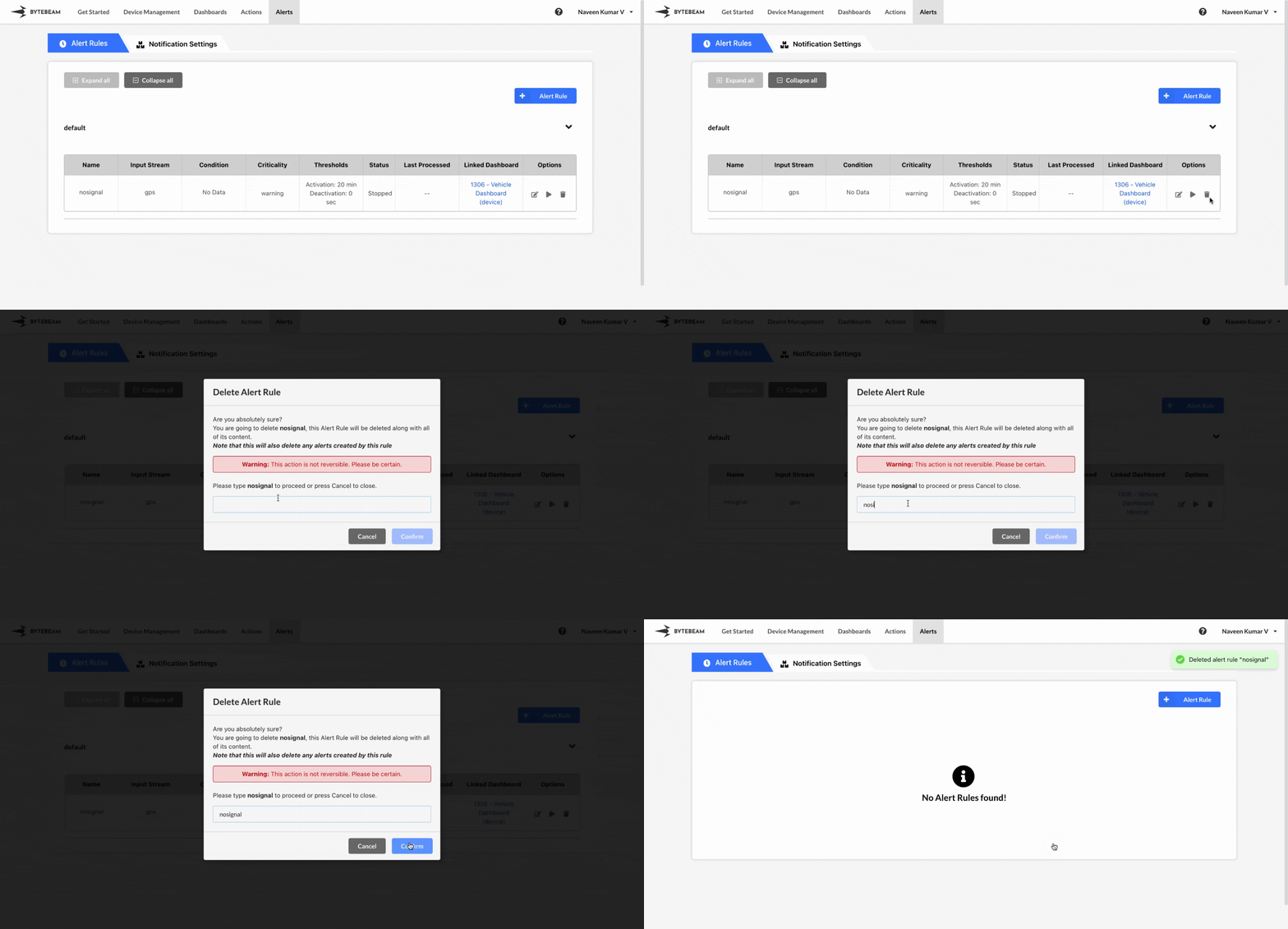
To delete an existing No Signal Alert in the Bytebeam console:
Navigate to the **Alerts** tab and click on **Alert Rules**.
Find the alert within any **Alert Groups** and click the **Delete** icon next to it.
Enter the correct alert rule name and click **Submit** to delete the alert.
Alert rules cannot be deleted while they are running.
Deleting an alert rule will also delete all the associated notification rules.