> ## Documentation Index
> Fetch the complete documentation index at: https://bytebeam.io/docs/llms.txt
> Use this file to discover all available pages before exploring further.
# Signal Based Alerts
## What Are Signal-Based Alerts?
Signal-based alerts are triggered when certain conditions or thresholds within your data stream are met.
These alerts are typically defined by specific criteria, such as exceeding a value, crossing a threshold, or when the data satisfies a predefined condition. Signal-based alerts are highly customizable, allowing you to set precise conditions to monitor the health and performance of your systems.
## Uses of Signal-Based Alerts
Signal-based alerts are used to monitor specific, actionable events in real-time. By setting thresholds or conditions, you can be notified immediately when important changes occur in your data.
For instance, in an industrial setting, you may set a signal-based alert if the temperature of a machine exceeds a critical threshold, ensuring that operators can act quickly to prevent equipment failure.
## Creating Signal-Based Alerts
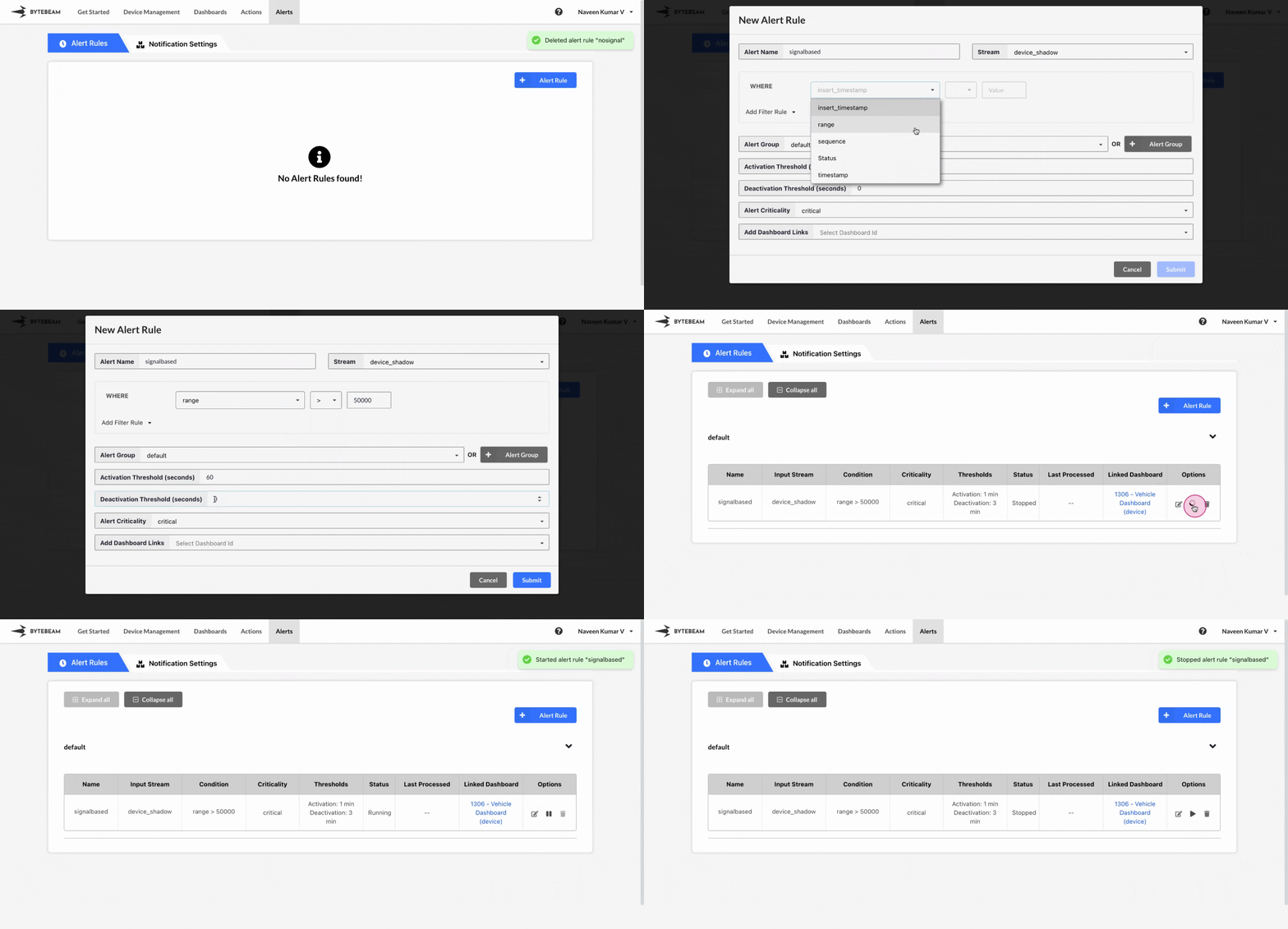
To create a Signal-Based Alert in the Bytebeam console:
Navigate to the **Alerts** tab and click on **Alert Rules**.
Click on the **+ Alert Rule** button and select the **Signal Based Alert** option.
Select the stream you want to monitor and define the condition or threshold that will trigger the alert. Specify other parameters such as alert name, criticality, alert group, [activation and deactivation thresholds](/platform-guide/alert-system/alert-rules/activation-and-deactivation-thresholds-in-alerts), select the dashboard to link from dropdown list then click **Submit**.
Your new Alert Rule will appear in the table under the selected **Alert Group** on the **Alert Rules** tab.
To activate the alert, click the Start icon next to it.
You can stop any active alert by clicking the Stop icon next to it.
Hover over the alert rule name to view its ID and name in the tooltip. Click on the name to copy both to the clipboard.
## Editing Signal-Based Alerts
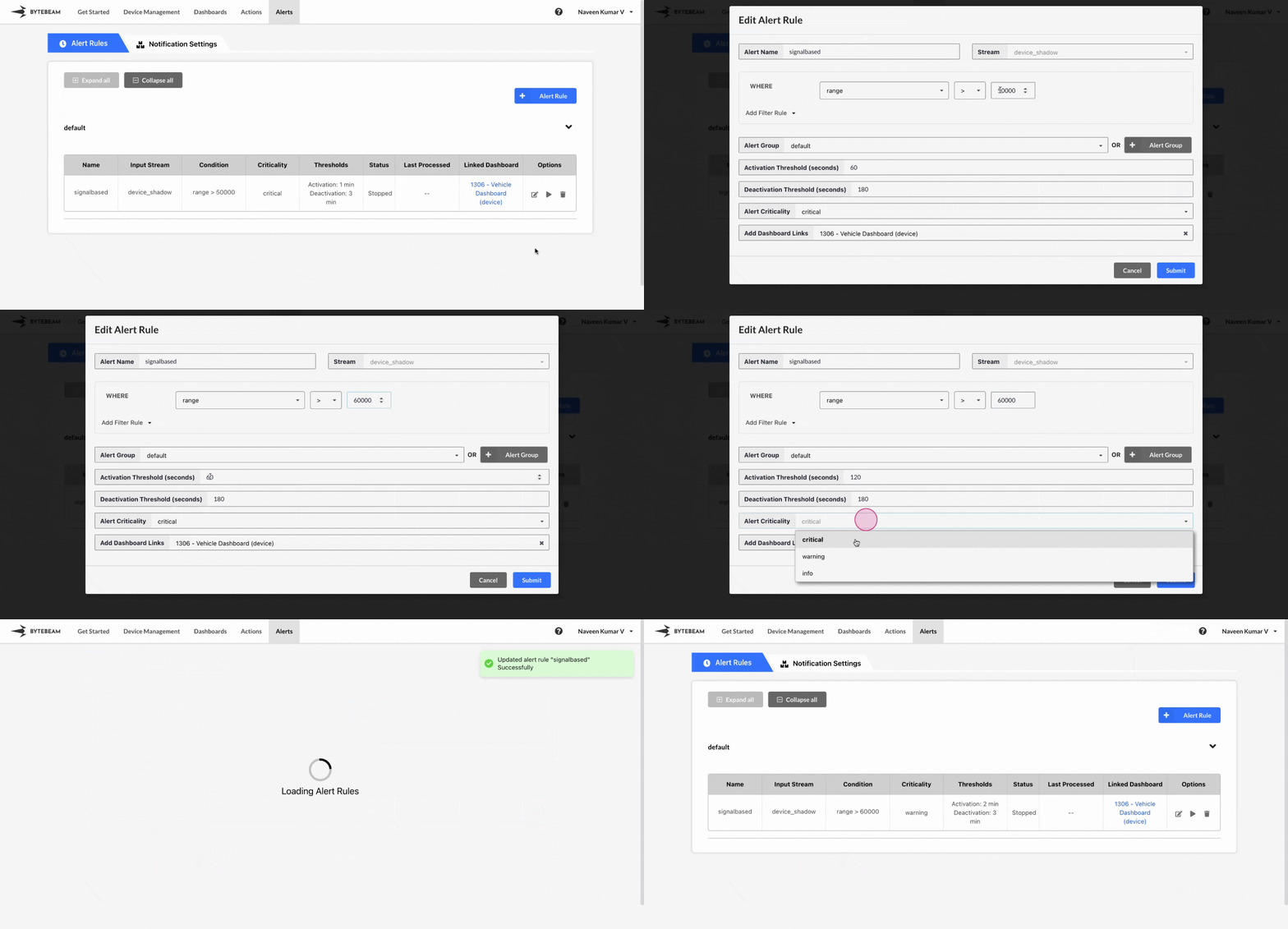
To edit an existing Signal-Based Alert in the Bytebeam console:
Navigate to the **Alerts** tab and click on **Alert Rules**.
Find the alert within any **Alert Groups** and click the **Edit** icon next to it.
Change the alert conditions, such as the alert name, alert group, [activation and deactivation thresholds](/platform-guide/alert-system/alert-rules/activation-and-deactivation-thresholds-in-alerts), change the linked dashboard using dropdown list or clear the linked dashboard and click **Submit** to save your changes.
If you change the alert group, the alert will be moved to the selected group, so be sure to check the corresponding alert group after updating.
## Deleting Signal-Based Alerts
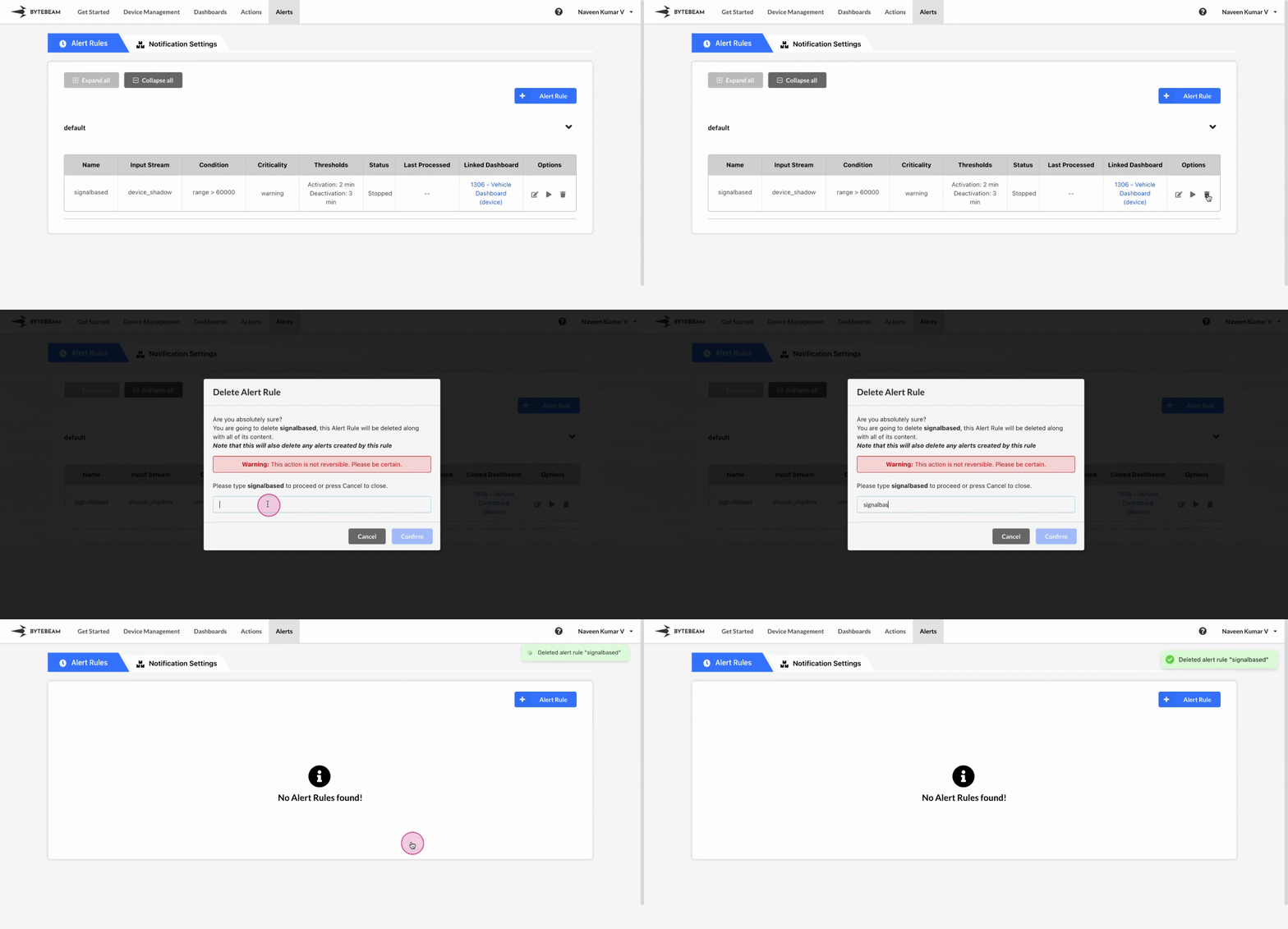
To delete an existing Signal-Based Alert in the Bytebeam console:
Navigate to the **Alerts** tab and click on **Alert Rules**.
Find the alert within any **Alert Groups** and click the **Delete** icon next to it.
Enter the correct alert rule name and click **Submit** to delete the alert.
Alert rules cannot be deleted while they are running.
Deleting an alert rule will also delete all the associated notification rules.