> ## Documentation Index
> Fetch the complete documentation index at: https://bytebeam.io/docs/llms.txt
> Use this file to discover all available pages before exploring further.
# Cloning a Dashboard
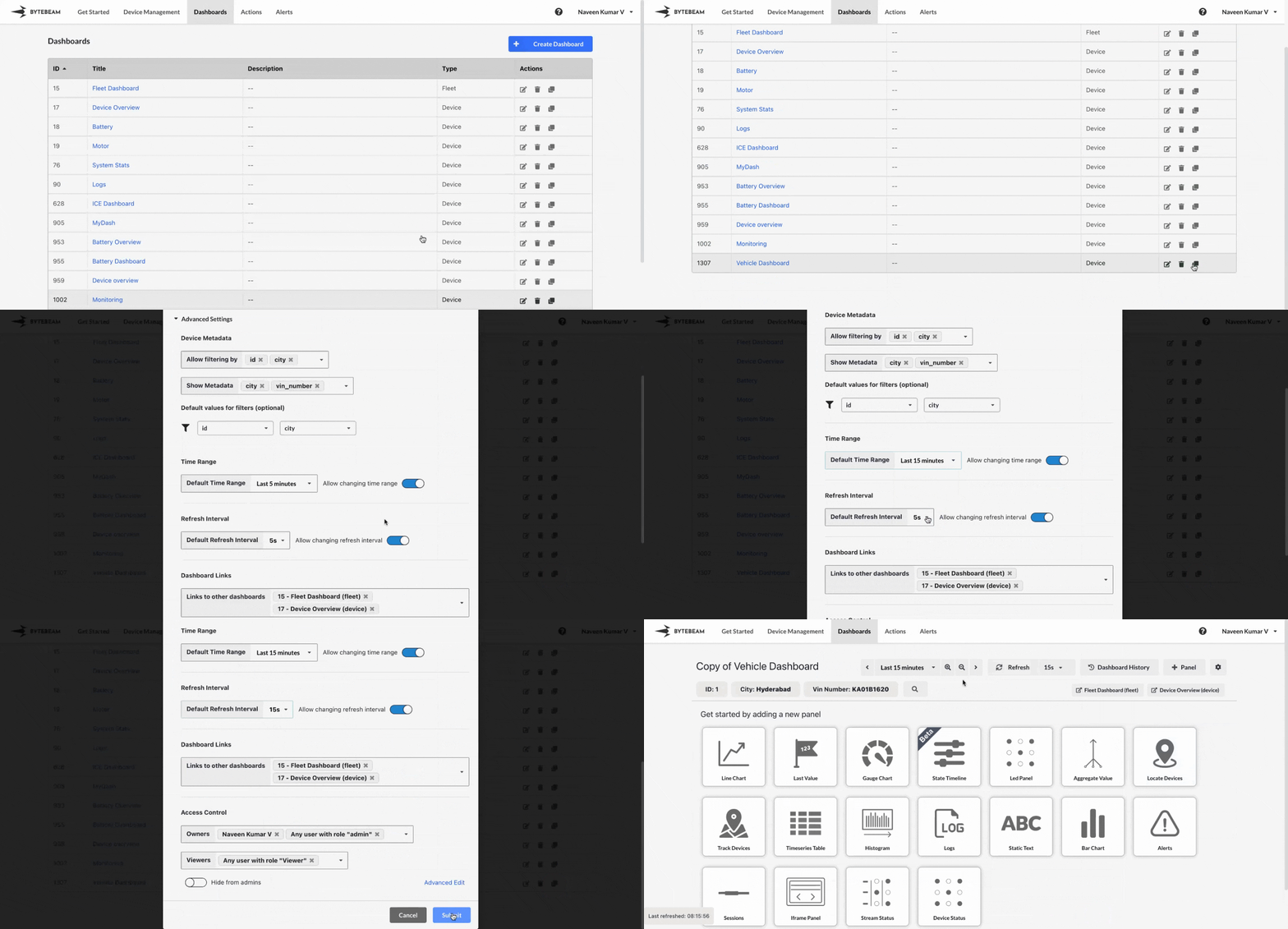
To clone a dashboard in the Bytebeam console, follow these steps:
Go to the **Dashboards** tab in the Bytebeam console to view the list of available dashboards.
Locate the dashboard you wish to clone and click on the **Clone icon** next to it.\\
 * A modal will appear with the **Name** field automatically pre-filled as `Copy of + "existing dashboard name"`.
* Modify the name if needed and adjust other settings if required.\\
* A modal will appear with the **Name** field automatically pre-filled as `Copy of + "existing dashboard name"`.
* Modify the name if needed and adjust other settings if required.\\
 * Click on **Submit** to clone the dashboard.
* If the cloned dashboard is a **Device Dashboard**, you will be redirected to the **Devices List page**.
* If the cloned dashboard is a **Fleet Dashboard**, you will directly enter the newly cloned dashboard.
The cloned dashboard will retain all panels and configurations from the original dashboard. Make sure to rename and adjust as necessary for your project requirements.
* Click on **Submit** to clone the dashboard.
* If the cloned dashboard is a **Device Dashboard**, you will be redirected to the **Devices List page**.
* If the cloned dashboard is a **Fleet Dashboard**, you will directly enter the newly cloned dashboard.
The cloned dashboard will retain all panels and configurations from the original dashboard. Make sure to rename and adjust as necessary for your project requirements.