> ## Documentation Index
> Fetch the complete documentation index at: https://bytebeam.io/docs/llms.txt
> Use this file to discover all available pages before exploring further.
# Comparing Dashboards
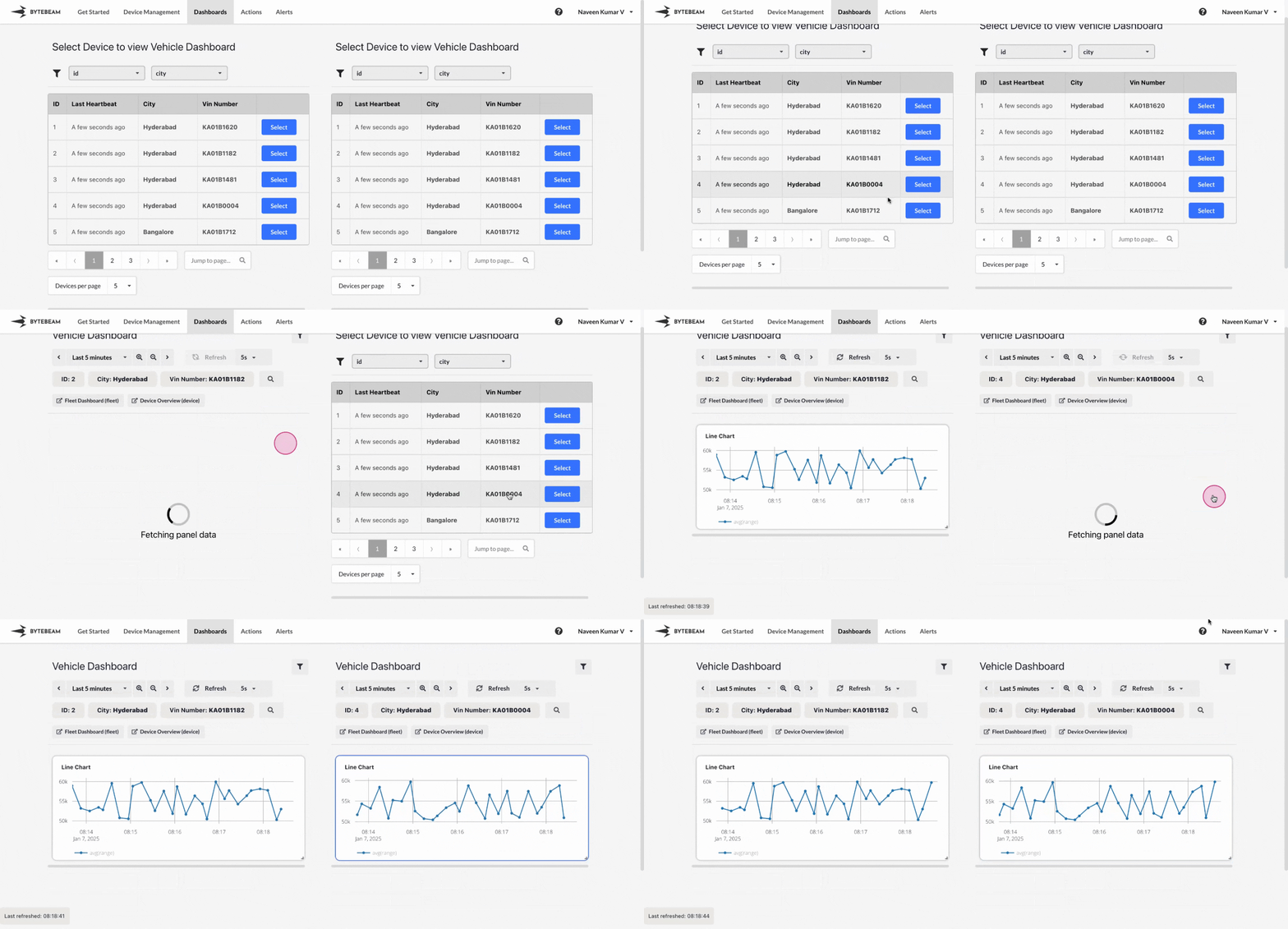
The Compare Dashboard feature allows users to analyze and compare data across devices or different time ranges. Follow these steps to use this feature:
Go to the **Dashboards** tab in the Bytebeam console and open the dashboard you want to compare.
Inside the dashboard, click on the **Compare** button located in the dashboard toolbar. This will open the comparison view in a new tab.
 * If the dashboard is a **Device Dashboard**, the comparison view will display two partitioned windows side by side.
* You can select one device on the **left side** and another device on the **right side** to compare dashboards for different devices simultaneously.
* Alternatively, you can select the **same device** on both sides and modify the time range independently on each side to analyze data for the same device over different time periods.
* If the dashboard is a **Device Dashboard**, the comparison view will display two partitioned windows side by side.
* You can select one device on the **left side** and another device on the **right side** to compare dashboards for different devices simultaneously.
* Alternatively, you can select the **same device** on both sides and modify the time range independently on each side to analyze data for the same device over different time periods.
 * Clicking on dashboard links within the comparison view will open the linked dashboards in a new tab, retaining the comparison mode.
* If the dashboard is a **Fleet Dashboard**, the comparison view will directly open the dashboard in two partitioned windows in a new tab.
* If the original fleet dashboard has metadata filters, you can select different devices for each partition to compare data across devices.
* You can also keep the same devices as in original dashboard for both partitions and adjust the time ranges independently to compare data for the same device over different periods.
* Clicking on dashboard links within the comparison view will open the linked dashboards in a new tab, retaining the comparison mode.
* If the dashboard is a **Fleet Dashboard**, the comparison view will directly open the dashboard in two partitioned windows in a new tab.
* If the original fleet dashboard has metadata filters, you can select different devices for each partition to compare data across devices.
* You can also keep the same devices as in original dashboard for both partitions and adjust the time ranges independently to compare data for the same device over different periods.
 * In the **Device Dashboard**, the comparison feature is most useful for analyzing multiple devices or time ranges for a single device.
* In the **Fleet Dashboard**, ensure that metadata filters are properly configured to allow seamless device selection for comparisons.
* In the **Device Dashboard**, the comparison feature is most useful for analyzing multiple devices or time ranges for a single device.
* In the **Fleet Dashboard**, ensure that metadata filters are properly configured to allow seamless device selection for comparisons.