> ## Documentation Index
> Fetch the complete documentation index at: https://bytebeam.io/docs/llms.txt
> Use this file to discover all available pages before exploring further.
# Creating a Dashboard
> Steps to create a visually appealing dashboard in Bytebeam console
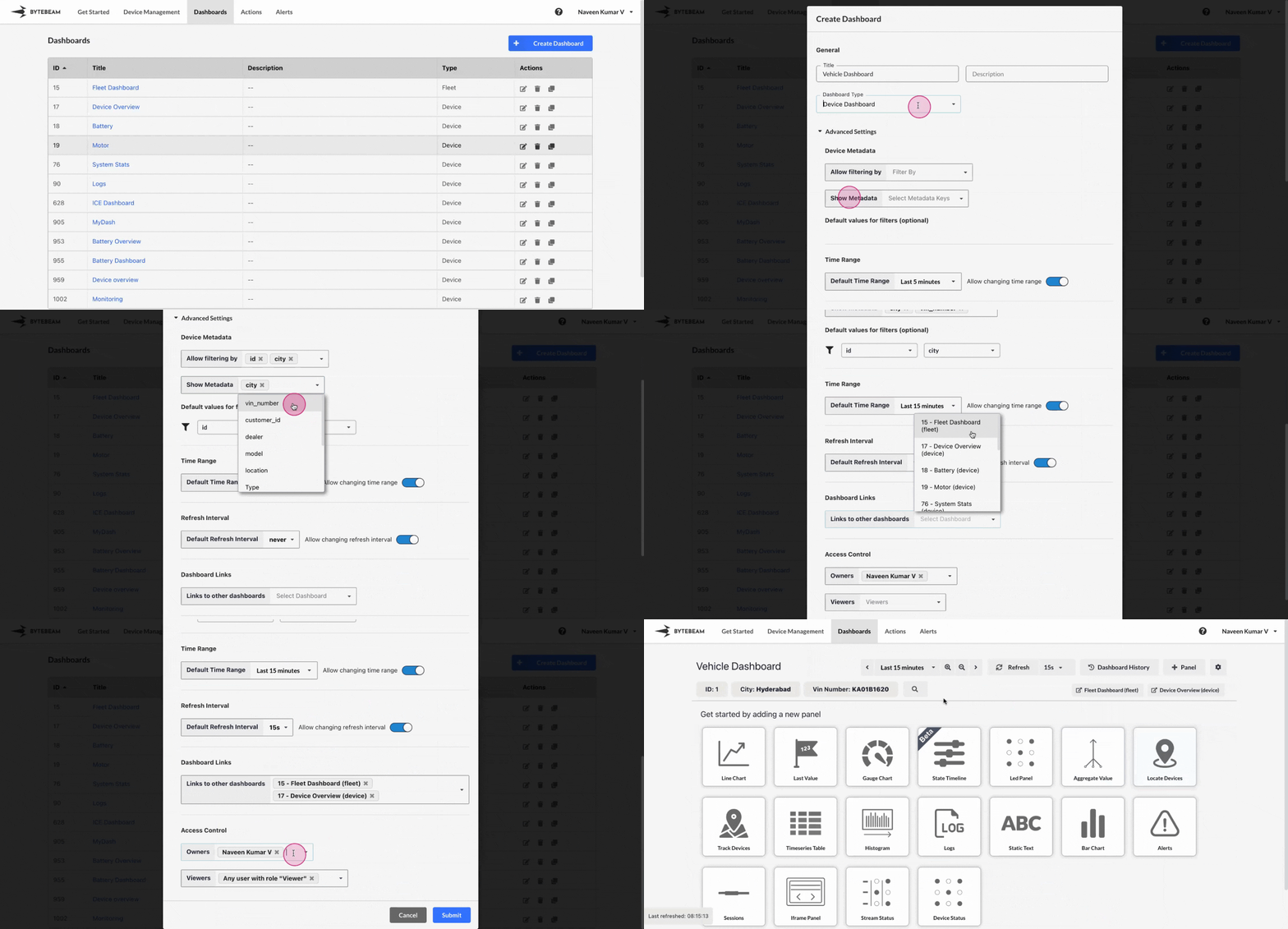
To create a Dashboard in Bytebeam, follow the steps below. The process applies to both **Device Dashboards** and **Fleet Dashboards**, with some differences in metadata and available options.
## Steps to Create a Dashboard
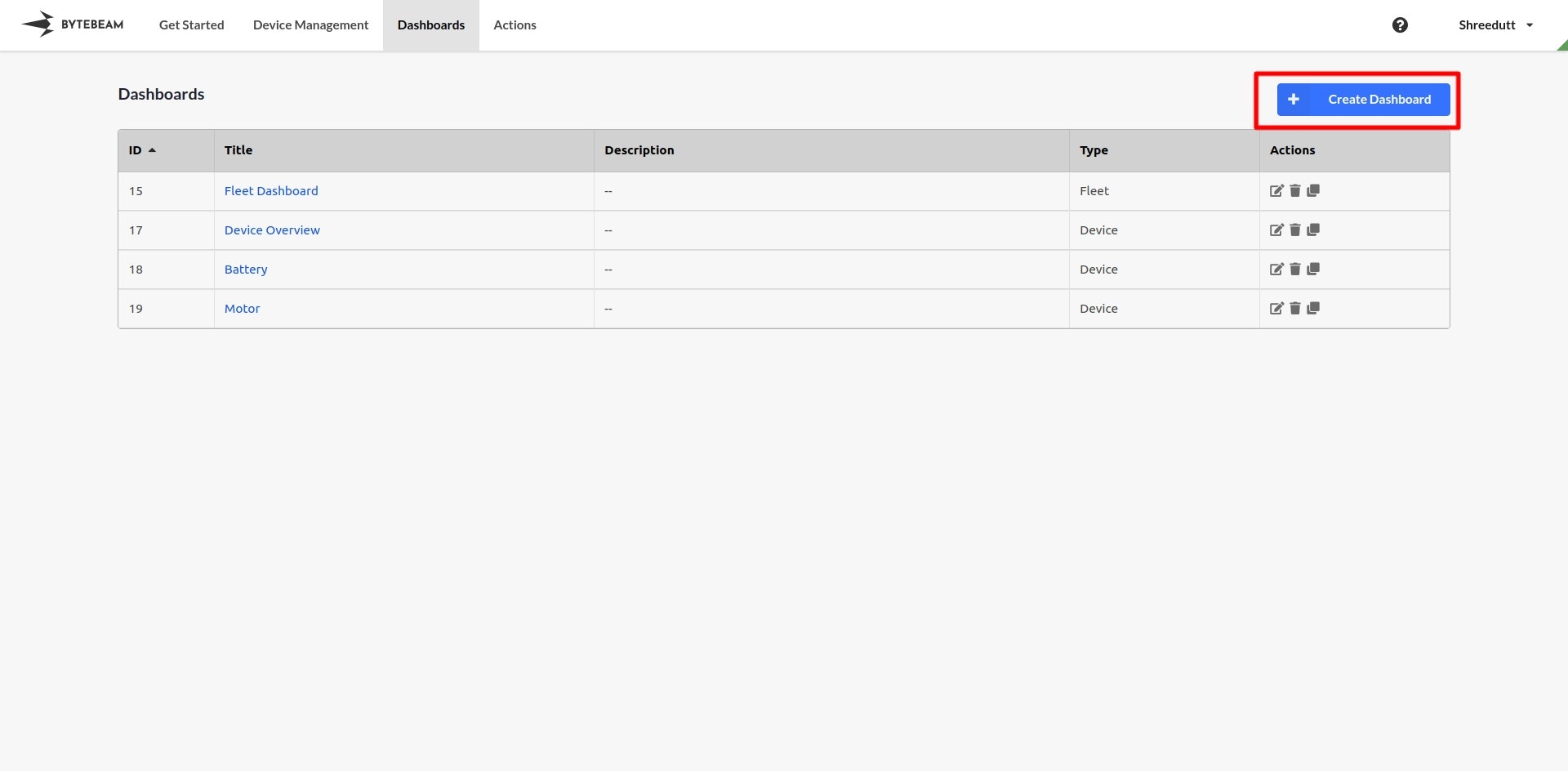
Go to the **Dashboards** tab and click on the **Create Dashboard** button.\\
 Provide the necessary information in the following sections:
* **General**:
* **Title**: A name for the dashboard.
* **Dashboard Type**: Choose between **Fleet Dashboard** and **Device Dashboard**.\
To switch between these types, use the dropdown for the **Dashboard Type** field.
Provide the necessary information in the following sections:
* **General**:
* **Title**: A name for the dashboard.
* **Dashboard Type**: Choose between **Fleet Dashboard** and **Device Dashboard**.\
To switch between these types, use the dropdown for the **Dashboard Type** field.
 * **Device Metadata**:
* **Allow filtering by**: Select from a list of device metadata options to enable filtering in the dashboard.
For Device Dashboard: Displays only the devices that meet the selected filter conditions in the Devices List page.
For Fleet Dashboard: Shows data specifically for devices that satisfy the filter conditions, applying these filters to panels as they are added.
* **Show Metadata** (Available only for Device Dashboards):
* **Allow Viewing**: Show the selected metadata keys and corresponding values for selected device in the dashboard.
* **Time Range**:
* **Default Time Range**: Sets the default recency for the data displayed on the dashboard.
* Optionally, enable or disable the ability for users to change the time range.
* **Refresh Interval**:
* Set an interval (in seconds) to refresh the dashboard data automatically.
* **Dashboard Links**:
* Select additional dashboards from the dropdown list to open in a new tab while remaining on the current dashboard.
* The selected dashboards will be displayed within the current dashboard, allowing you to open the corresponding dashboard in a new tab by clicking on them.
* **Access Control**:
* **Owners**: Define who can modify the dashboard.
* **Viewers**: Define who can view the dashboard.\
Refer to [Sharing a Dashboard](/platform-guide/dashboards/sharing-a-dashboard) for more details.
Once the dashboard is created:
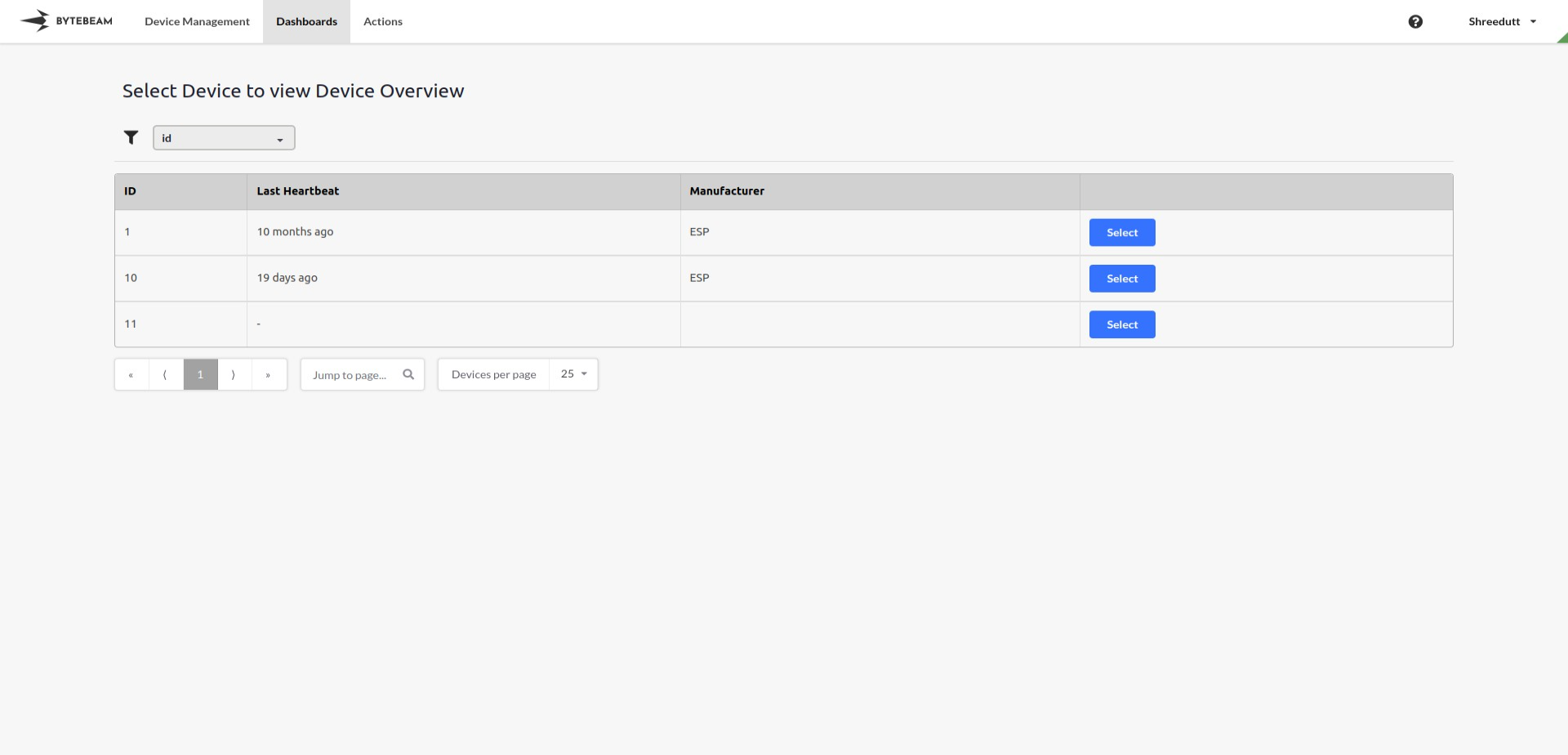
* For **Device Dashboards**: You will be redirected to the device list page.\\
* **Device Metadata**:
* **Allow filtering by**: Select from a list of device metadata options to enable filtering in the dashboard.
For Device Dashboard: Displays only the devices that meet the selected filter conditions in the Devices List page.
For Fleet Dashboard: Shows data specifically for devices that satisfy the filter conditions, applying these filters to panels as they are added.
* **Show Metadata** (Available only for Device Dashboards):
* **Allow Viewing**: Show the selected metadata keys and corresponding values for selected device in the dashboard.
* **Time Range**:
* **Default Time Range**: Sets the default recency for the data displayed on the dashboard.
* Optionally, enable or disable the ability for users to change the time range.
* **Refresh Interval**:
* Set an interval (in seconds) to refresh the dashboard data automatically.
* **Dashboard Links**:
* Select additional dashboards from the dropdown list to open in a new tab while remaining on the current dashboard.
* The selected dashboards will be displayed within the current dashboard, allowing you to open the corresponding dashboard in a new tab by clicking on them.
* **Access Control**:
* **Owners**: Define who can modify the dashboard.
* **Viewers**: Define who can view the dashboard.\
Refer to [Sharing a Dashboard](/platform-guide/dashboards/sharing-a-dashboard) for more details.
Once the dashboard is created:
* For **Device Dashboards**: You will be redirected to the device list page.\\
 * For **Fleet Dashboards**: You will be redirected directly to the empty dashboard.
Once on the dashboard page, click the **+ Panel** button to start adding panels to your dashboard.\\
* For **Fleet Dashboards**: You will be redirected directly to the empty dashboard.
Once on the dashboard page, click the **+ Panel** button to start adding panels to your dashboard.\\
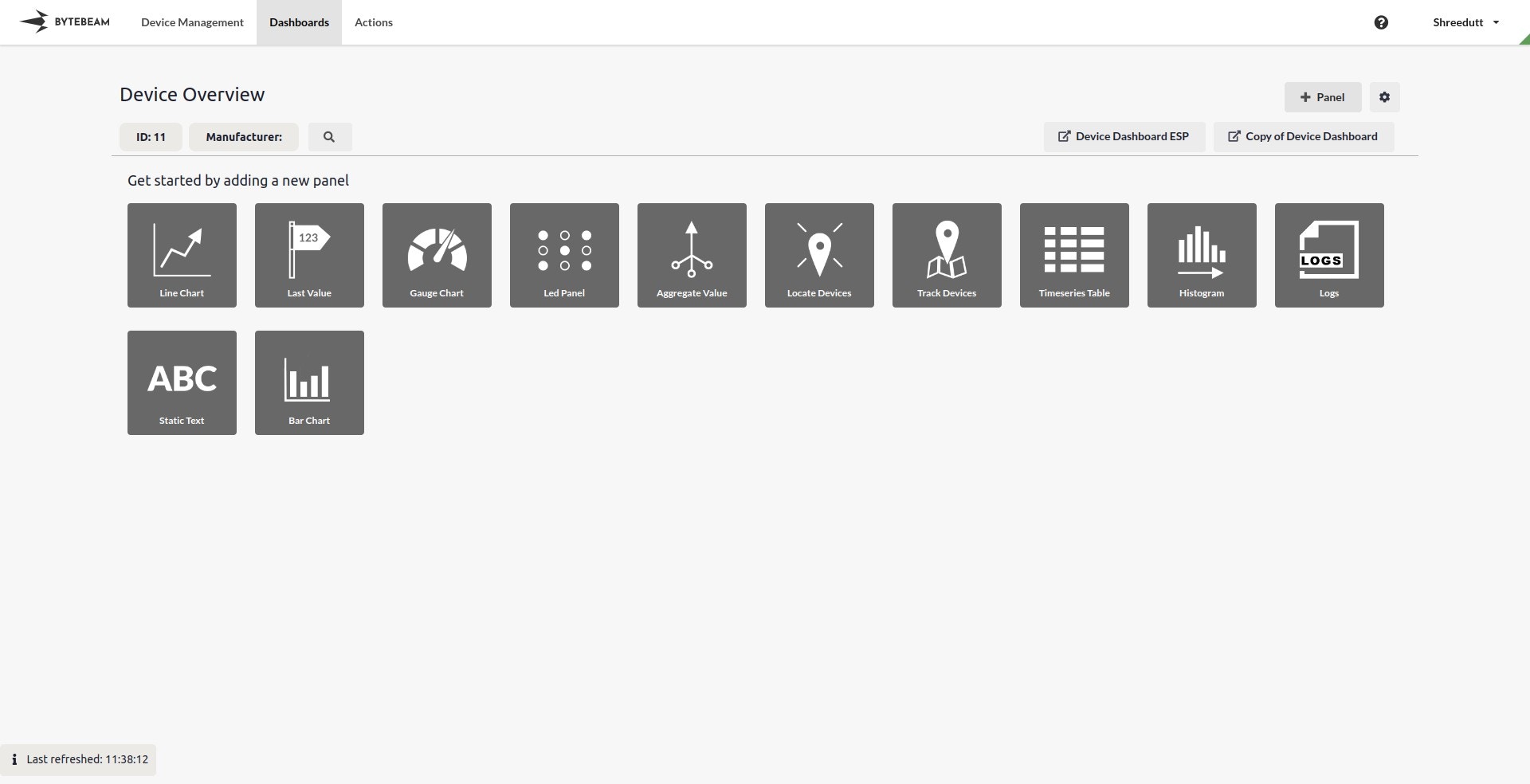 Learn about [Panels](/platform-guide/dashboards/panels/introduction-to-panels) and how to add different panels to a dashboard.
## Important Info
You can always switch between dashboard types during the creation process, but note the differences in available features and metadata options.
Dashboard Links will display device dashboards when a Device Dashboard is selected and fleet dashboards when a Fleet Dashboard is selected.
Learn about [Panels](/platform-guide/dashboards/panels/introduction-to-panels) and how to add different panels to a dashboard.
## Important Info
You can always switch between dashboard types during the creation process, but note the differences in available features and metadata options.
Dashboard Links will display device dashboards when a Device Dashboard is selected and fleet dashboards when a Fleet Dashboard is selected.