> ## Documentation Index
> Fetch the complete documentation index at: https://bytebeam.io/docs/llms.txt
> Use this file to discover all available pages before exploring further.
# Using Custom Time Range
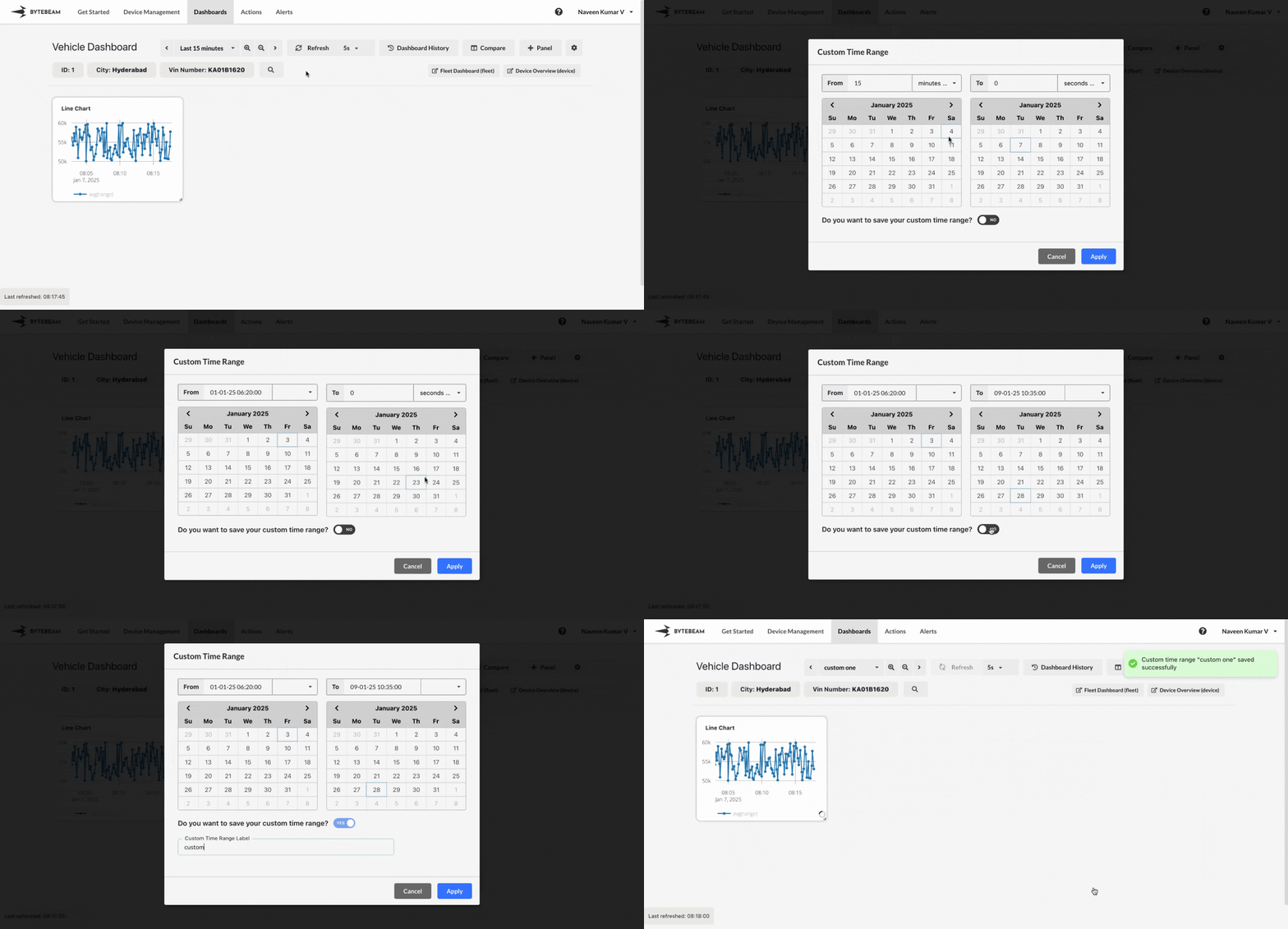
The **Custom Time Range** feature allows you to set specific time ranges for analyzing dashboard data. You can choose exact dates or relative time options and even save custom ranges with labels for future use. This feature ensures flexibility in viewing data and quick access to frequently used time ranges.
## Steps to Use Custom Time Range
Go to the **Dashboards** tab in the Bytebeam console and open the dashboard where you want to use the custom time range feature.
Inside the dashboard, click on the **Time Range dropdown** located in the toolbar, and select the **Custom Time Range** option.\\
 * In the **Custom Time Range** modal:
* Use the **From** and **To** date pickers to select specific dates, months, and years for the time range.
* Enable the toggle to save the custom time range and enter a **Label** name to save the custom time range for future use.
* In the **Custom Time Range** modal:
* Use the **From** and **To** date pickers to select specific dates, months, and years for the time range.
* Enable the toggle to save the custom time range and enter a **Label** name to save the custom time range for future use.
 * Alternatively, use the **From** and **To** dropdowns to select relative time options like:
* **15 minutes ago**
* **30 minutes ago**
* **45 minutes ago**, etc.
* For example:
* Set **From** to "45 minutes ago."
* Set **To** to "30 minutes ago."
* Enable the toggle to save the custom time range and enter a **Label** name for future reference.
* Alternatively, use the **From** and **To** dropdowns to select relative time options like:
* **15 minutes ago**
* **30 minutes ago**
* **45 minutes ago**, etc.
* For example:
* Set **From** to "45 minutes ago."
* Set **To** to "30 minutes ago."
* Enable the toggle to save the custom time range and enter a **Label** name for future reference.
 * To delete an existing label that is no longer needed:
* Click on the same toggle which is used to save the custom time range that will show the previously added labels
* Select the label you wish to delete, click on the cross icon and confirm the action.
* To delete an existing label that is no longer needed:
* Click on the same toggle which is used to save the custom time range that will show the previously added labels
* Select the label you wish to delete, click on the cross icon and confirm the action.
 Once you’ve configured the custom time range:
* Click on the **Apply** button in the modal.
* The dashboard will refresh to display data for the selected time range.
Custom time ranges can be saved with meaningful labels to enhance usability. Users can choose specific dates or relative time ranges to suit their data analysis needs.
Once you’ve configured the custom time range:
* Click on the **Apply** button in the modal.
* The dashboard will refresh to display data for the selected time range.
Custom time ranges can be saved with meaningful labels to enhance usability. Users can choose specific dates or relative time ranges to suit their data analysis needs.