> ## Documentation Index
> Fetch the complete documentation index at: https://bytebeam.io/docs/llms.txt
> Use this file to discover all available pages before exploring further.
# Editing a Dashboard within the Dashboard
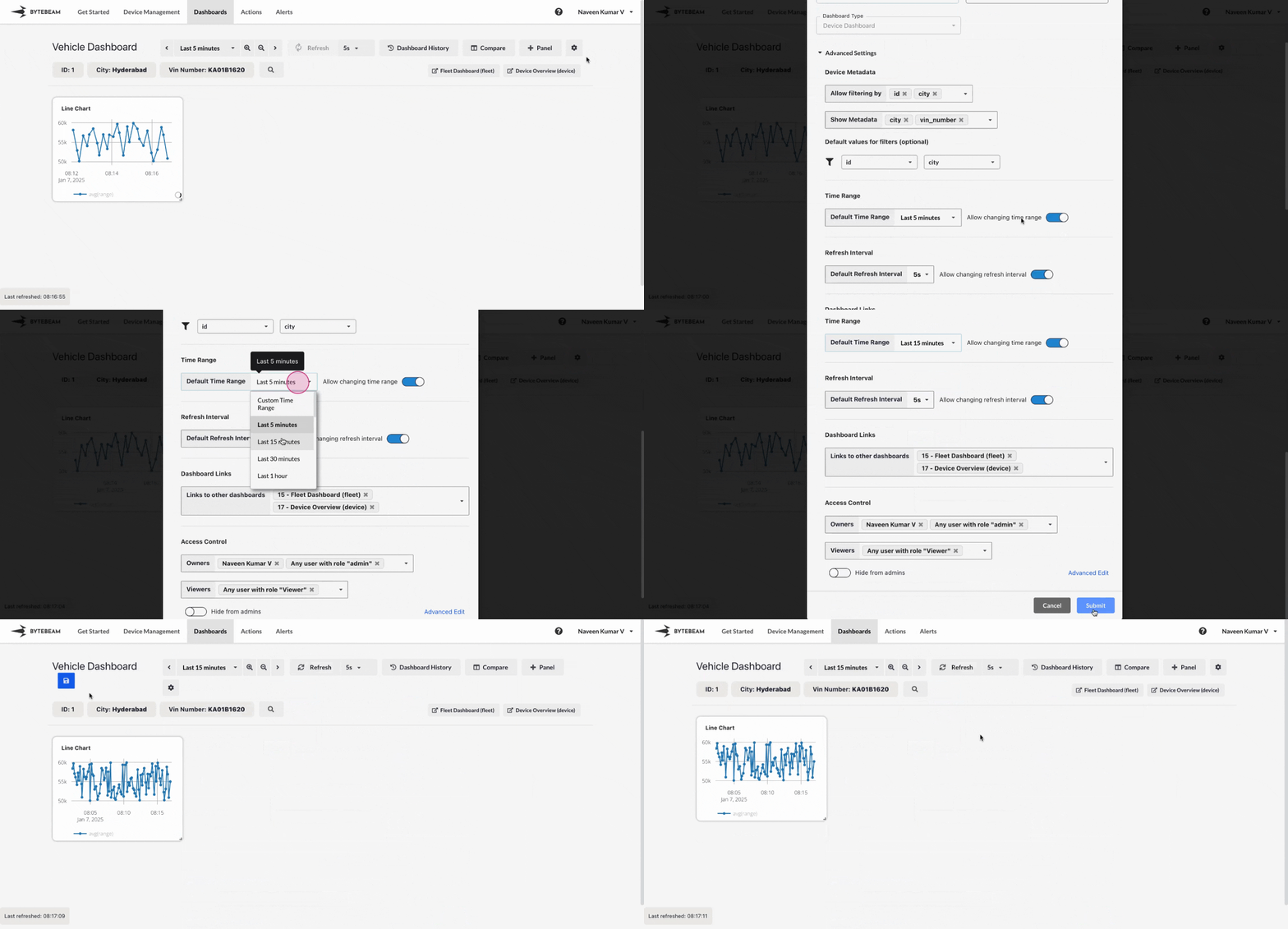
To edit a dashboard while staying within the dashboard in the Bytebeam console, follow these steps:
Go to the **Dashboards** tab in the Bytebeam console to view the list of available dashboards.
* Locate the dashboard you wish to edit.
* Click on the dashboard name to open it.
* If it's a **Device Dashboard**, it will take you to the devices list page.
* If it's a **Fleet Dashboard**, it will directly open the dashboard.
* Once inside the dashboard, click on the **Settings icon** present in the dashboard toolbar.\\
 * A configuration modal will appear where you can update the settings of the dashboard.
* Options available for editing include:
* **Name**: Update the title of the dashboard.
* **Metadata Filters**: Add or modify metadata filters.
* **Time Range**: Update the default time range or enable/disable time range selection.
* **Refresh Interval**: Change the refresh frequency for the data.
* **Dashboard Links**: Add the existing dashboards from the dropdown list.
* **Access Control**: Update owners and viewers for the dashboard.
* **Hide From Admins**: Enable the toggle to hide the existing dashboard even from other admins.
* A configuration modal will appear where you can update the settings of the dashboard.
* Options available for editing include:
* **Name**: Update the title of the dashboard.
* **Metadata Filters**: Add or modify metadata filters.
* **Time Range**: Update the default time range or enable/disable time range selection.
* **Refresh Interval**: Change the refresh frequency for the data.
* **Dashboard Links**: Add the existing dashboards from the dropdown list.
* **Access Control**: Update owners and viewers for the dashboard.
* **Hide From Admins**: Enable the toggle to hide the existing dashboard even from other admins.
 * After making the required changes, click **Save** in the modal to apply the updates directly to the dashboard.
* These changes will reflect in the dashboard immediately.
* To ensure that these edited configurations are saved for future use, click on the **Save** button on the dashboard page.
* Without saving the dashboard, the configuration changes will not persist after you leave the page.
## Important Info
You cannot change the dashboard in the **Edit Dashboard** modal.
Ensure you click on the **Save** button inside the Dashboard after making changes, or your edits will not be retained for future sessions.
**Hide From Admins** option will be visible only in the Edit or Clone Dashboard modals.
* After making the required changes, click **Save** in the modal to apply the updates directly to the dashboard.
* These changes will reflect in the dashboard immediately.
* To ensure that these edited configurations are saved for future use, click on the **Save** button on the dashboard page.
* Without saving the dashboard, the configuration changes will not persist after you leave the page.
## Important Info
You cannot change the dashboard in the **Edit Dashboard** modal.
Ensure you click on the **Save** button inside the Dashboard after making changes, or your edits will not be retained for future sessions.
**Hide From Admins** option will be visible only in the Edit or Clone Dashboard modals.