> ## Documentation Index
> Fetch the complete documentation index at: https://bytebeam.io/docs/llms.txt
> Use this file to discover all available pages before exploring further.
# Device Pulse
The Device Pulse panel helps monitor the health of devices by visualizing the last heartbeat of each device.
This panel is available only for fleet dashboards.
## Add Device Pulse Panel
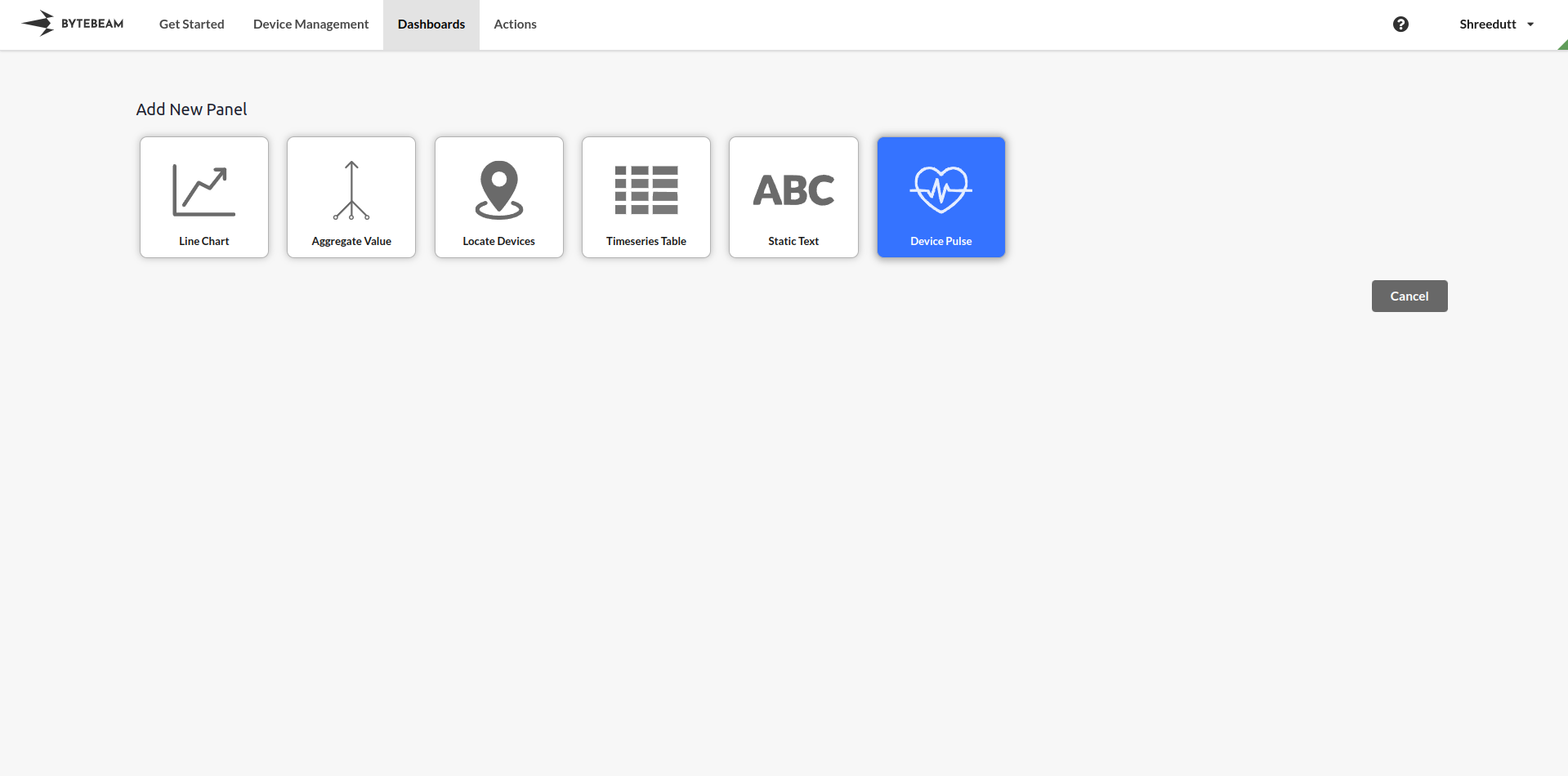
Go to the **Dashboards** tab, select the desired dashboard, and click on the **+ Panel** button to create a new panel.
Choose **Device Pulse Panel** from the list of available panels.\\
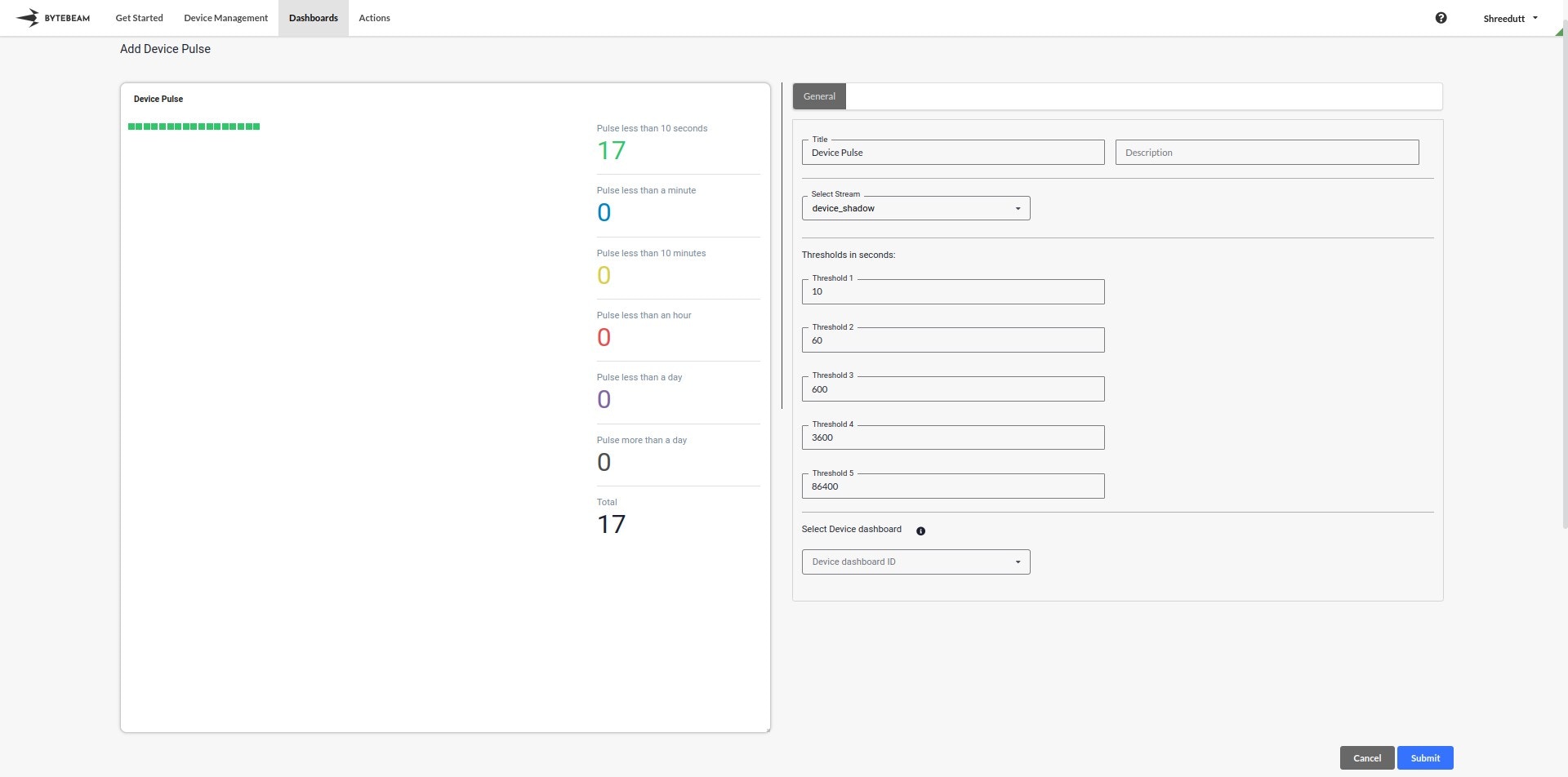
 In the **General** tab:
* **Stream**: Select the stream, e.g., `device_shadow`.
* **Thresholds**: Add thresholds (in seconds) to categorize device pulses. By default, the following thresholds are configured:
* Pulse less than 10 seconds
* Pulse less than a minute
* Pulse less than 10 minutes
* Pulse less than an hour
* Pulse less than a day
* Pulse more than a day
These thresholds can be customized to meet your monitoring needs.\\
In the **General** tab:
* **Stream**: Select the stream, e.g., `device_shadow`.
* **Thresholds**: Add thresholds (in seconds) to categorize device pulses. By default, the following thresholds are configured:
* Pulse less than 10 seconds
* Pulse less than a minute
* Pulse less than 10 minutes
* Pulse less than an hour
* Pulse less than a day
* Pulse more than a day
These thresholds can be customized to meet your monitoring needs.\\
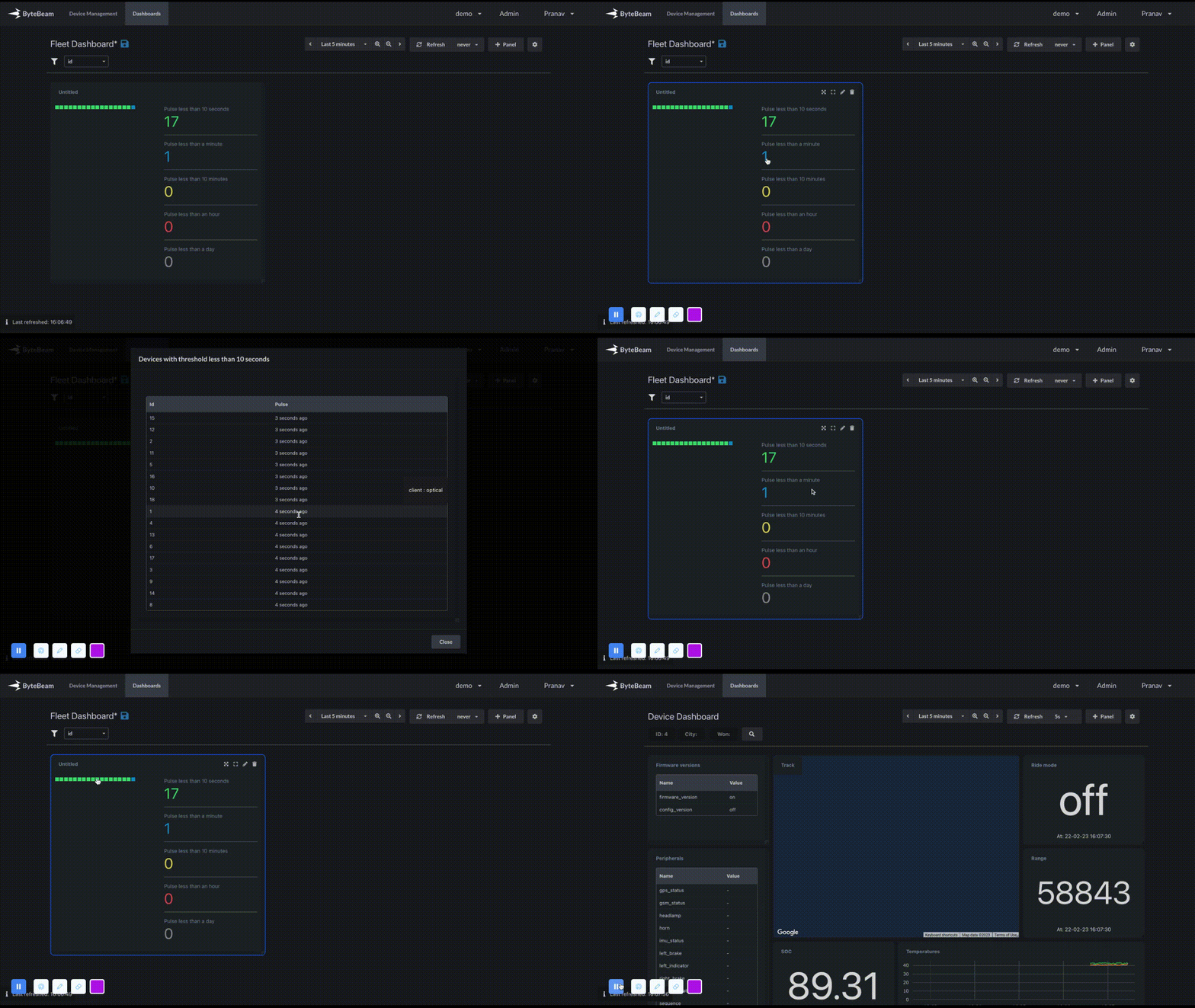
 * **Clicking on a Device Count**: When you click on any of the device counts in a pulse category, a modal will open displaying the list of devices along with their metadata.
* **Device ID or VIN**: Clicking on any Device ID or VIN in the modal will redirect you to the corresponding device dashboard for detailed insights.
* **Download Metadata**: The modal also has an option to download metadata for the listed devices by clicking on the **Download Metadata** button.\\
* **Clicking on a Device Count**: When you click on any of the device counts in a pulse category, a modal will open displaying the list of devices along with their metadata.
* **Device ID or VIN**: Clicking on any Device ID or VIN in the modal will redirect you to the corresponding device dashboard for detailed insights.
* **Download Metadata**: The modal also has an option to download metadata for the listed devices by clicking on the **Download Metadata** button.\\
 You can click on any pulse category in the panel to navigate to the device dashboard of the corresponding device for monitoring and troubleshooting.\\
 Once all configurations are complete, click **Submit** to add the Device Pulse Panel to the dashboard.\
The panel will now visualize device health categorized by the configured thresholds, with interactive options to explore devices in detail.
Once all configurations are complete, click **Submit** to add the Device Pulse Panel to the dashboard.\
The panel will now visualize device health categorized by the configured thresholds, with interactive options to explore devices in detail.