> ## Documentation Index
> Fetch the complete documentation index at: https://bytebeam.io/docs/llms.txt
> Use this file to discover all available pages before exploring further.
# Iframe Panel
The Iframe Panel allows you to embed external content such as dashboards, charts, or other resources directly into your Bytebeam dashboard.
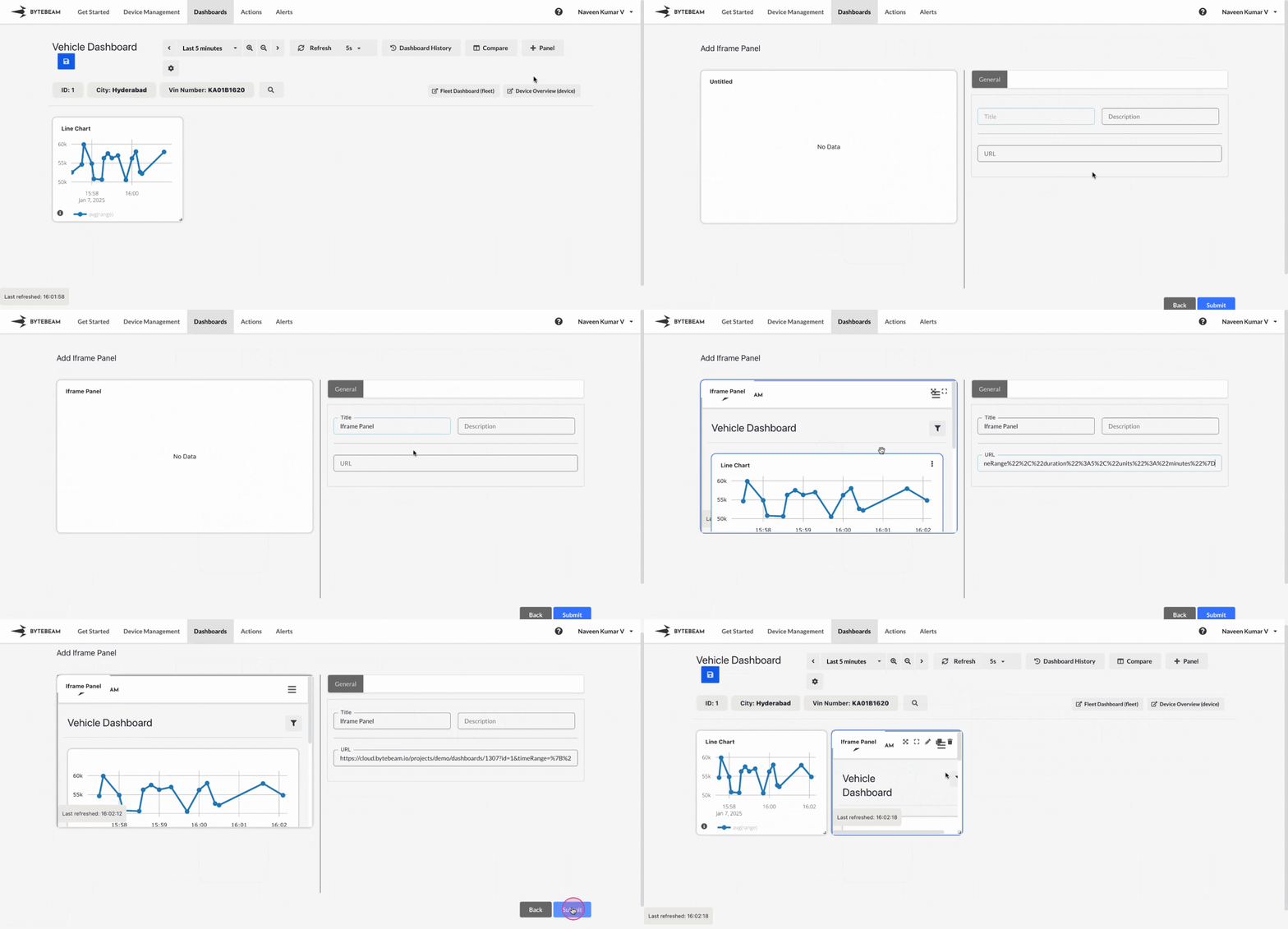
## Add Iframe Panel
Go to the **Dashboards** tab, select the desired dashboard, and click on the **+ Panel** button to create a new panel.
Choose **Iframe Panel** from the list of available panels.
* Enter the URL of the content you want to embed in the Iframe panel.
* Ensure the URL is accessible and formatted correctly.
* Optionally, preview the embedded content to verify it displays as expected.
* Preview the Iframe Panel to confirm that the content is embedded correctly.
* Once satisfied, click **Submit** to add the Iframe Panel to the dashboard.\
The panel will now display the embedded content within the dashboard layout.
The embedded content should allow iframe embedding; some websites may block embedding due to security policies.