> ## Documentation Index
> Fetch the complete documentation index at: https://bytebeam.io/docs/llms.txt
> Use this file to discover all available pages before exploring further.
# Stream Status
The Stream Status Panel provides a visual indicator of the activity status (active/inactive) of multiple data streams across all devices in a fleet or for a single device.
It helps monitor the health of streams and detect any issues in real-time.
## Add Stream Status Panel
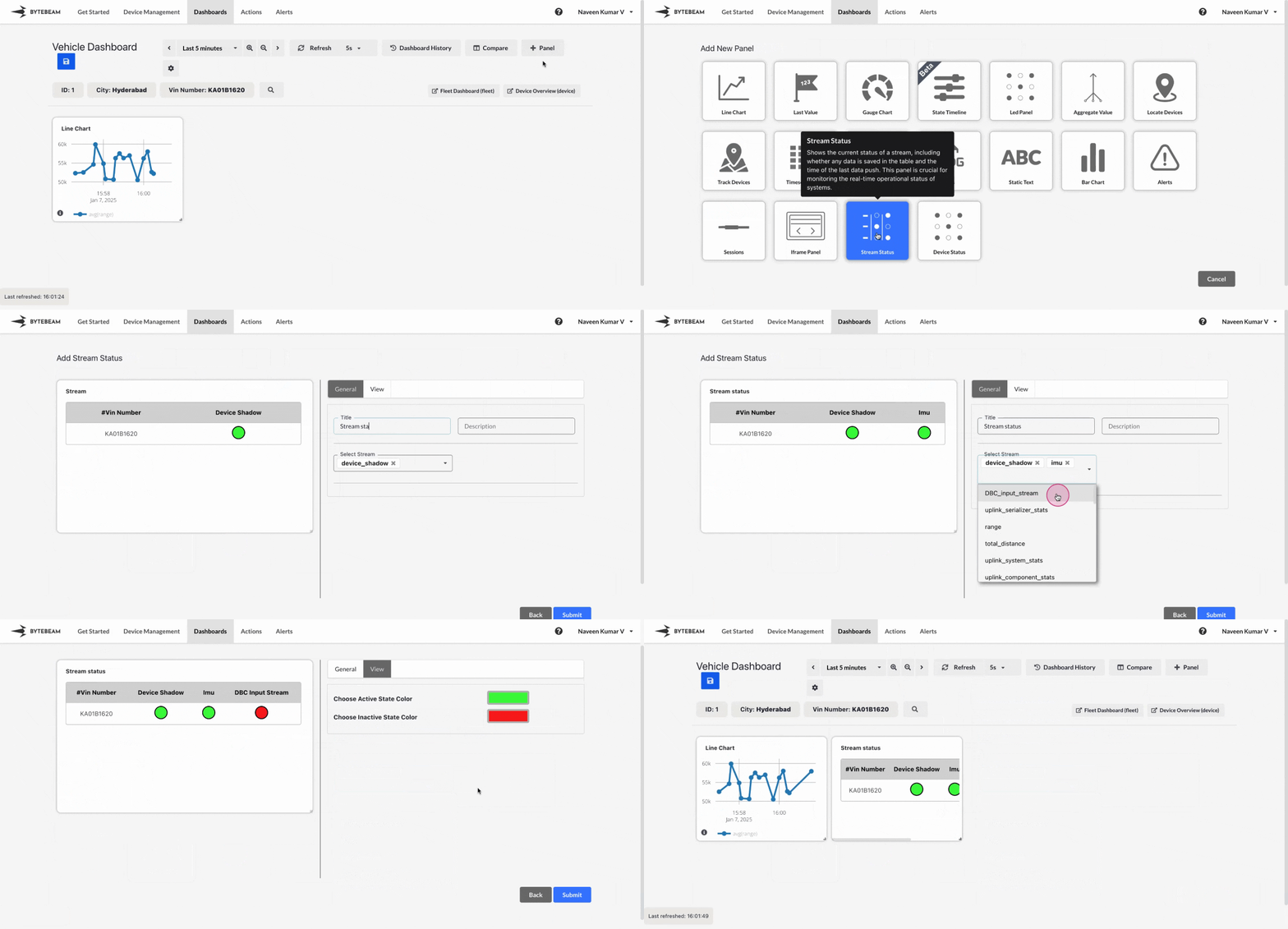
Go to the **Dashboards** tab, select the desired dashboard, and click on the **+ Panel** button to create a new panel.
Choose **Stream Status Panel** from the list of available panels.
* Add a title for the panel.
* Select one or more streams to monitor by choosing them from the dropdown menu.
* Each stream's status will be displayed as active (green) or inactive (red) in the preview.
* Navigate to the **View** tab to set the colors for the active and inactive states of streams.
* The default colors are green for active and red for inactive, but these can be customized to suit your preferences.
* Preview the Stream Status Panel to ensure the selected streams and status indicators are correctly displayed.
* Once satisfied, click **Submit** to add the Stream Status Panel to the dashboard.\
The panel will now show real-time stream statuses in the dashboard layout.
The Stream Status Panel is ideal for monitoring multiple streams in real-time to ensure smooth data flow and detect potential issues quickly.