> ## Documentation Index
> Fetch the complete documentation index at: https://bytebeam.io/docs/llms.txt
> Use this file to discover all available pages before exploring further.
# Sharing a Dashboard
> Steps to share a dashboard from Bytebeam console according to your requirements.
The **Sharing a Dashboard** feature allows you to grant viewing or editing access to specific users or roles in the Bytebeam console. This ensures dashboards can be collaboratively managed or accessed based on predefined roles.
## Steps to Share a Dashboard
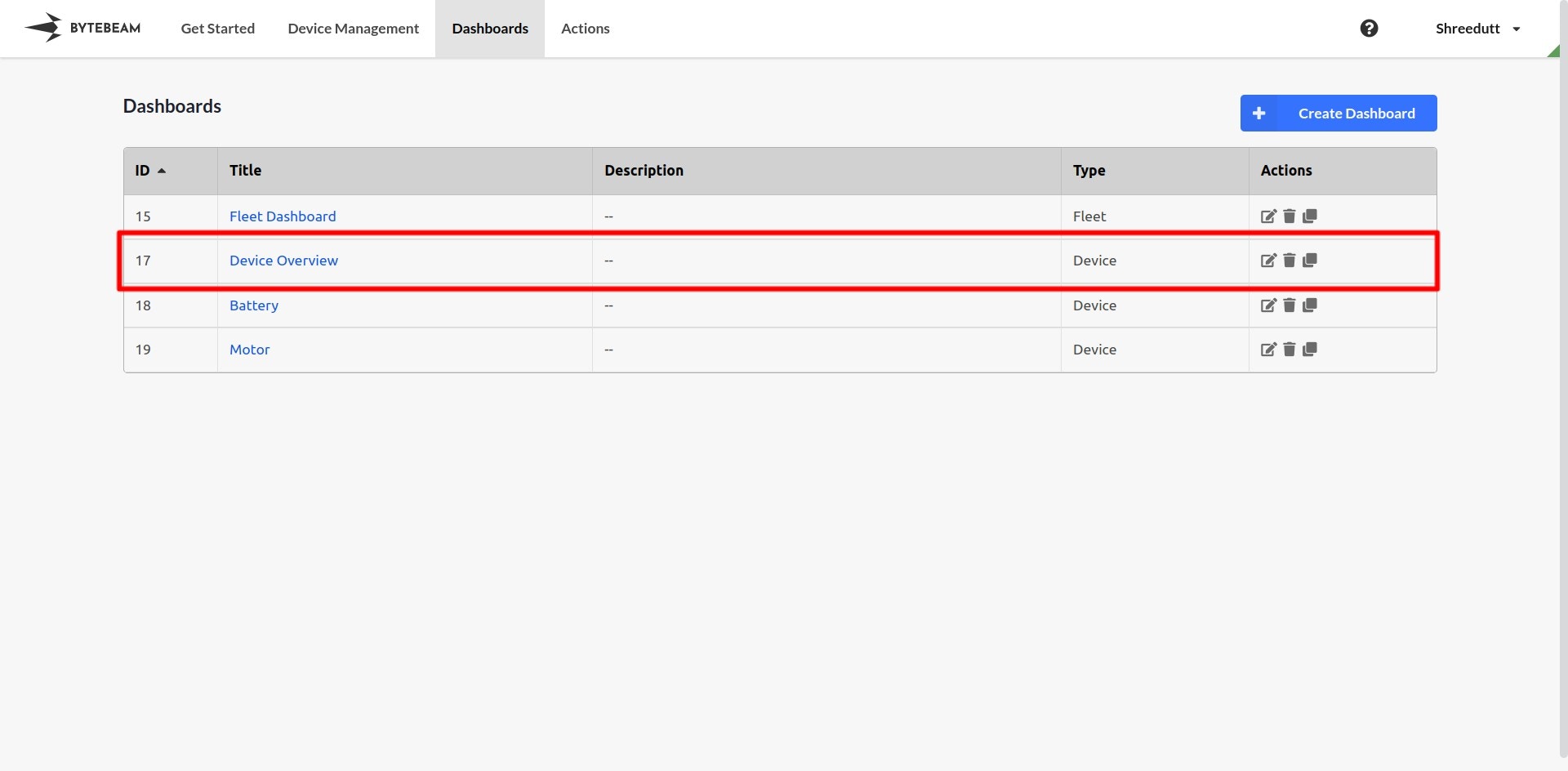
Go to the **Dashboards** tab in the Bytebeam console and locate the dashboard you want to share.
* Click on the **pencil ✎ icon** next to the dashboard name.
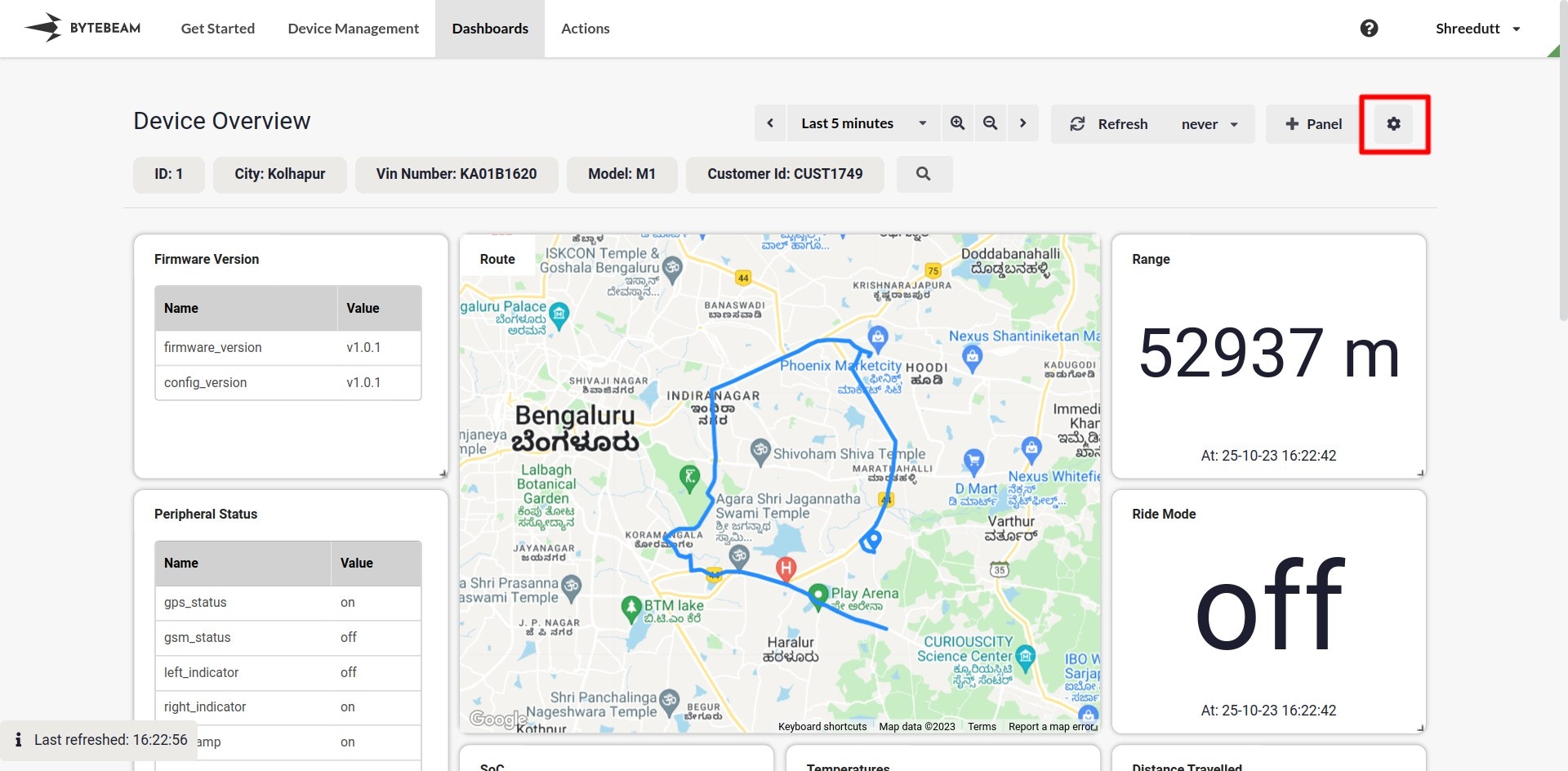
* Alternatively, if the dashboard is already open, click on the **Gear icon** in the top-right corner to access its settings.\
 \\
\\
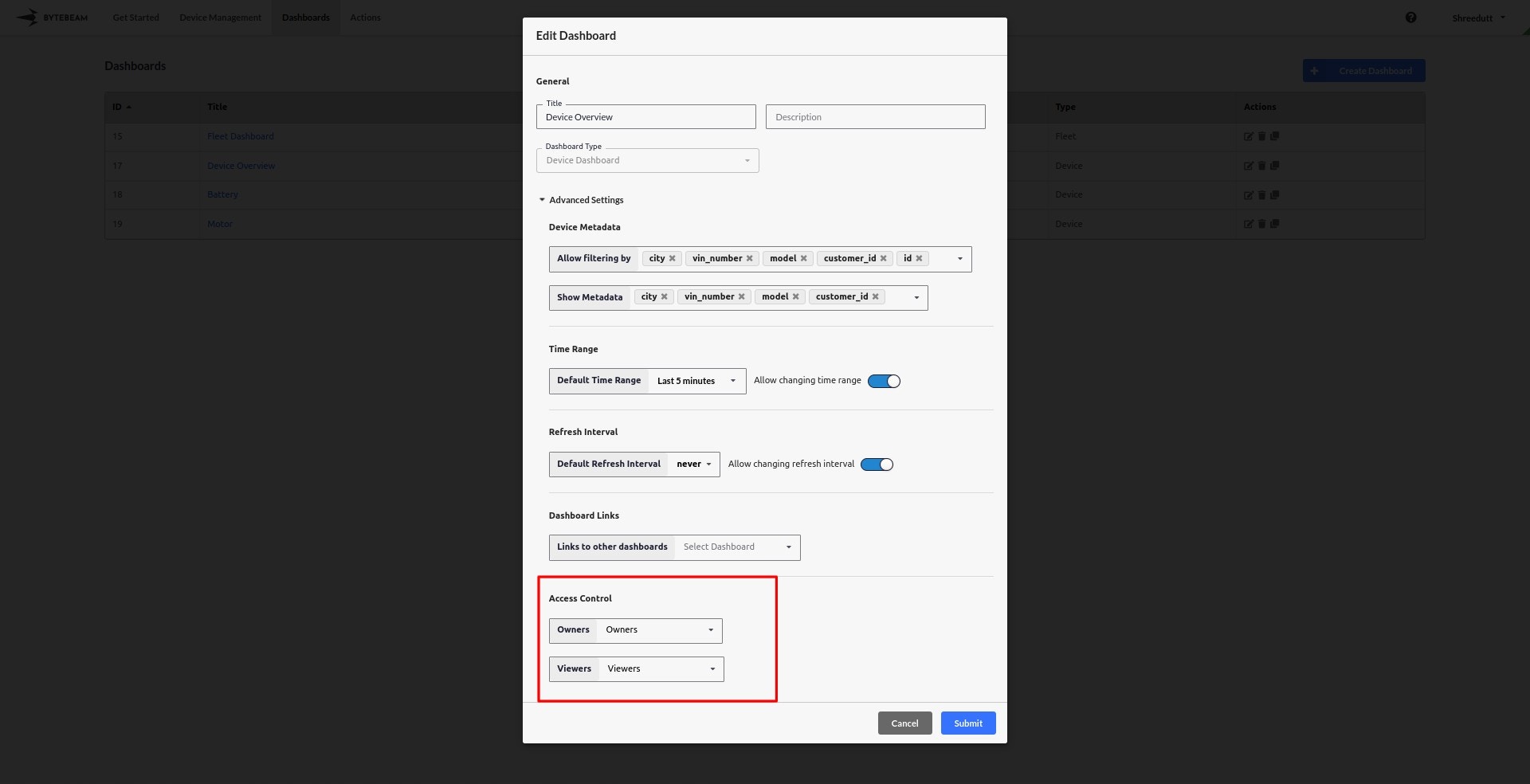
 * In the settings modal, navigate to the **Access Control** section.
* Specify:
* **Viewers**: Users or roles who can view the dashboard.
* **Owners**: Users or roles who can edit the dashboard.\\
* In the settings modal, navigate to the **Access Control** section.
* Specify:
* **Viewers**: Users or roles who can view the dashboard.
* **Owners**: Users or roles who can edit the dashboard.\\
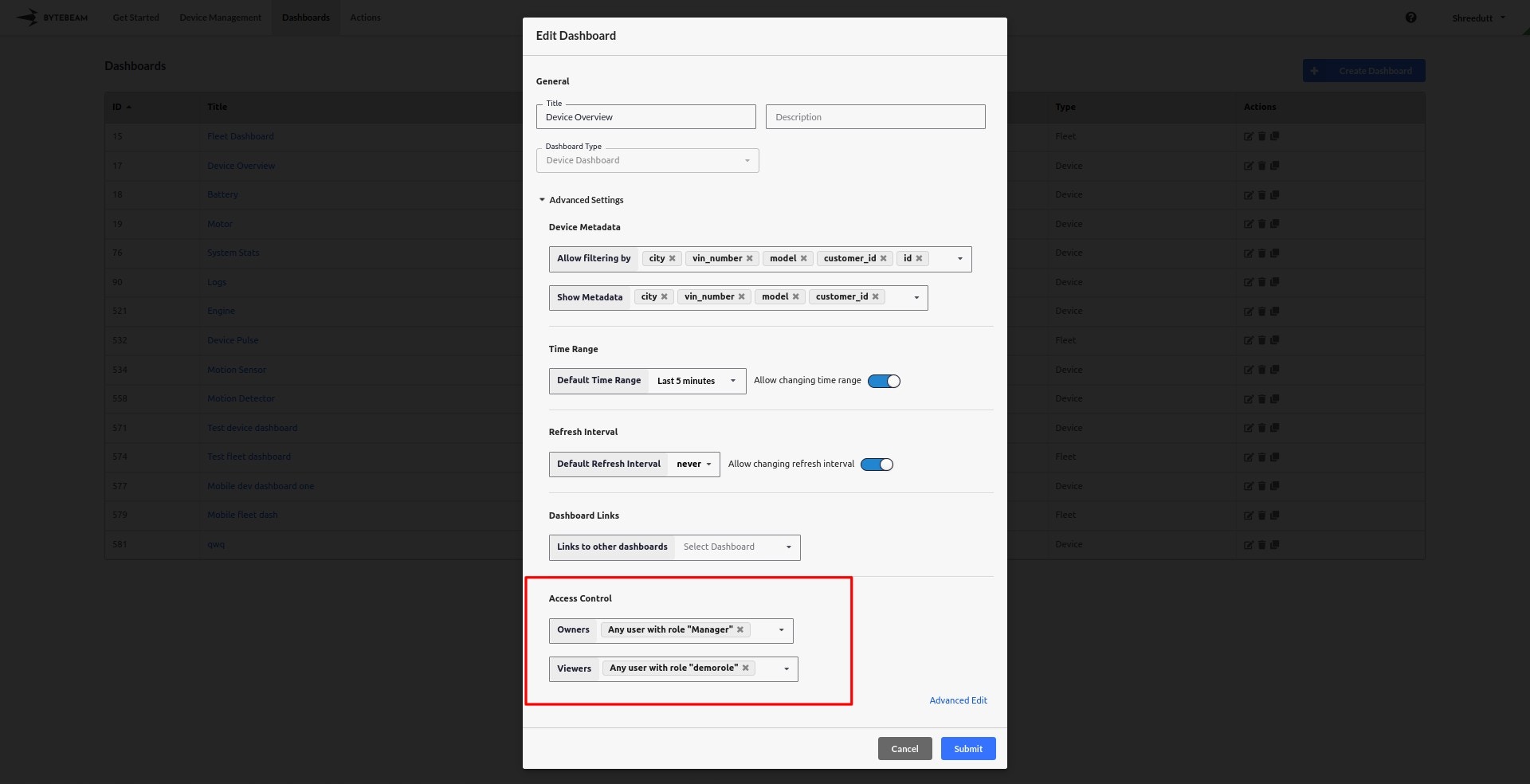
 * Assign roles to viewers and owners. For example:
* Set **"Manager"** as the Owner.
* Set **"demorole"** as the Viewer.
* Adjust roles based on your organization’s access requirements.\\
* Assign roles to viewers and owners. For example:
* Set **"Manager"** as the Owner.
* Set **"demorole"** as the Viewer.
* Adjust roles based on your organization’s access requirements.\\
 Once the access control settings are configured, click **Save** to apply the changes.\
The dashboard is now shared according to the specified access control rules.
Alternatively you can modify sharing settings by staying inside the dashboard through accessing the **Gear icon** in the dashboard’s toolbar.
Once the access control settings are configured, click **Save** to apply the changes.\
The dashboard is now shared according to the specified access control rules.
Alternatively you can modify sharing settings by staying inside the dashboard through accessing the **Gear icon** in the dashboard’s toolbar.