> ## Documentation Index
> Fetch the complete documentation index at: https://bytebeam.io/docs/llms.txt
> Use this file to discover all available pages before exploring further.
# Creating a DBC Parser
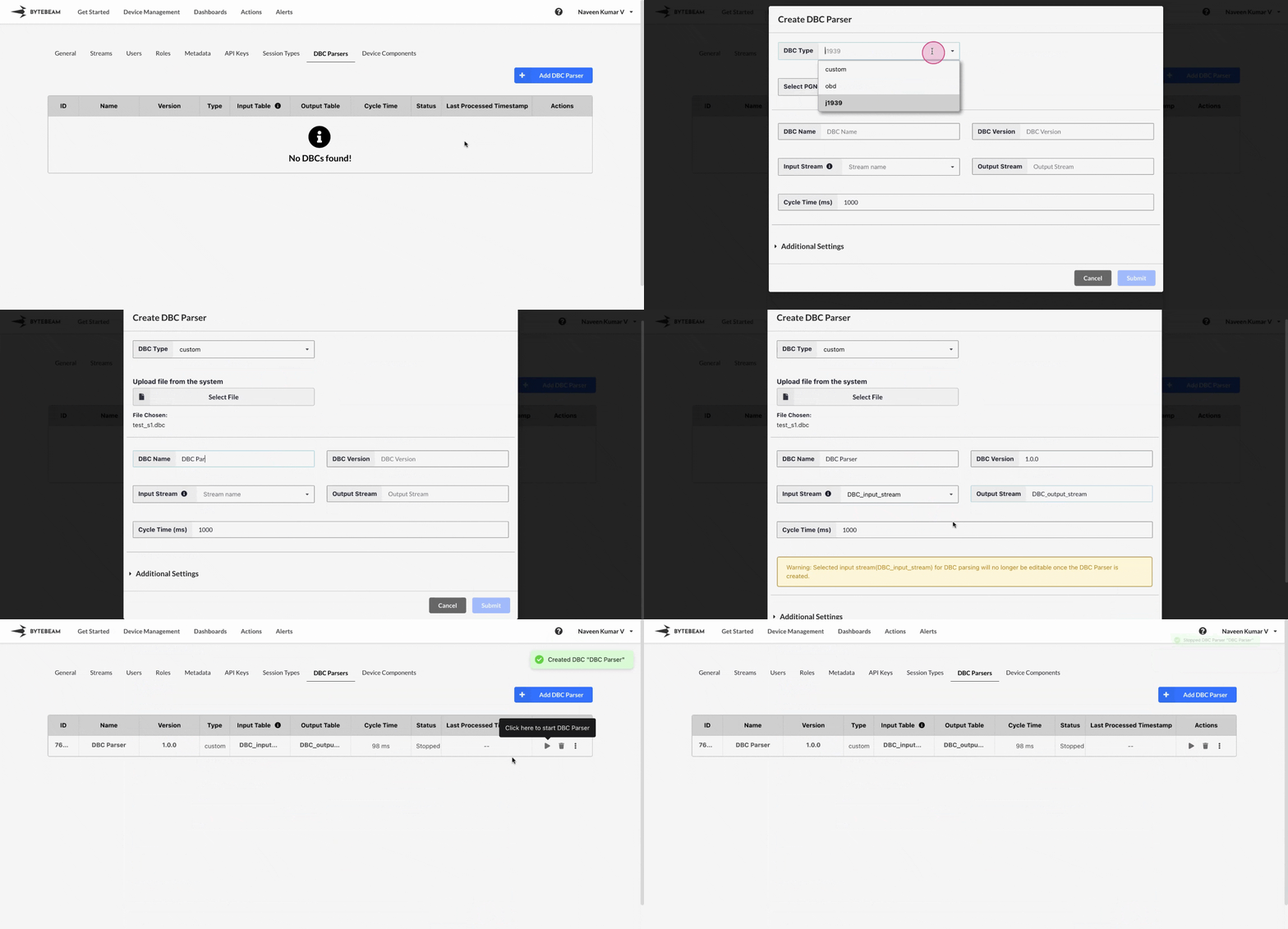
To create a new dbc parser in Bytebeam console,
Navigate to the **Settings Tab** by clicking on your username at the top right
Navigate to the **DBC Parsers** tab and click on the **+ Add DBC Parser** button
Select the DBC Type and fill all the other details such as DBC Name, DBC Version, Input Stream, Output Stream, Cycle time and Advanced settings(Optional) and click on **Submit** button to create the parser.
## DBC types
There are 3 DBC types available.
You can upload the custom DBC file to create the parser instead of relying on standard DBCs.
You can choose this and select the PGNs(Parameter Group Numbers) from the dropdown to create the parser.
You can choose this and enter the CAN ID to create the parser.
## Important Info
Use the icons next to each created dbc parser to start or stop the parser.
Adding CAN ID as suffix to columns and disabling enum parsing is not allowed when you choose DBC type as j1939 or obd.
Hover over the DBC name to view its ID and name in the tooltip. Click on the name to copy both to the clipboard.