> ## Documentation Index
> Fetch the complete documentation index at: https://bytebeam.io/docs/llms.txt
> Use this file to discover all available pages before exploring further.
# Downloading/Updating Metadata in Bulk
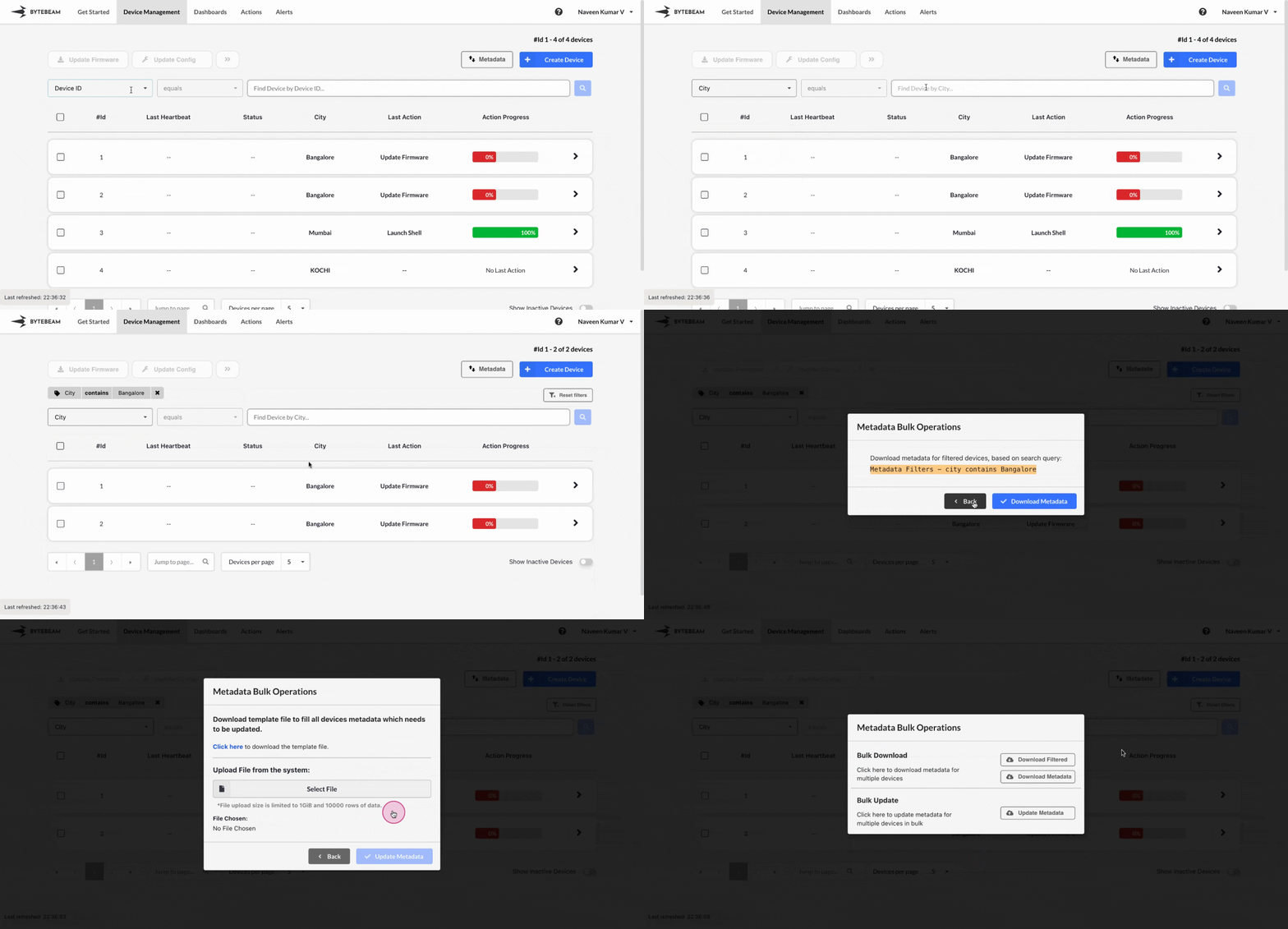
You can download or update metadata for all devices in bulk using the Bytebeam console.
To download all device metadata in bulk:
Click on the **Device Management** tab at the top.
Click on the **Metadata** option at the top.
Select **Download All** to download all device metadata as a CSV file.
To download filtered metadata in bulk:
Click on the **Device Management** tab at the top.
1. Click on the **Filters** option at the top.
2. Use the dropdown to search for and select a metadata key (e.g., City) or device shadow column (e.g., Mode).
3. Enter a value (e.g., Bangalore for City or 100 for Mode) and press **Search** or **Enter**.
Click on the **Metadata** option at the top.
Select **Filter Download** to download metadata for the filtered devices as a CSV file.
To update device metadata in bulk:
Click on the **Device Management** tab at the top.
Click on the **Metadata** option at the top.
Select **Update** and download the template by clicking on the "Click here" link.
Fill out the downloaded CSV file with updated metadata values, then upload it and click on **Update Metadata**.
You will receive a success message once the update is completed.
## Important Info
Ensure the serial metadata key is included with unique values for each device when uploading the updated file if the serial key is set.