> ## Documentation Index
> Fetch the complete documentation index at: https://bytebeam.io/docs/llms.txt
> Use this file to discover all available pages before exploring further.
# Using Filters in Device Management
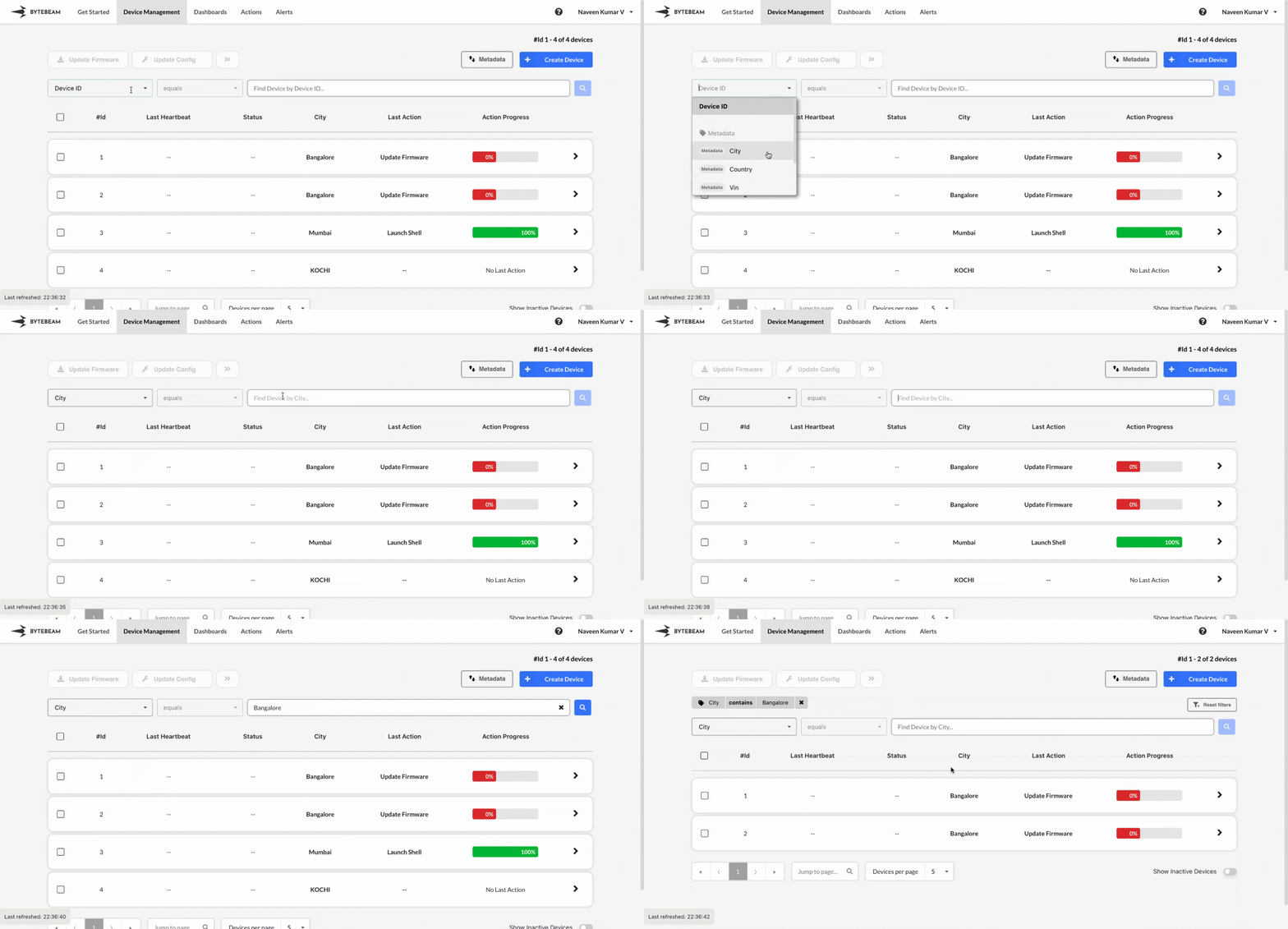
When managing many devices, finding a specific one can be challenging. The Bytebeam console offers an advanced **Filters** option to help with this.
To apply filters in the console, follow these steps:
Click on the **Device Management** tab at the top.
You can apply the filter in two ways:
1. **Using Metadata Keys**:\
Click on the dropdown at the top and select a metadata key from the dropdown list (e.g., City), enter its value (e.g., Bangalore), and hit **Enter** or click the **Search** icon.
2. **Using Device Shadow Columns**:\
Click on the dropdown at the top and select a column from the `device_shadow` stream in the dropdown list (e.g., Mode), enter its value (e.g., On/Off), and hit **Enter** or click the **Search** icon.
The data persists when the device shadow filter is applied, and you can refresh the data manually using the **Refresh** button.
Once applied, the filter will appear at the top with the selected keys and values and you can reset the filters using **Reset Filters** button.
## Important Info
Filters applied using Metadata keys support **partial search** for added convenience.
Use the operator dropdown to select different conditions when applying filters using Device Shadow columns.
Filters can combine metadata keys and device shadow columns for more specific results.