> ## Documentation Index
> Fetch the complete documentation index at: https://bytebeam.io/docs/llms.txt
> Use this file to discover all available pages before exploring further.
# General Settings
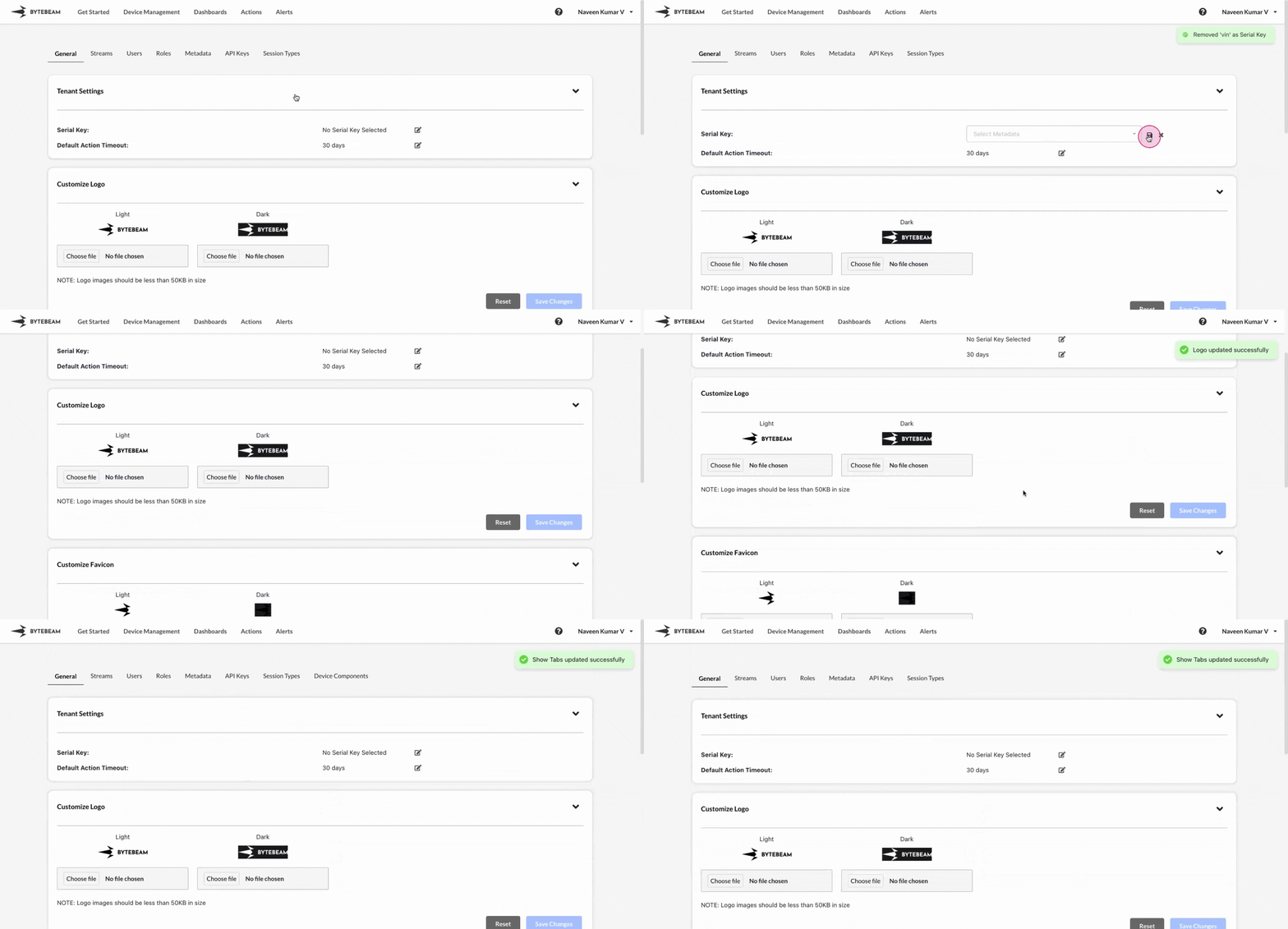
All features in the General settings are applied at the project level and are applicable to all users within that project.
### Serial Key
This feature allows you to set any metadata key as a serial key, replacing the device ID throughout the console. For example, if you have a metadata key such as the device's registration number, you can use it to identify the device instead of the default Device ID.
To set a metadata key as serial key,
Navigate to the **Settings Tab** by clicking on your username at the top right
Navigate to the **General** tab and click on the **Edit** icon at the serial key section
Select the metadata key from the dropdown and click on **Save** icon to set the serial key.
Metadata key should have non null and unique values to be set as serial key
## Global Timeout
The global timeout applies to all action types that are stuck in any state other than "Scheduled," "Failed," or "Completed."
To configure the global timeout:
Navigate to the **Settings** tab by clicking on your username at the top right.
Go to the **General** tab, and click the edit icon next to **Default Action Timeout**.
Select a duration from the **Timeout dropdown**, or set a custom time, then click the **Save** icon.
The default global timeout for new projects is set to 30 days.
### Customize Logo & Customize Favicon
You can add your logo and favicon to the console for a more personalized experience.
To set a customized logo/favicon in the console,
Navigate to the **Settings Tab** by clicking on your username at the top right
Navigate to the **General** tab and click on the **Choose File** option at Dark or Light sections
Upload a picture from the system and click on **Save Changes** button
You can reset the uploaded logo/favicon by clicking on Reset button
### Modules Enabled
This feature is used to hide unwanted tabs from the console.
To enable or disable any tab in the console,
Navigate to the **Settings Tab** by clicking on your username at the top right
Navigate to the **General** tab and click on the **Modules Enabled** accordion
Enable or Disable the toggle to show or hide any tab in the console.