> ## Documentation Index
> Fetch the complete documentation index at: https://bytebeam.io/docs/llms.txt
> Use this file to discover all available pages before exploring further.
# Creating a Stream
Streams (Data Tables) are essential in IoT, enabling real-time processing and analysis of data from connected devices, sensors, and systems.
Before streams can be used to build panels in dashboards, they must first be created in the Settings/Streams section. The stream name must match the actual stream produced by the device.
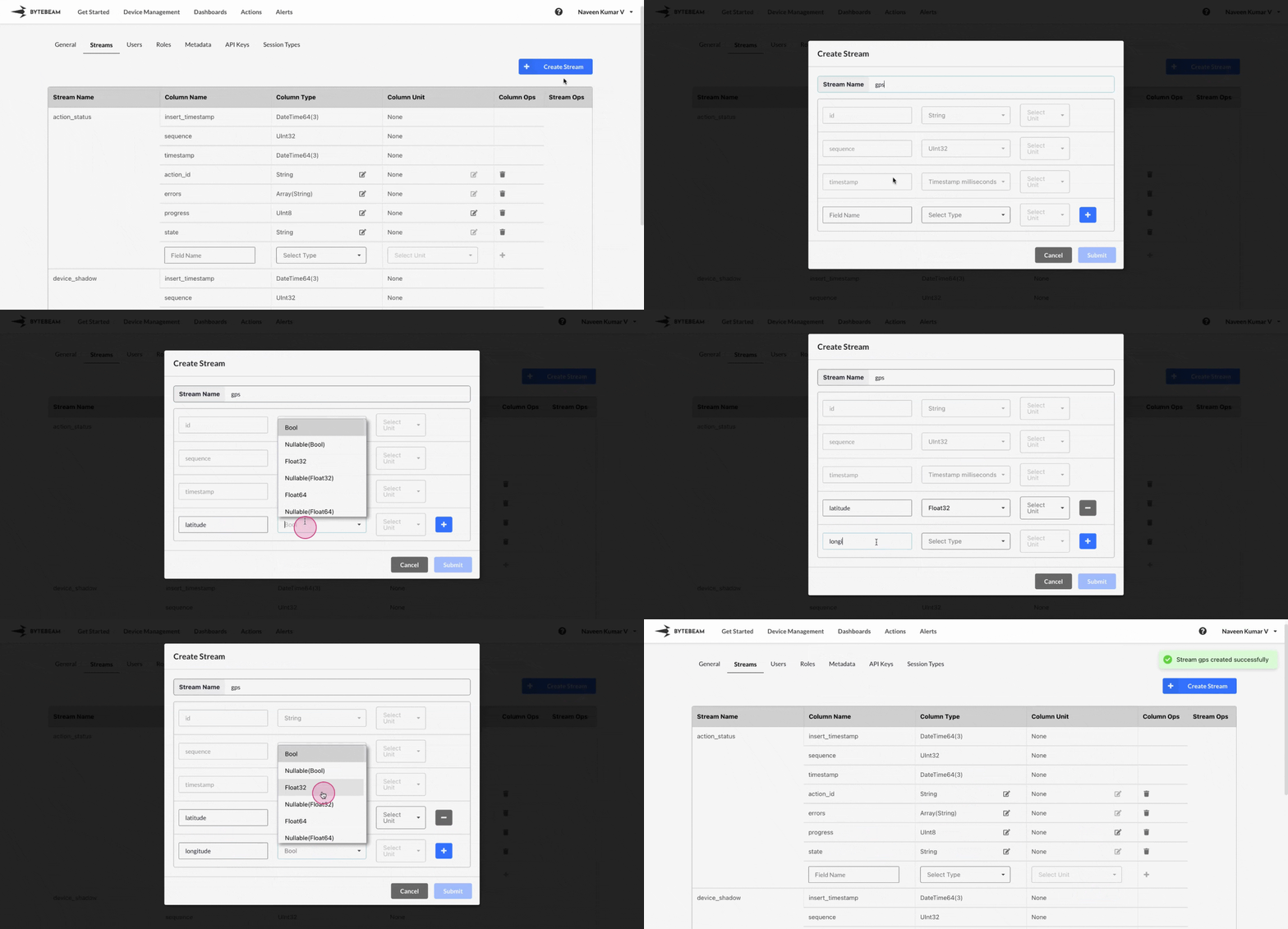
To create a stream in Bytebeam console,
Navigate to the **Settings** Tab by clicking on your username at the top right
Go to **Streams** tab and click on the **Create Stream** button
Type the Stream name, fields along with datatypes, then click on **Submit** button to create the stream.
## Important Info
Make sure the stream name on the platform matches the actual stream name generated by the device.
The **Timestamp** and **Sequence** fields are automatically added to every Stream by default.
* The **Timestamp** indicates when an event occurred, while the **Sequence** is an auto-increment field pushed by the device. It is used internally to ensure all data sent by the device has reached the server.
By default **device\_shadow** and **action\_status** streams get created for every new project