

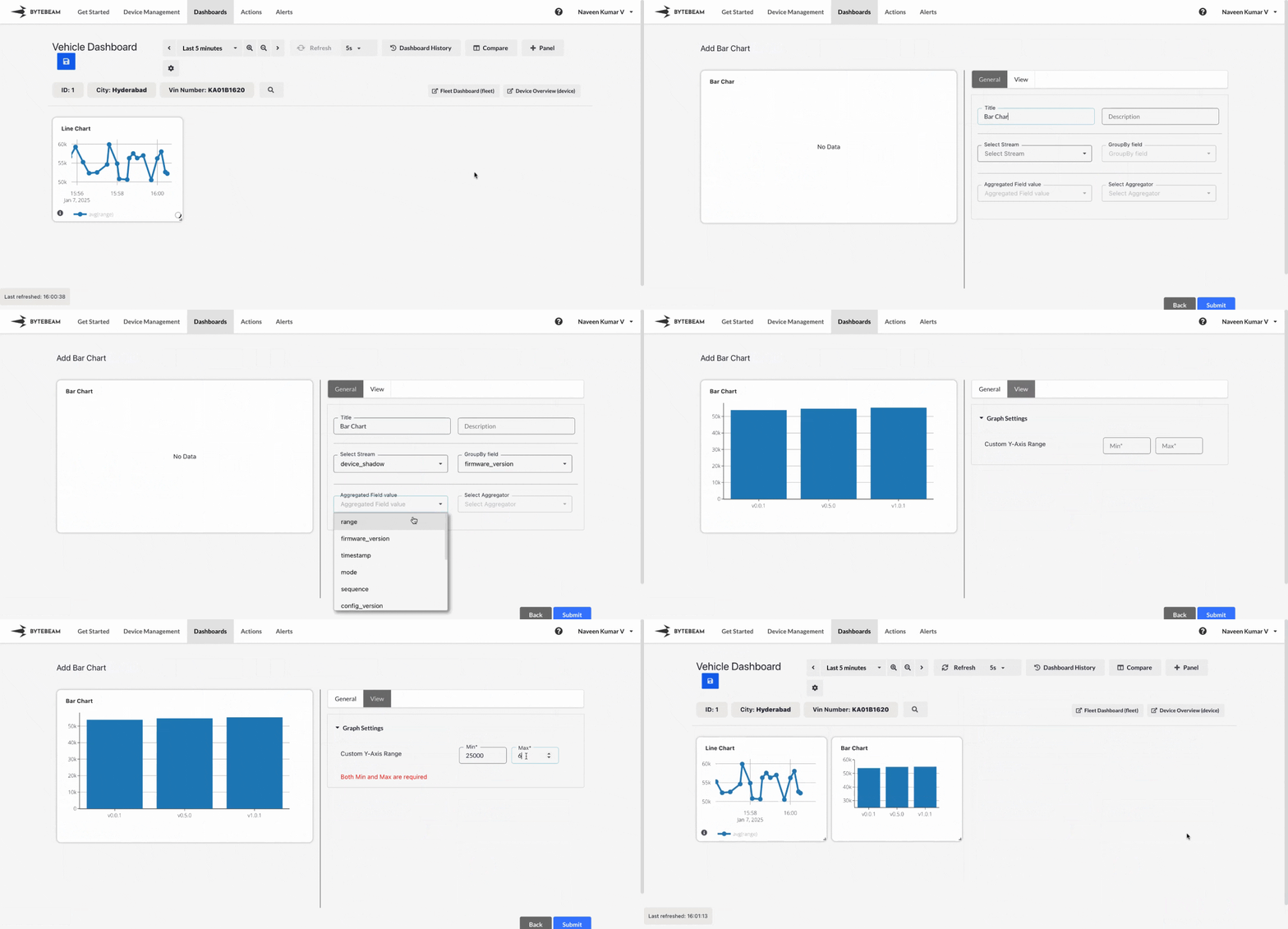
Add Bar Chart Panel
1
Navigate to Dashboards
Go to the Dashboards tab, select the desired dashboard, and click on the + Panel button to create a new panel.
2
Select Bar Chart Panel
Choose Bar Chart Panel from the list of available panels.
3
Configure General Settings
In the General tab:
- Title: Add a title for the panel (optional).
- Stream: Select the data stream to use.
- Group By Field: Specify the column by which the data should be grouped (e.g., device ID or firmware version).
- Aggregated Field: Select the column you want to visualize (e.g., range, timestamp).
- Select Aggregator: Choose the aggregation method (e.g., average, sum, count).
4
Customize View Settings
Switch to the View tab to adjust the graph settings:
- Custom Y-Axis Range: Define a minimum and maximum range for the Y-axis to focus on specific data ranges.
5
Submit the Panel
Once all configurations and customizations are complete, click Submit to add the Bar Chart Panel to the dashboard.
The bar chart will now display the data grouped and aggregated based on the configured settings.
The bar chart will now display the data grouped and aggregated based on the configured settings.