

Add Logs Panel
1
Navigate to Dashboards
Go to the Dashboards tab, select the desired dashboard, and click on the + Panel button to create a new panel.
2
Select Logs Panel
Choose Logs Panel from the list of available panels.\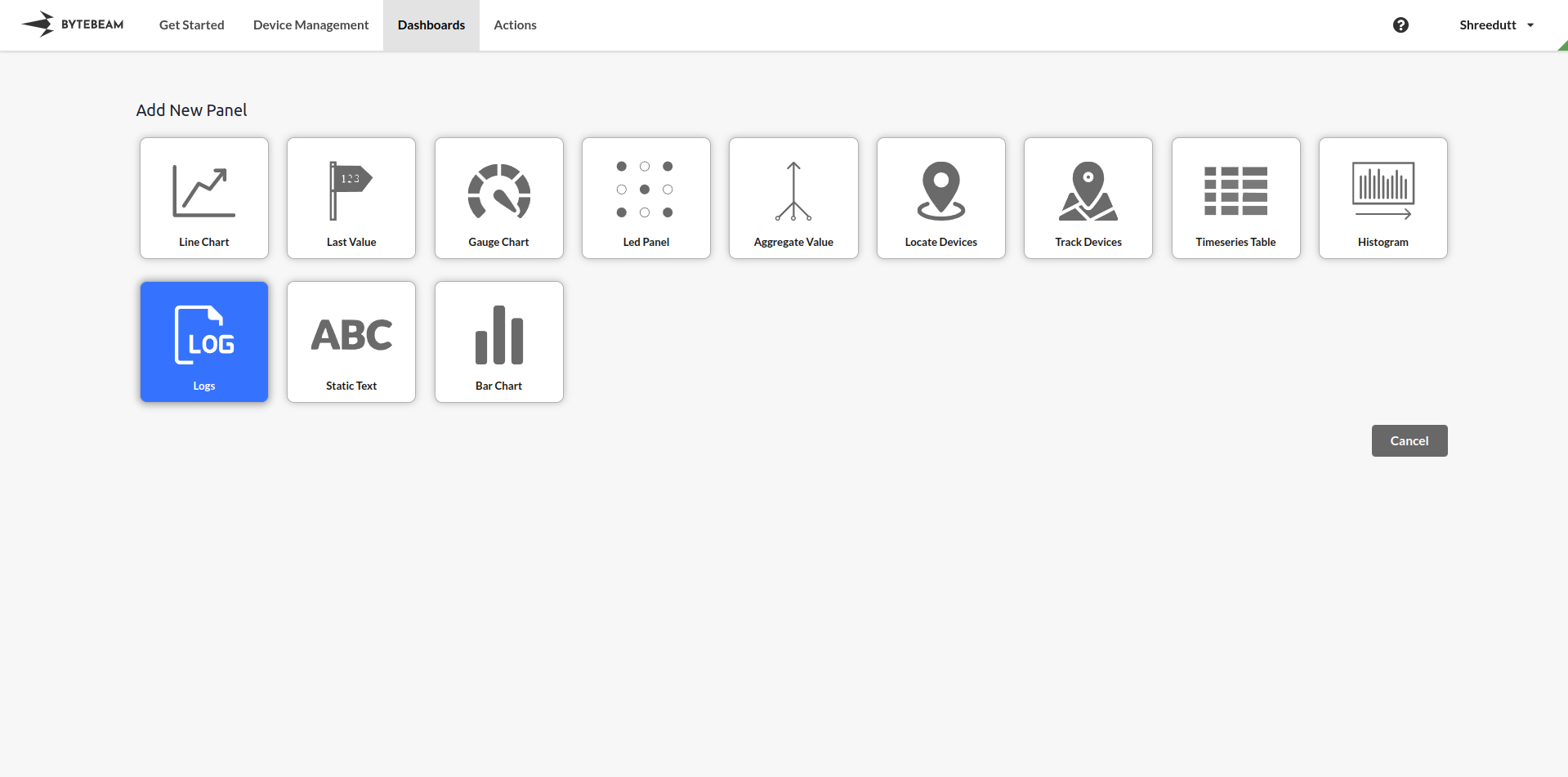
3
Configure General Settings
In the General tab: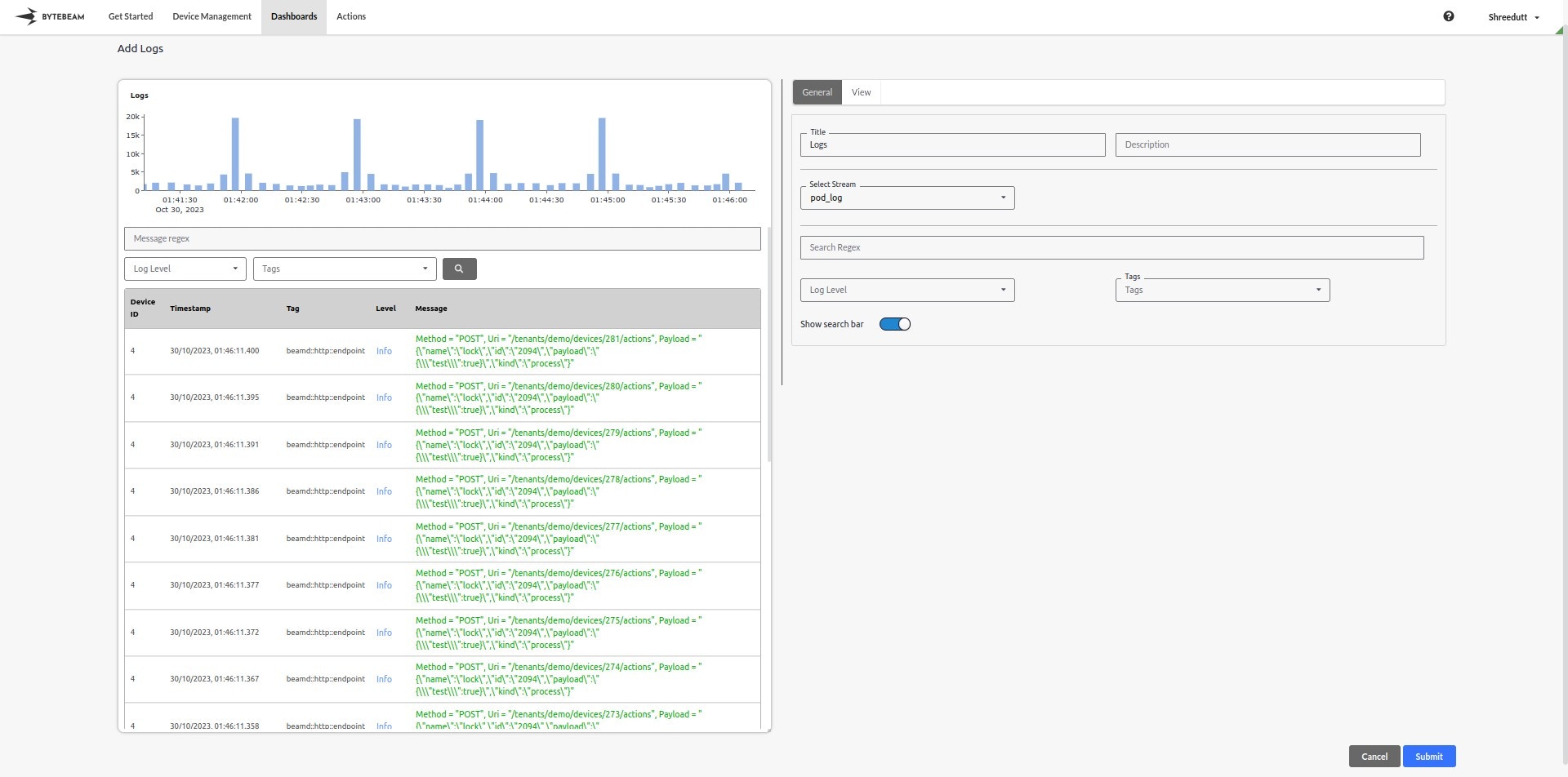
- Title: Add a descriptive title for the panel (optional).
- Stream: Select the data stream containing log information.
- Search Bar: Enable the search bar option to search with a regular expression.
- When enabled, the search regex, log level, tags, and search icon will appear in the preview panel.
- Search Regex: Enter a regex pattern to filter messages.
- Log Level: Specify a log level (e.g., info, warning, error).
- Tags: Select or enter tags to further filter the logs.
4
Customize View Settings
Switch to the View tab to adjust the graph settings:
-
Number of Bins: Adjust the slider to define the number of bins for the histogram of log events.

5
Submit the Panel
Once all configurations and customizations are complete, click Submit to add the Logs Panel to the dashboard.
The panel will now display real-time or historical logs based on the configured filters, allowing for efficient log monitoring and analysis.
The panel will now display real-time or historical logs based on the configured filters, allowing for efficient log monitoring and analysis.